Learning Studio / ai
Connect objectives to evidence
Understand how objectives, pages, blocks, and questions connect, then use Learning Design and Review to find gaps.
A learning objective describes what learners should be able to do. Alignment connects that objective to the content that teaches it, the activities that let learners practice it, and the questions that check it.
For example, if an objective asks learners to choose the right response to a customer complaint, look for an explanation of how to make that choice, a chance to try it, and a question that asks them to apply it. A question that only asks them to recall a definition may not give you the evidence you need.
Keep your objectives in one place
Section titled “Keep your objectives in one place”Edit objectives in Course settings or in the Learning Design workspace on the Goals & objectives tab. Both places edit the same course list. The Learning objectives block on a page displays that list; you don’t maintain a separate copy on the page.
Each objective in Goals & objectives shows a status: Covered, Not assessed, Not taught, Practiced, not assessed, Practiced only, Planned, or Not started. Select an objective to see where it is Taught on, Practiced in, and Assessed by. The status reflects which links exist, not whether the content is strong enough.
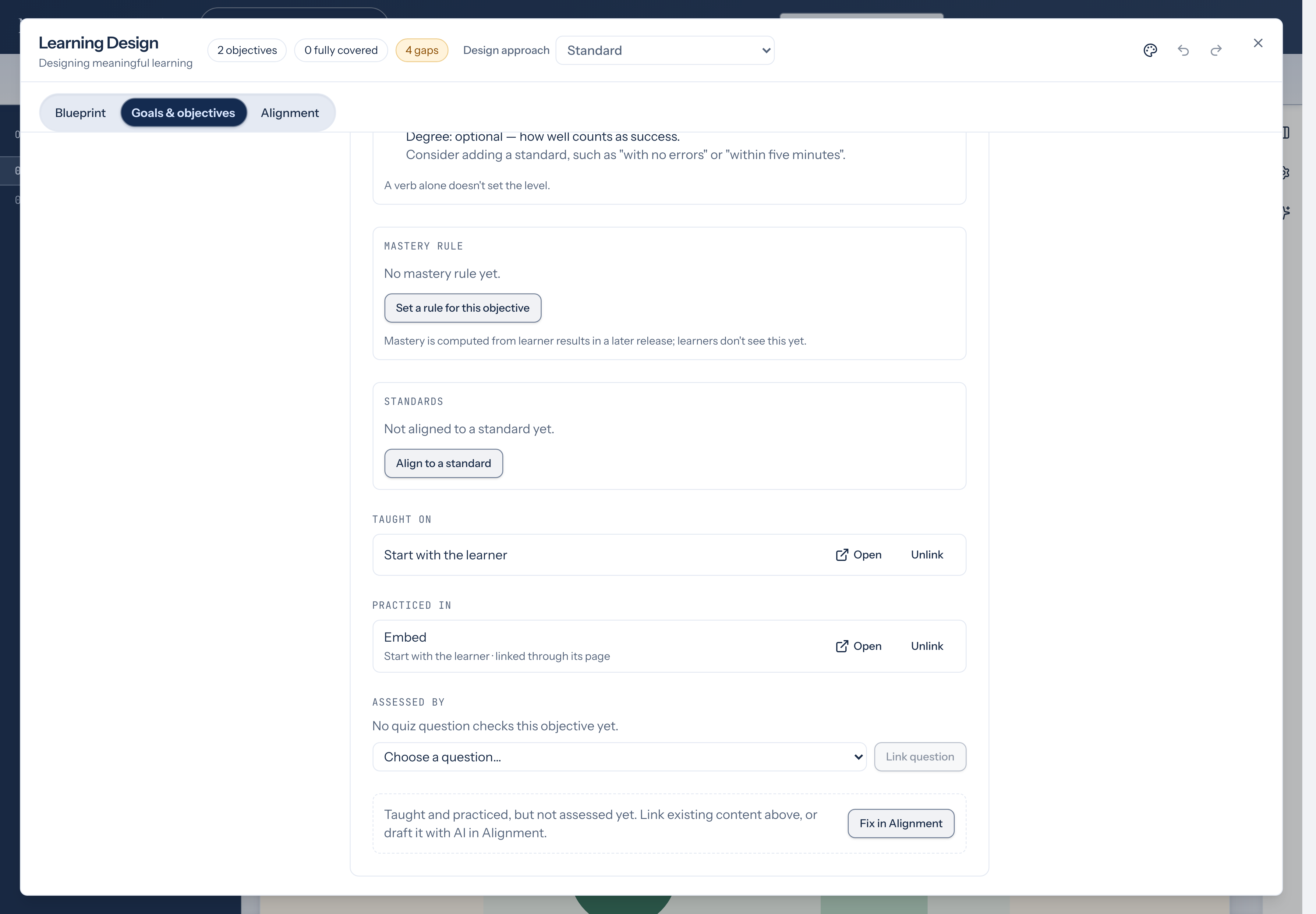
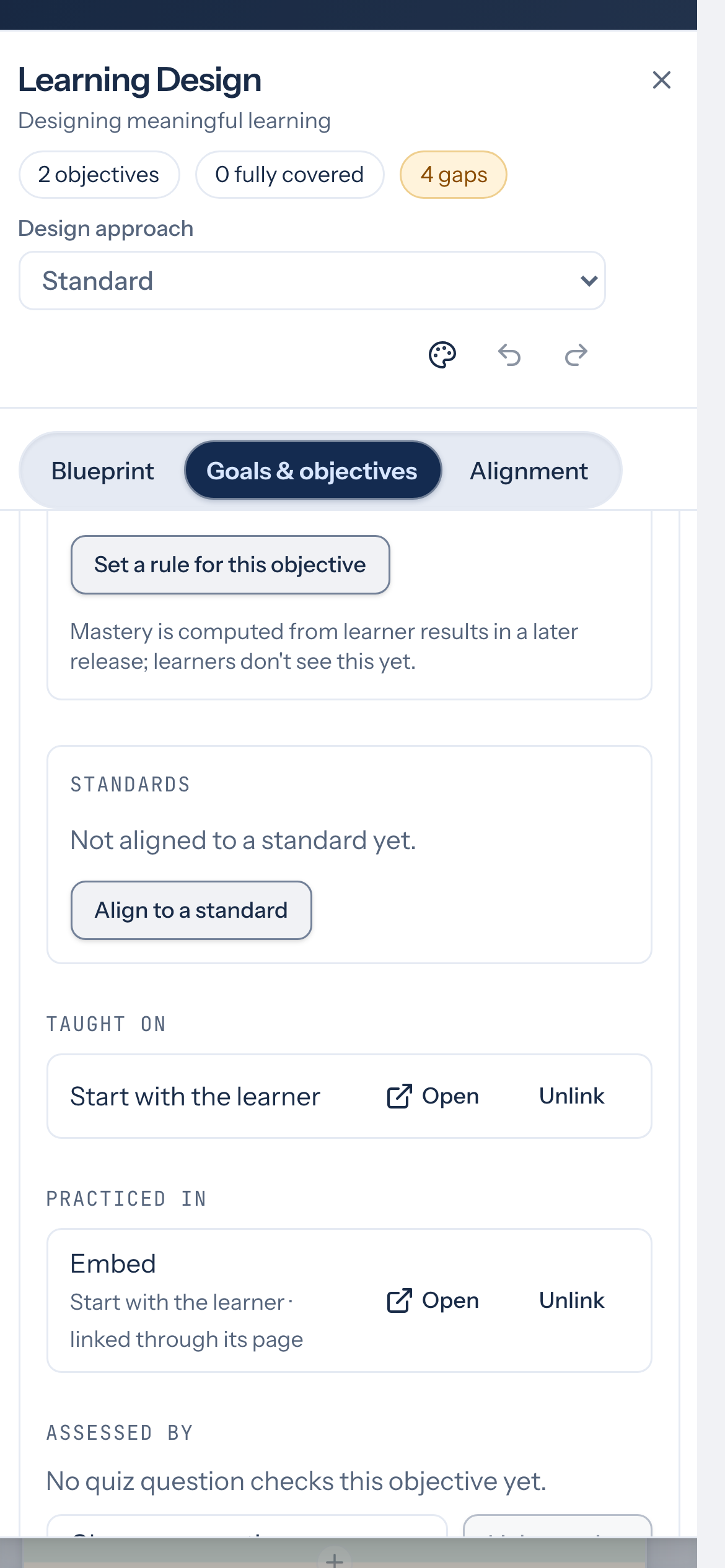
Teaching, practice, and assessment
Section titled “Teaching, practice, and assessment”Links count in three ways:
- Teaching: content pages, and content blocks such as text, callouts, accordions, image hotspots, images, and video.
- Practice: checklists, reflections, choice scales, copy-prompt blocks, embeds, and questions in practice-mode quizzes.
- Assessment: questions in scored quizzes.
An objective is Covered when it is both taught and assessed. Practice on its own does not cover an objective; a taught and practiced objective without a scored question shows Practiced, not assessed. To link individual blocks, see Link blocks to objectives.
Look for gaps in Alignment
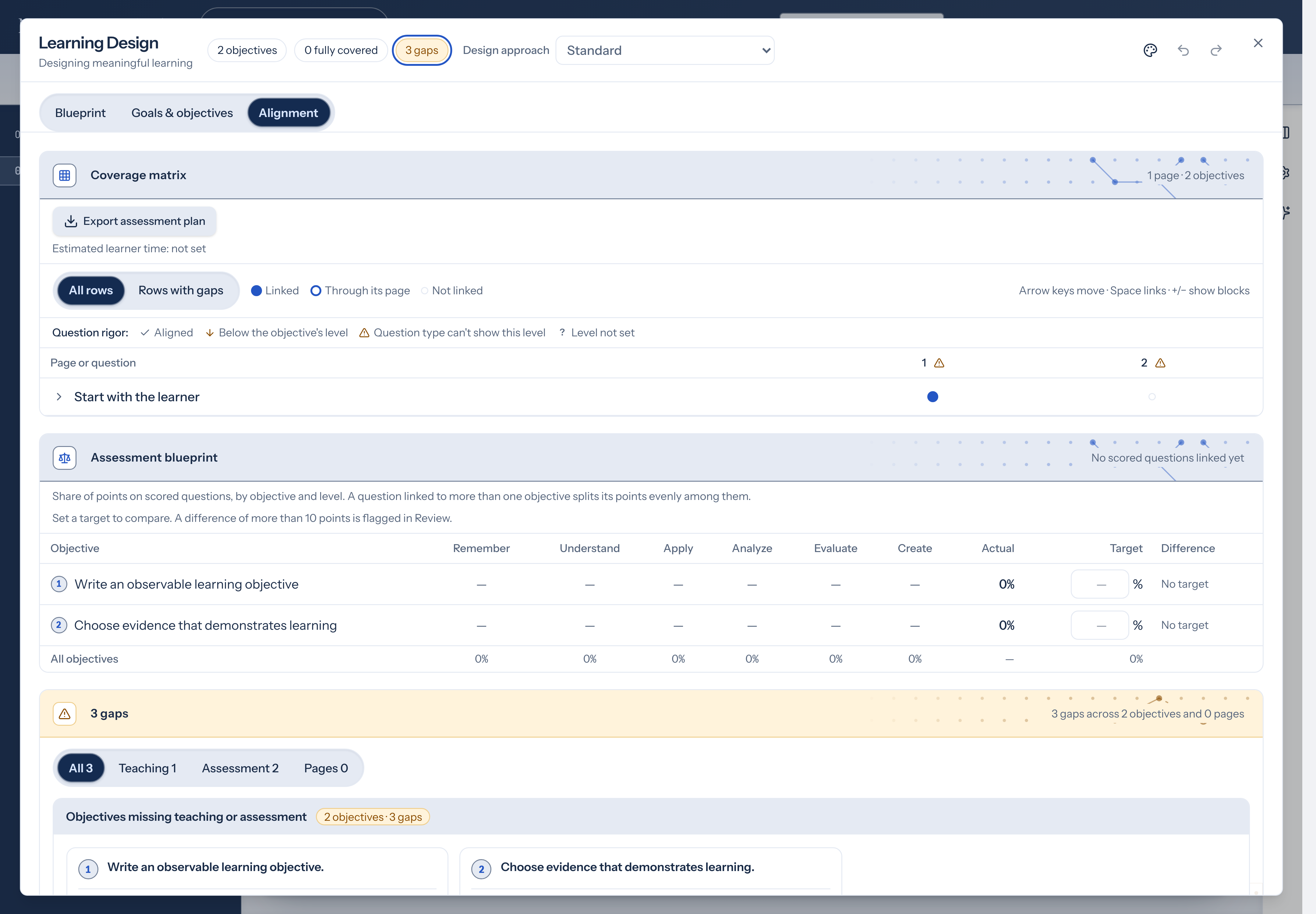
Section titled “Look for gaps in Alignment”Link objectives to pages, blocks, and quiz questions, then open the Alignment tab to inspect the matrix and the gap list.
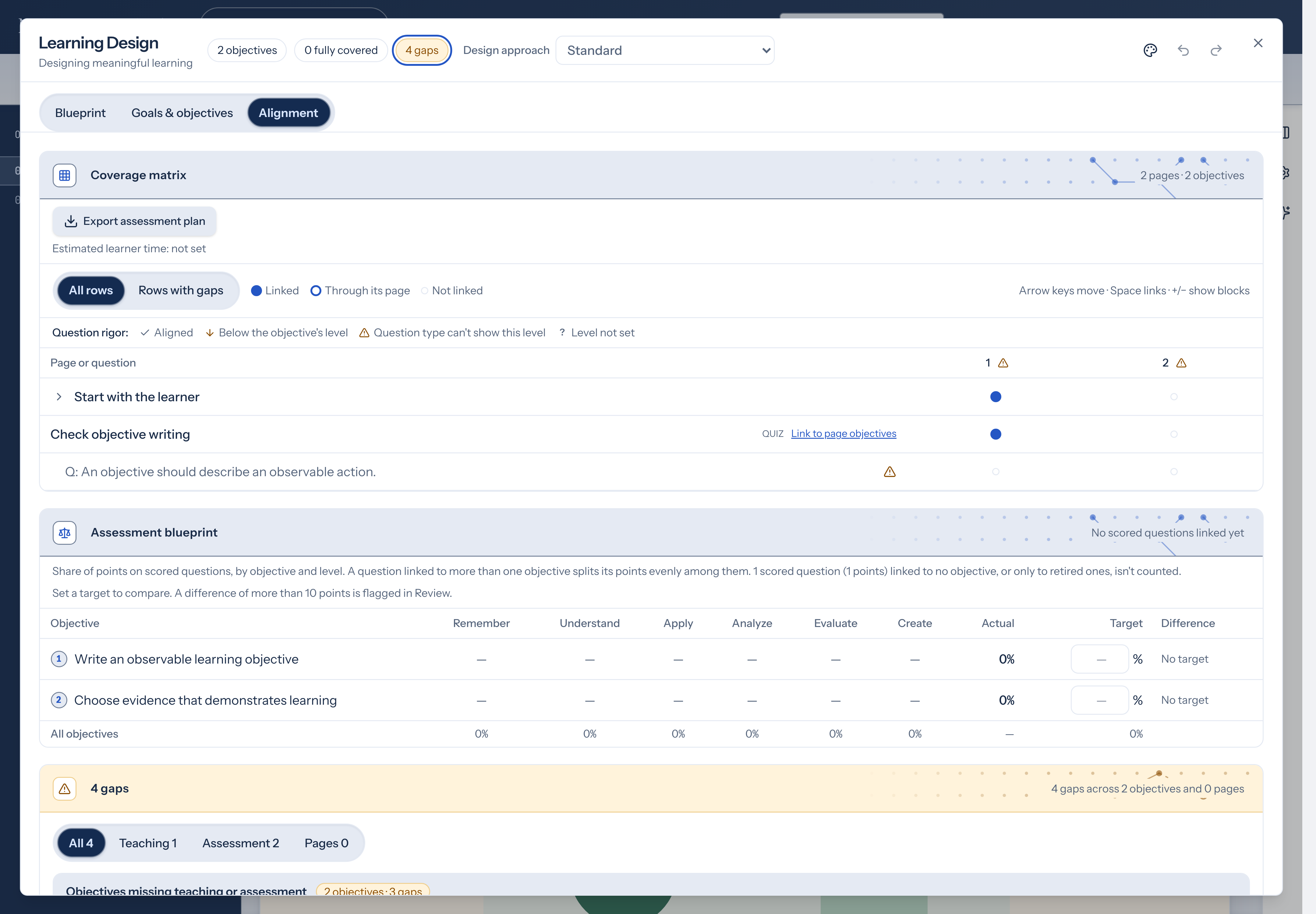
Each row is a page or question, and each column is an objective. A filled dot means the row is linked directly. An outlined dot (Through its page) means a block or a practice question uses its page’s objectives. Use Rows with gaps to hide rows that are already linked, and the +/− control on a page row to show its blocks. With the keyboard, use the arrow keys to move, Space to link or unlink, and +/− to show blocks.
Linked scored questions also show a rigor mark: Aligned, Below the objective’s level, Question type can’t show this level, or Level not set. The Question rigor: legend under the toolbar explains the marks. See Check question rigor in the matrix.
Scored questions count only the objectives you link to each question. They don’t pick up their quiz page’s objectives, so a scored question with no links of its own shows as unlinked, and its points count as unlinked in the blueprint. When a quiz page has objectives and some of its scored questions have no links yet, its row offers Link to page objectives (it uses your course’s word for objectives). It links each of those questions to the page’s objectives in one step, leaves questions that already have links, or have links turned off, as they are, and Undo reverses it. Check each question afterwards and remove objectives it doesn’t really assess.
Below the matrix, the Assessment blueprint panel shows how linked scored points split across objectives and the course’s first framework levels, and lets you set optional targets. See Balance a quiz with the assessment blueprint.
Rows can also show:
- Instruction or Practice on block rows, and Practice on practice-mode questions.
- links off when a block or question has been set to count toward no objective.
- Reset to page when a block or practice question has its own links and you want it to use the page’s objectives again.
- Link to page objectives on a quiz page row whose scored questions include some with no links.
- locked for locked quizzes. You can’t change their question links in the matrix.
When a gap names a missing teaching page or quiz question, choose Link existing to pick a visible teaching page or question. The list includes items linked to other objectives; choose Link to add this objective while keeping their existing links. Locked quizzes appear in the list, but their Link control is disabled.
For an unlinked page or question, use Open page or Open question on the gap row. The workspace closes so you can edit on the canvas, and a banner offers Back to Learning Design to return to the tab you left.
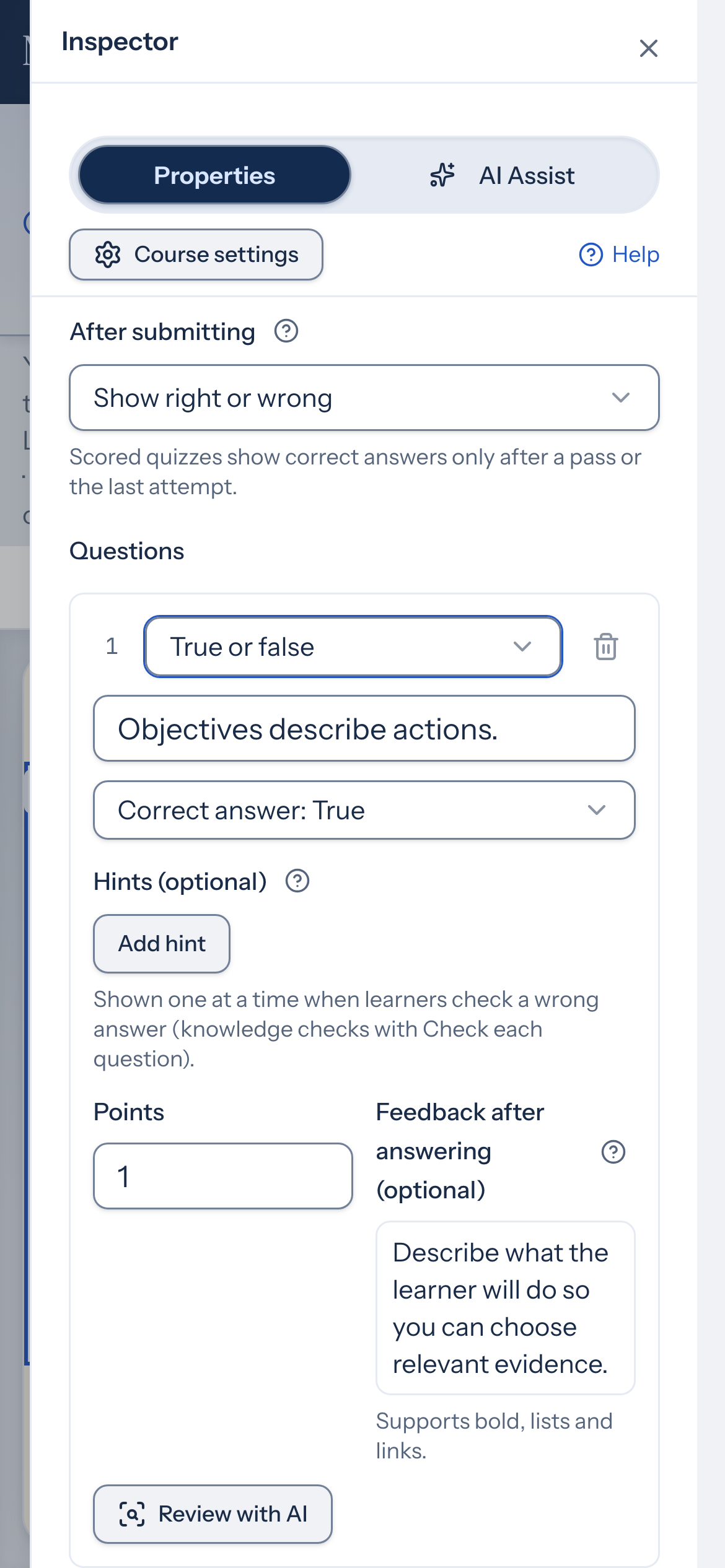
On a phone, open the objective in Goals & objectives. Under Assessed by, choose Open next to a linked question to edit it in the Inspector.
When an objective has no content or no assessment, you can choose Draft content or Draft a question to generate a suggestion. The suggestion changes one page: for a missing question, a quiz page linked to the objective (or the first quiz page, or a page that teaches it); for missing content, a content page already linked to the objective (or the first content page; if the course has only quiz pages, add a content page first). Save any pending changes first. Read the suggestion, then choose Use to apply it in one edit and link it to the objective, or Discard to close it. You can undo with Ctrl/Cmd+Z. If the course changed while the suggestion was open, Use keeps your current work and asks you to try again.
Coverage checks
Section titled “Coverage checks”In courses without Backward Design, Alignment shows a Coverage checks section when it finds something. With Backward Design on, the same checks appear in Design checks.
- Never practiced (Look at): an objective is taught and assessed, but no practice activity or knowledge check is linked to it. Learners do better on assessments when they practice the same skill first.
- Teaching block not linked (Note): a teaching block on a page that serves objectives has its objective links switched off, or links only to objectives the page doesn’t serve. Choose Open the page to fix the block’s links.
Retired objectives are skipped. Each check explains Why this matters, with a Learn more link back to this section. Choose Dismiss for this course to hide one that doesn’t apply. These checks appear only in Learning Design: they never count as gaps, never appear in Review, and never block anything.
Check the course in Review
Section titled “Check the course in Review”Open Review in the editor toolbar to see the validation checklist. Select an issue to jump to the relevant page or block. Alignment issues open the Alignment tab filtered to gaps, and objective wording or level issues open the objective in Goals & objectives. Correct missing content, media references, links, or assessment information, then check the list again.
Advisory warnings, such as outcome checks, question rigor, mastery rules, rubric checks and blueprint targets, also show Why this matters and a Learn more link to the help-center section that explains them. They never block sharing. Understand course quality checks lists every one.
Review reports alignment gaps once you have started linking pages or questions to objectives. A course with objectives but no links yet doesn’t get alignment warnings.
An empty checklist doesn’t publish your course or replace a human review of facts, accessibility, and learning design.
Export the assessment plan
Section titled “Export the assessment plan”On the Alignment tab, choose Export assessment plan above the coverage matrix.
- Markdown (.md) downloads one document with the course title, objectives (codes, revisions, status, indicators, prerequisites, framework levels, mastery rules, and time on teaching pages), Backward Design evidence, rubrics, the assessment blueprint, coverage counts, open Review warnings, elements marked as AI-origin, and a short learner-time summary.
- CSV bundle (.zip) downloads a zip of UTF-8 CSV files with the same sections, plus an alignment CSV with columns objective_code, objective_text, objective_revision, objective_status, element_kind, element_id, page_title, tier, strength, level, and points. Spreadsheet apps open the files correctly because each CSV starts with a UTF-8 byte order mark.
The line under the export control shows Estimated learner time: with the course total and how many pages have an estimate, for example Estimated learner time: 1 h 15 min (3 of 5 pages), or Estimated learner time: not set when no page has a time. See Estimate learner time.
Check the learning connection
Section titled “Check the learning connection”Choose one objective and read its linked pages, activities, and questions. Do the pages prepare learners to do what the objective describes? Does the practice let them try it before they’re assessed? Does the question ask them to demonstrate it? Use your answers alongside Alignment and Review to decide what needs attention.