Learning Studio / features
Align objectives to standards
Import a CASE 1.1 framework into your library, align objectives to its items, and export a course's objectives as a CASE package.
Standards alignment links an objective to the items of a published framework, such as a state standard or a competency model, so you can show which standards a course covers. Frameworks come in as 1EdTech CASE 1.1 packages and live in your own library.
The course keeps a copy of the items its objectives align to. Courses, packages and shared copies keep working even if a framework later changes or leaves your library.
Import a framework
Section titled “Import a framework”- Open Learning Design → Goals & objectives and select an objective.
- Under Standards, choose Align to a standard.
- Open Import a framework.
- Choose a file under CASE 1.1 package (JSON), or enter an address under Or import from an https address and choose Import.
A package can be up to 4 MB with up to 2,000 items. An address must be a public https site; addresses that redirect, use an IP address or point at an internal network are refused. If the import fails, the dialog says why, for example when the file isn’t a CASE package.
Importing a package whose framework is already in your library updates it in place. Items keep their addresses, and the dialog reports how many items changed, for example “Updated Customer Support Competencies: 1 item changed.”
Align an objective
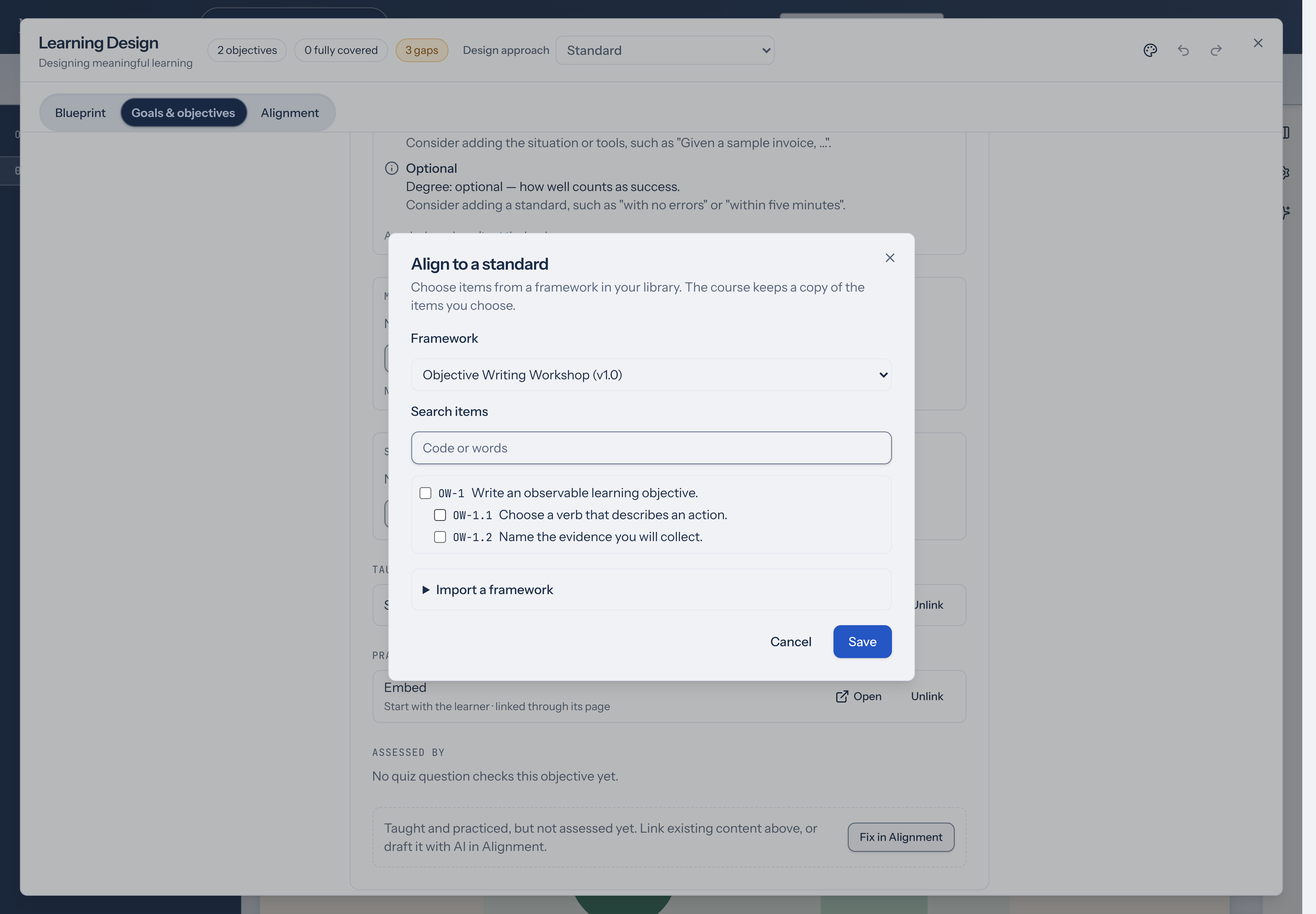
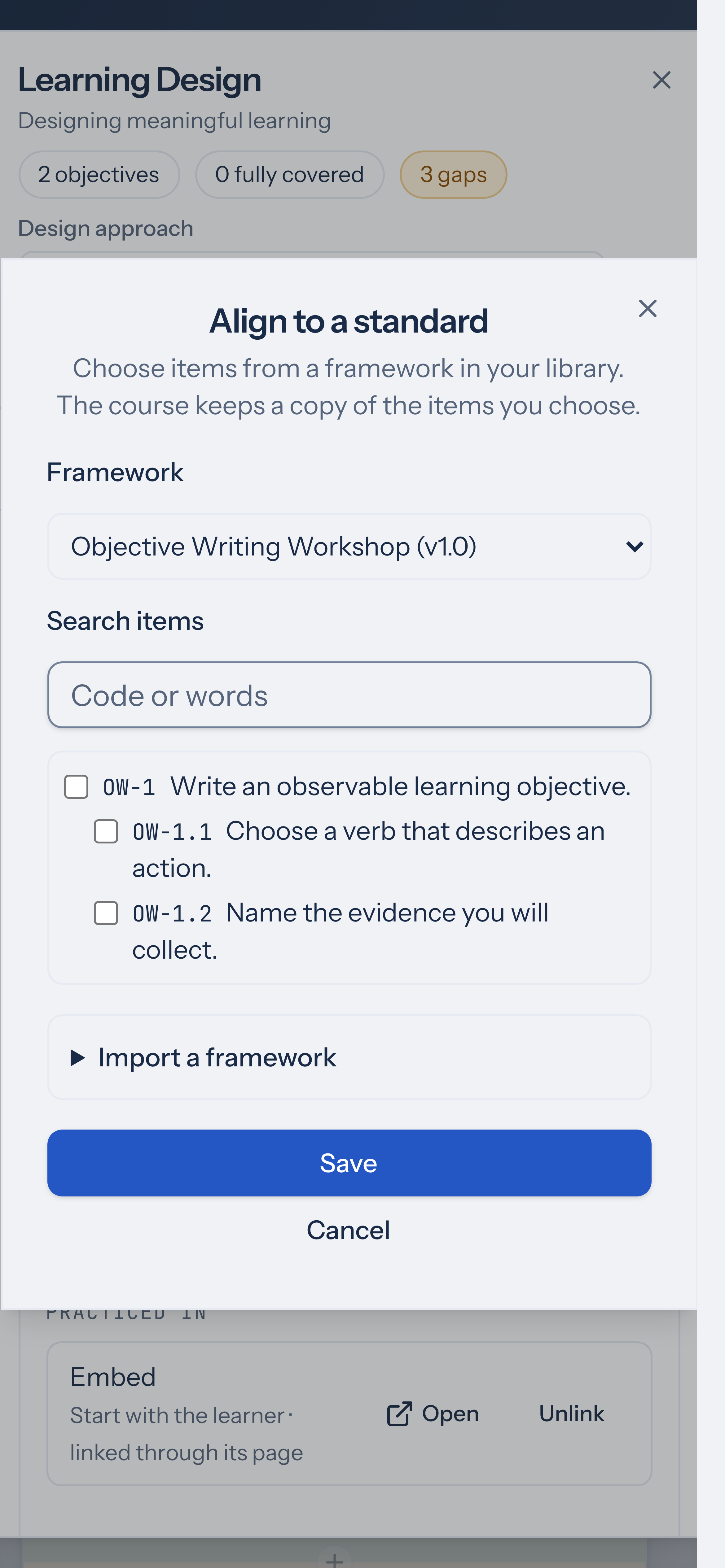
Section titled “Align an objective”- In Align to a standard, choose the Framework.
- Type in Search items to filter by code or words. Items are indented under their parent.
- Select the items this objective addresses. Each objective can align to up to 10 items.
- Choose Save.
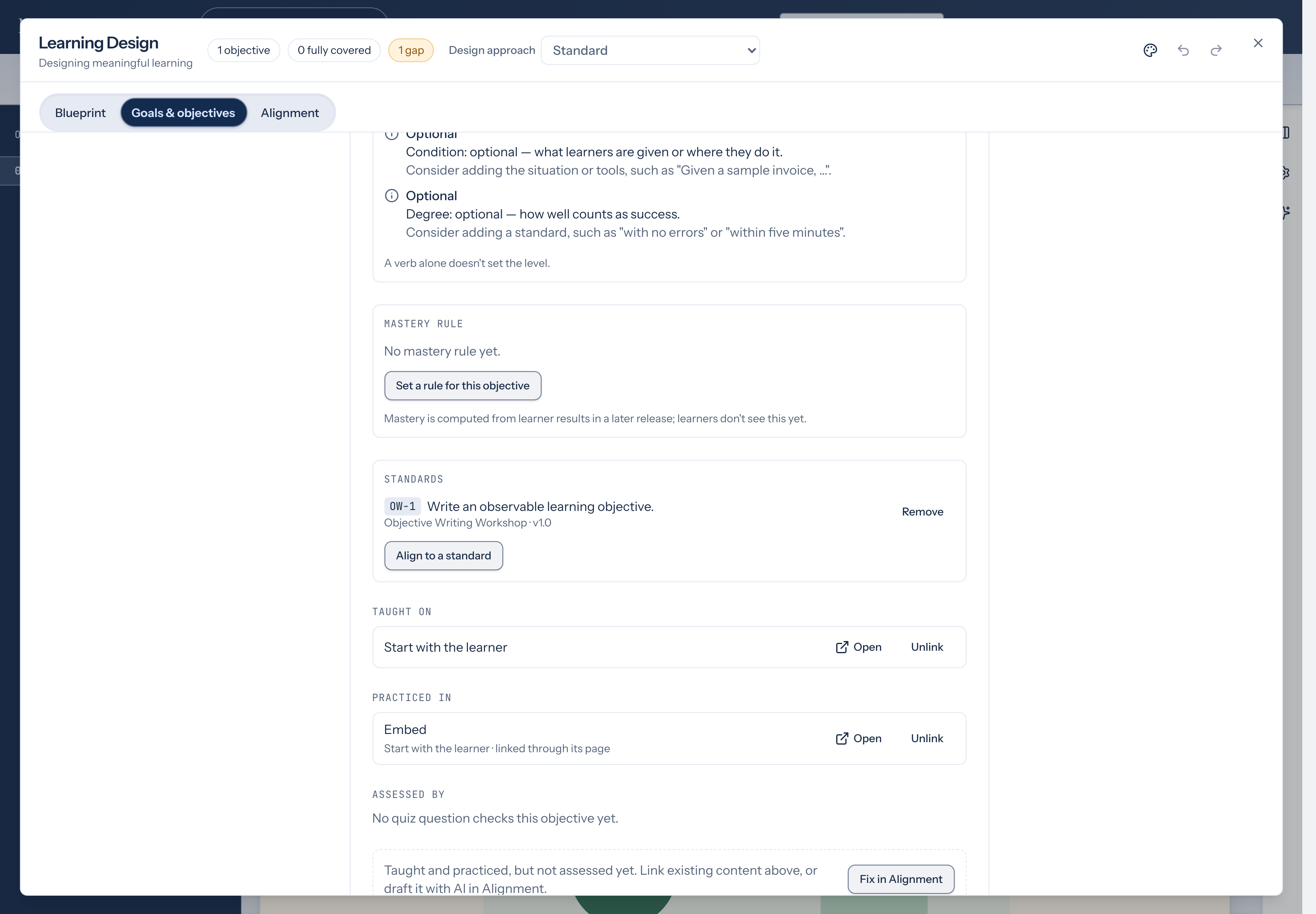
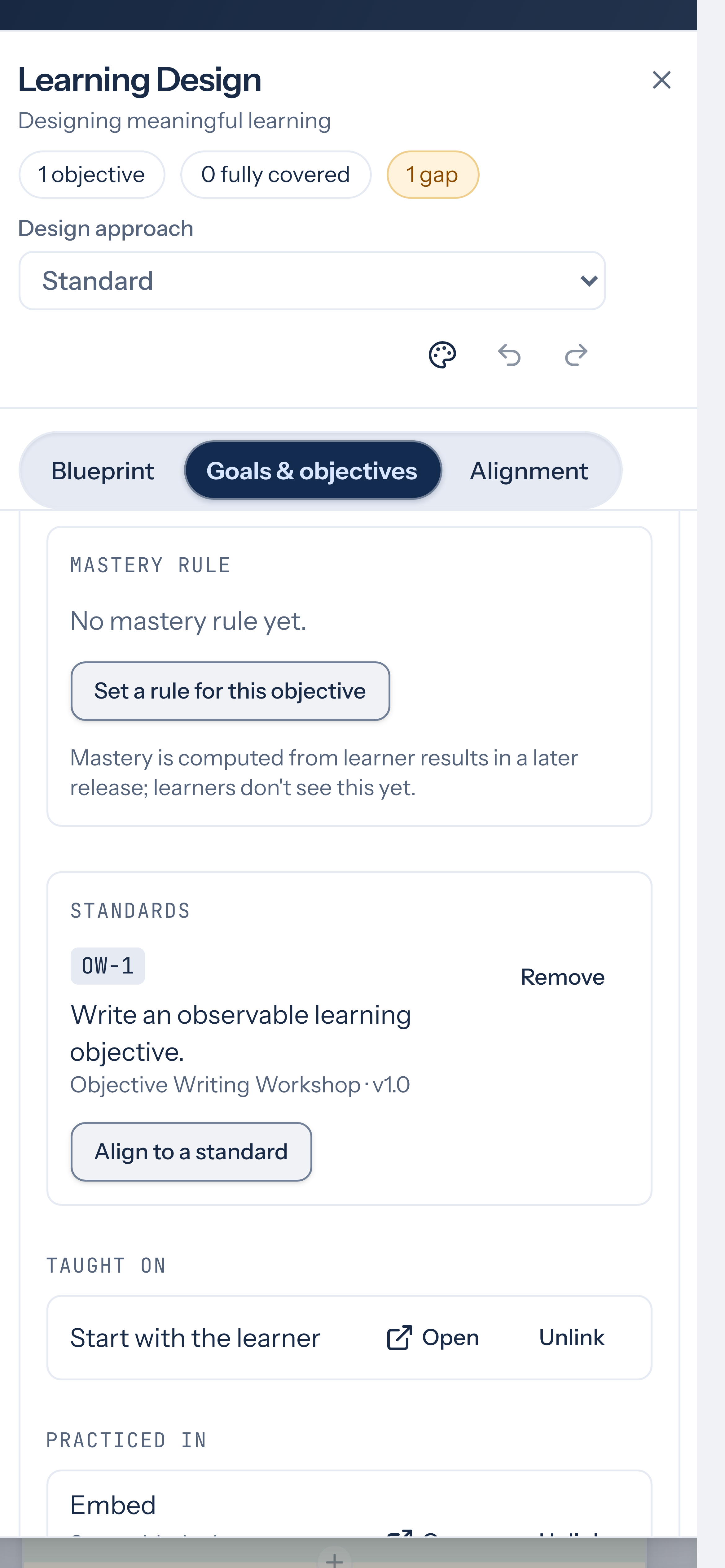
Standards now lists each aligned item with its code, its wording and the framework it comes from. Choose Remove next to an item to take the alignment off. Undo works for both.
When a framework changes
Section titled “When a framework changes”After you import a newer version, open Align to a standard for an objective that uses the framework and choose Save. The course’s copy picks up the new wording, and any item whose wording changed shows Updated in vversion, so you can check that the objective still matches.
Export objectives as CASE
Section titled “Export objectives as CASE”In Alignment, open Export assessment plan and choose Objectives as CASE 1.1 (.json). The file describes the course as a CASE document and each objective as an item. Indicators sit under their objective, and each alignment is recorded as an exact match to the standard item.
For agents
Section titled “For agents”Objectives carry alignedTo (up to 10 { frameworkUri, itemUri }), and the course carries standards, the copy of the aligned items. Send both in one course.settings.update; an alignment that names an item missing from standards is rejected.
Sources
Section titled “Sources”Import and export follow the 1EdTech Competencies and Academic Standards Exchange (CASE) 1.1 specification: CFPackage, CFDocument, CFItem and CFAssociation, with isChildOf for hierarchy and exactMatchOf for alignments. CASE is a 1EdTech standard; 1EdTech doesn’t endorse Studio.