Learning Studio / features
Submit a custom AI instruction
Type a free-form instruction for the AI assistant to generate suggested edits for a selected block or page.
Send your own AI Assist instruction
Section titled “Send your own AI Assist instruction”AI Assist can generate suggested edits for a selected block or the current page. When you want something beyond the built-in suggestions, type your own instruction and review what it produces.
How to use it
Section titled “How to use it”- Open a content page in the studio. AI Assist works on one page at a time, so the selected block or current page becomes the scope of your request.
- Select AI to open the AI Assist panel.
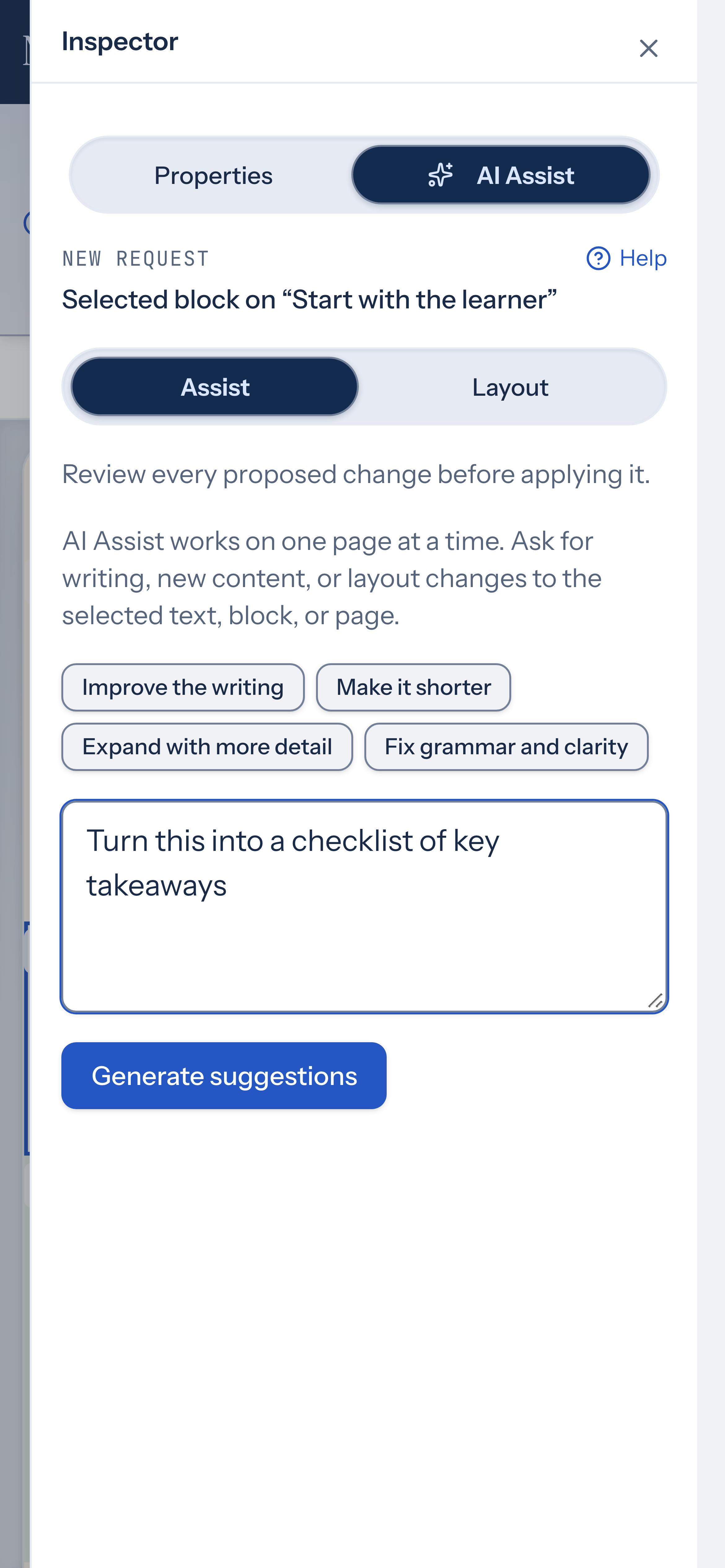
- Write your instruction in the text area. For example, you might ask it to turn a block into a checklist of key takeaways.
- Select Generate suggestions. Your instruction must be at least three characters long.
- Review the proposed changes. Nothing is applied until you choose Apply.
- If the suggestions fit, select Apply to save them. To reverse immediately, undo in one step with Ctrl/Cmd+Z. To review or restore a prior saved state, use Versions.
If the assistant returns no changes, try a more specific request.
Availability and limits
Section titled “Availability and limits”- AI Assist doesn’t edit the cover page. Open a content page to use it.
- Locked blocks can’t be edited. Unlock a block before requesting changes.
- If the course changes while the assistant is working, the request may become stale. Discard and try again.
- Applied changes are saved as a labeled entry in Versions and undo together in one step.