Learning Studio / features
Configure block entrance, hover, and loop animations
Add entrance, hover, and loop effects to blocks with configurable duration, delay, easing, repeat, and stagger options.
Configure block animations
Section titled “Configure block animations”Add entrance, hover, and loop effects to supported blocks to bring pages to life as learners scroll. Animations play in Preview and in the learner view; learners with reduced-motion preferences see no motion.
- Select a block on the canvas.
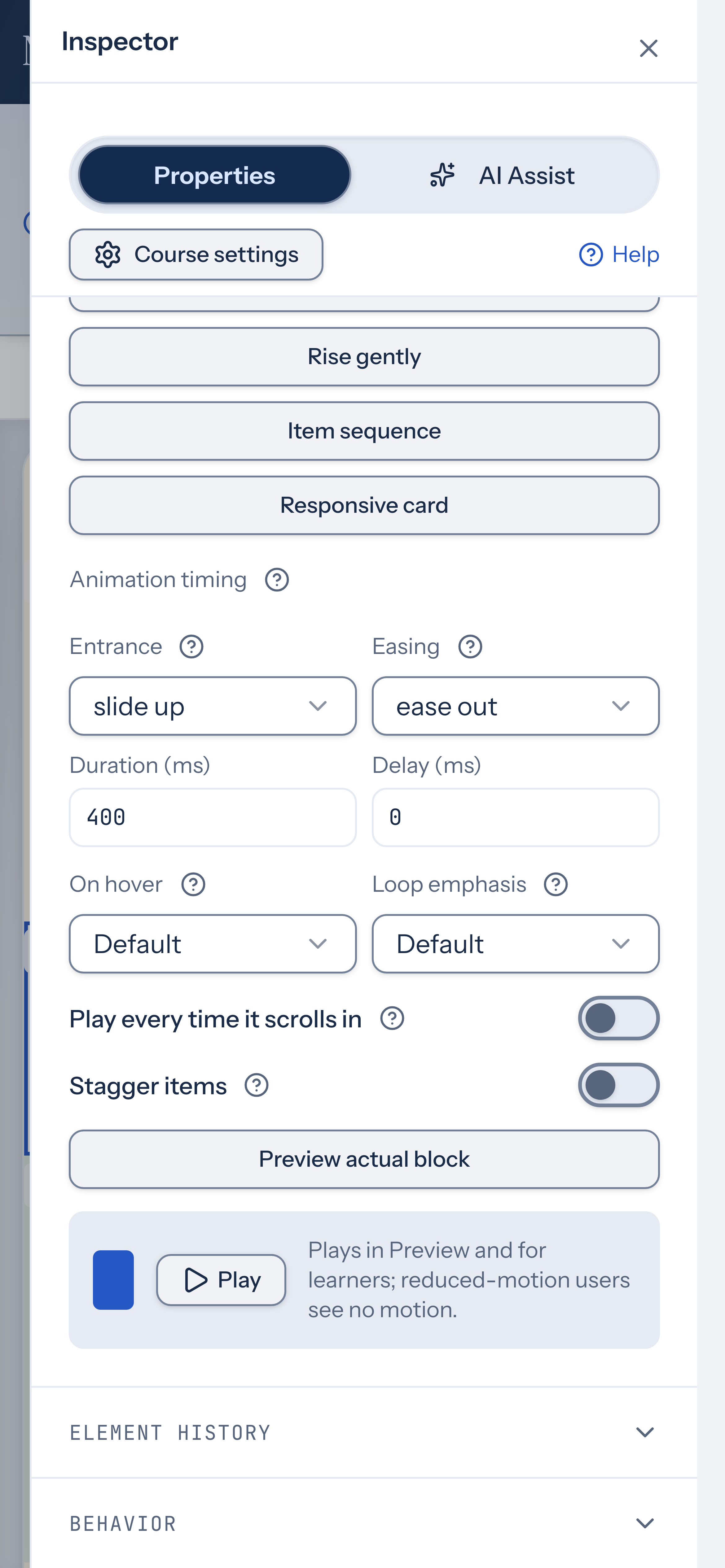
- Open Edit properties, then the Animation group.
- Set the options you want:
- Entrance — how the block appears when it scrolls into view. Choices: fade, slide up/down/left/right, zoom in/out, blur in, flip, reveal, and bounce in.
- Easing — the motion curve: ease-out, spring, ease-in-out, or linear.
- Duration (ms) — how long the entrance lasts. Range: 100–5000 ms; default 600 ms.
- Delay (ms) — wait before the entrance begins. Range: 0–5000 ms; default 0 ms.
- On hover — an effect when a learner points at the block: lift, grow, glow, or tilt.
- Loop emphasis — a continuous motion while the block is visible: pulse or float.
- Play every time it scrolls in — repeat the entrance each time the block re-enters the viewport. Off by default, so the entrance plays once.
- Stagger items — animate child items in sequence rather than all at once. Useful for accordions, tabs, and lists.
- Press Play to preview the animation inline.
Start with a motion preset
Section titled “Start with a motion preset”Motion presets offers Soft arrival, Rise gently, Item sequence, and Responsive card. Apply a starting point, then adjust the timing. None keeps that block still instead of using a default entrance.
Preview actual course content
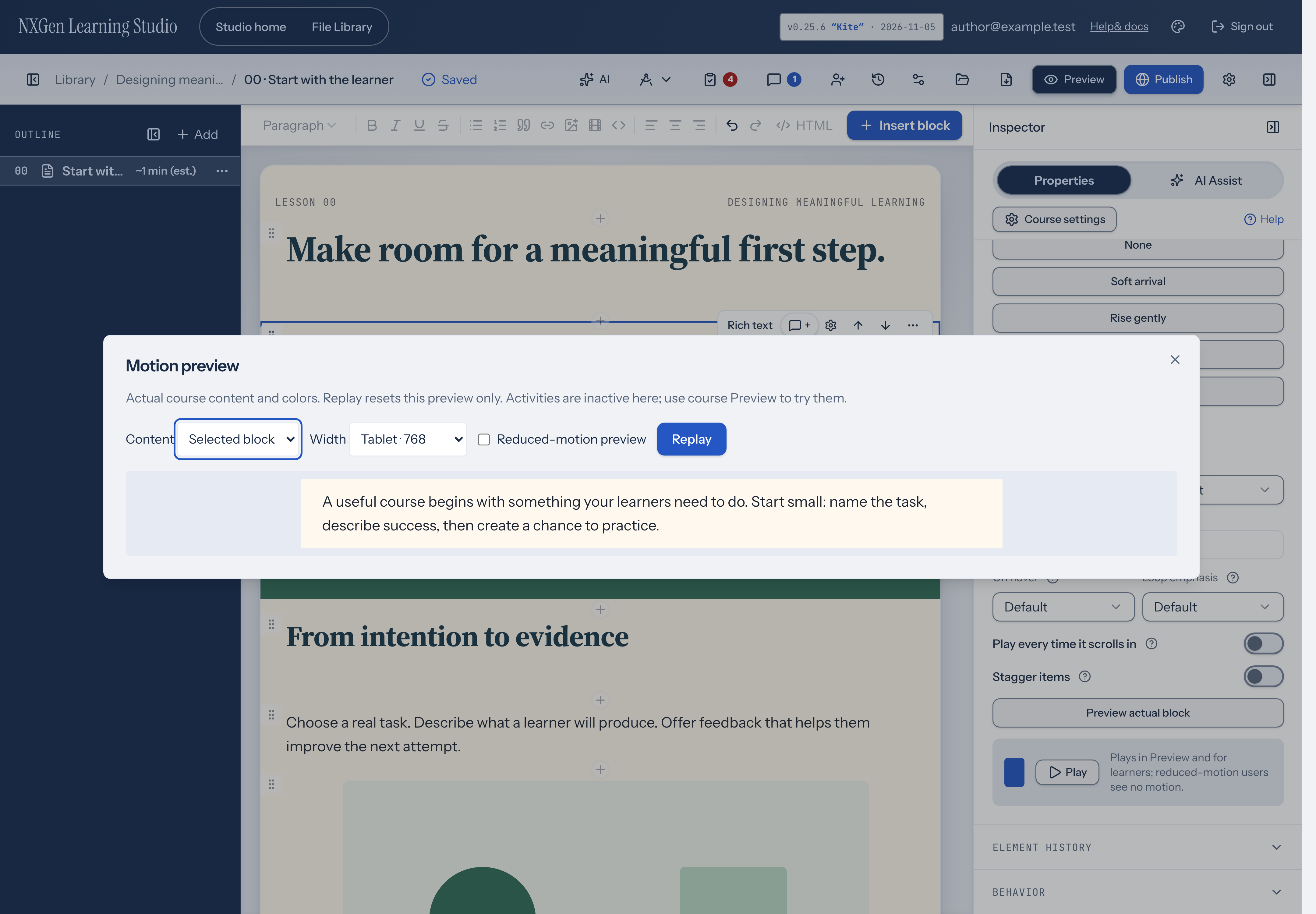
Section titled “Preview actual course content”Choose Preview actual block to open Motion preview. Under Content, choose Selected block or Current page. Change Width to phone, tablet, or desktop, then use Replay to restart the preview. Turn on Reduced-motion preview to compare the static result. Your device’s reduced-motion preference still takes precedence.
This preview uses your course colors and content. Its activity controls are inactive; open the course’s Preview to test responses, tabs, or hotspots. Replay resets only the motion preview.
Default learner motion
Section titled “Default learner motion”Course Preview and newly published packages include gentle content entrances, subtle control emphasis, and a reading-position line. Blocks with authored animation settings use those settings instead of receiving another default entrance. To remove motion from a particular block, use the None preset.
Learners can turn off Course animations in the course player. That preference applies in their browser. When the device requests reduced motion, animations stay off and the player explains why. Updated player behavior reaches a published course when you publish a new version.
Same-page links
Section titled “Same-page links”When course content includes a link to a destination on the same page, following it moves both the view and keyboard focus to that destination. The scroll is smooth while course motion is enabled and immediate when motion is off. Ordinary scrolling and links to other pages keep their usual behavior.
How to use it
Section titled “How to use it”Animations help draw attention to key content and create a sense of flow as learners move through a page. A gentle fade or slide-in on a callout can make an important tip feel intentional without being distracting.
Use entrance animations sparingly — one or two per page is usually enough. Loop effects like pulse and float are best for highlights you want learners to notice, not for every block. Hover effects give interactive elements like buttons a responsive feel.
If a block is locked, animation controls are disabled. Unlock the block first to change its animation.
Availability and limits
Section titled “Availability and limits”- The Animation group appears for most blocks. It is hidden for separators marked as decorative or connected. For connected separators, see separator transitions.
- Animations are learner-view only; they do not change how content is authored or saved.
- Values are validated on save. Unsupported entrance, hover, loop, or easing values are rejected, and duration and delay are clamped to their allowed ranges.
- Reduced-motion users see no motion. The preview note in the panel confirms this behavior.