Learning Studio / learn
Use interactive content
Read, explore, copy, and download without confusing activity with assessment.
Interactive content blocks let learners explore explanations and complete activities as they read. These blocks organize content, play media, provide downloads, and capture lightweight input — they serve different purposes from a scored quiz.
Panels
Section titled “Panels”Accordion and tabs blocks organize related text into expandable sections or tabbed views. Learners open and close them as they read; the blocks don’t record a score or gate progress.
Copy prompt blocks
Section titled “Copy prompt blocks”Copy prompt blocks display an authored snippet with a Copy button. Learners copy the text to use elsewhere — for example, pasting it into another tool.
Missing media or files
Section titled “Missing media or files”If an image, video, audio, download, or embed is unavailable, the block shows a placeholder instead of the content. This can happen because of provider settings, network access, or a removed source. If you’re a learner, record the page and element and ask the author to review its resource reference.
Progress boundaries
Section titled “Progress boundaries”Opening a panel, playing a video, completing a checklist, or using an embed doesn’t satisfy a scored-quiz requirement. Required/decorative settings describe the content’s role; they don’t add another completion requirement.
Signed download links expire, so don’t forward one as a permanent course link.
View images with zoom and link actions
Section titled “View images with zoom and link actions”Images can have a zoom action or a link action. If an image has a link, clicking it opens the destination in a new browser tab. If an image has a zoom action, clicking it opens a full-size dialog overlay; click outside the image or use the close button to dismiss it. In the editor, neither interaction is active.
Play video content
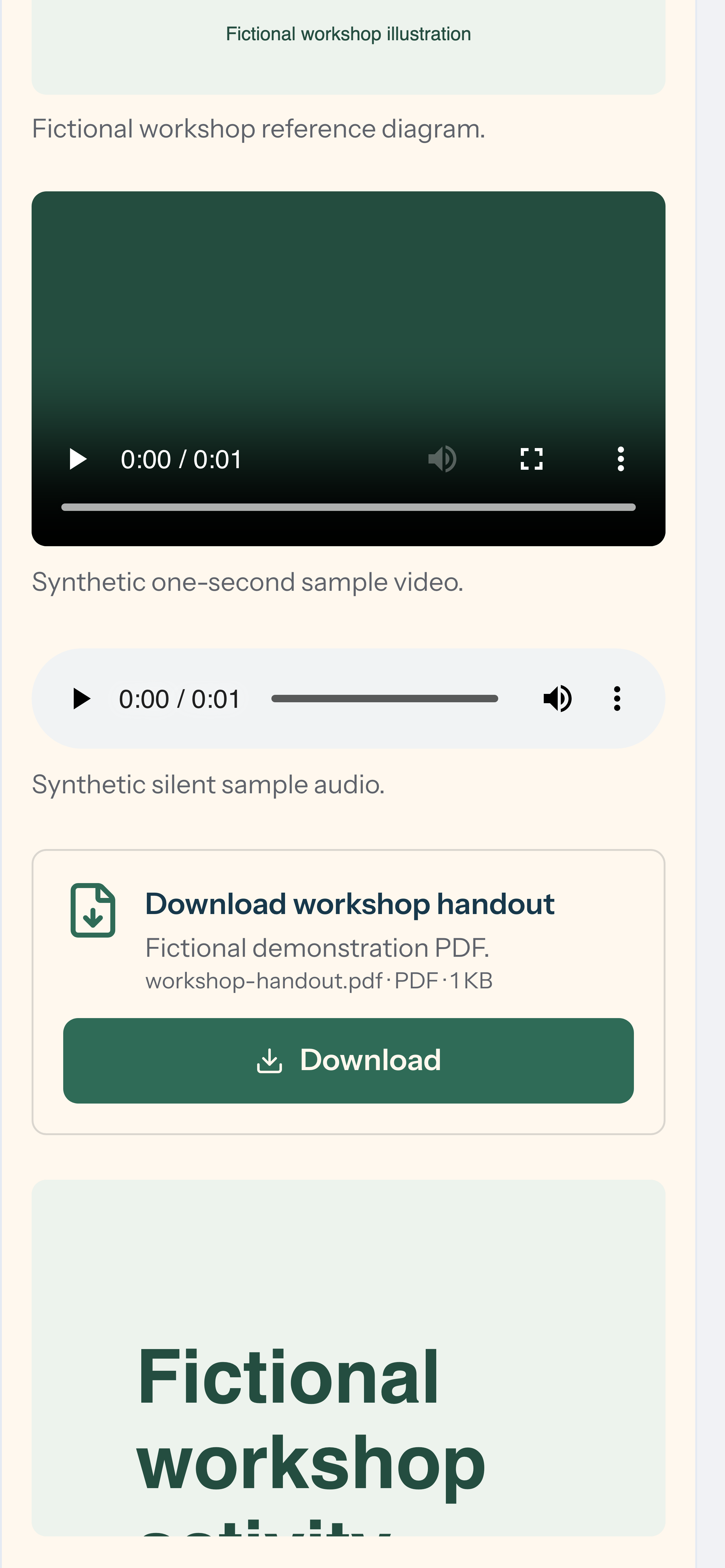
Section titled “Play video content”Uploaded video files play directly using native HTML video controls. YouTube, Vimeo, and Loom links display a preview with a play control; YouTube includes a thumbnail image, while Vimeo and Loom show a play card with the provider’s label. Click the preview to load the embedded provider player. The embedded player loads only after you click, so autoplay does not start until you interact. In the editor, the preview shows but the embedded player does not load.
Play audio
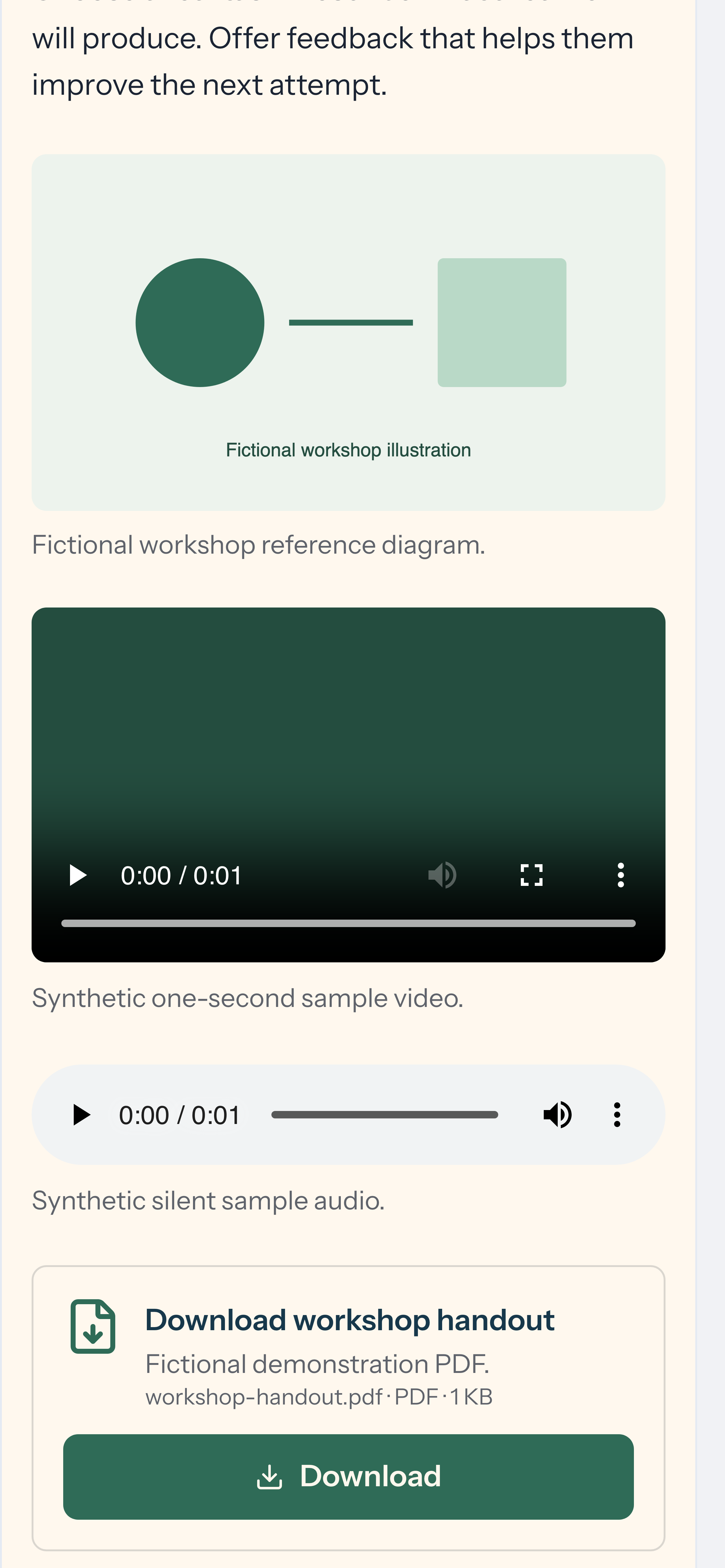
Section titled “Play audio”Audio blocks use native HTML audio controls. The control bar appears beneath the audio source. If no file is available, a placeholder indicates the audio is missing.
Download a course file
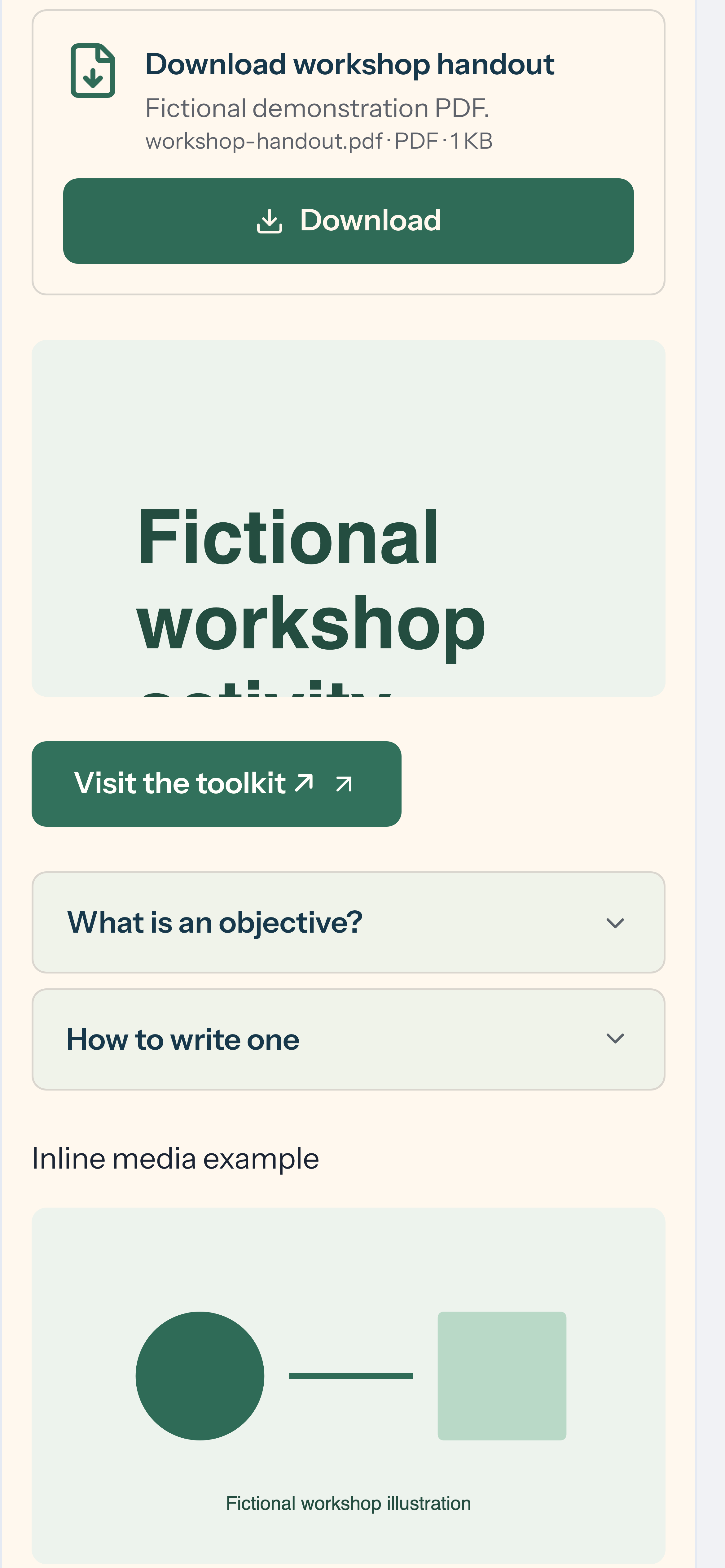
Section titled “Download a course file”Download blocks request a short-lived signed URL and then start the file download. The button is disabled while the request is in progress. If the signed URL cannot be created, an error message appears. Signed URLs expire; do not share them as permanent links.
Embedded content in learner view
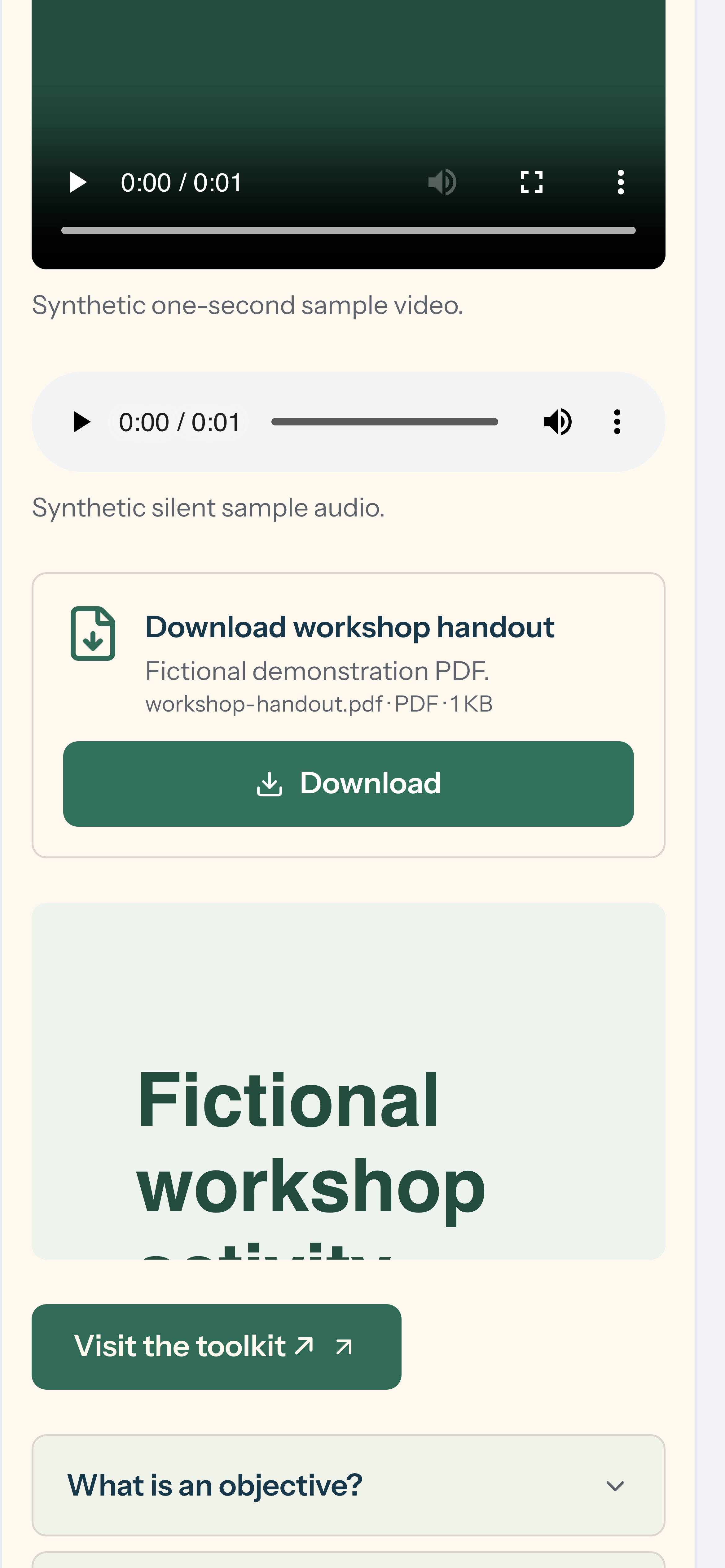
Section titled “Embedded content in learner view”Embed blocks display external content in a sandboxed iframe during learner view. The editor shows a placeholder card with the embed title and URL instead of a live frame, so you can still select and edit the block.
Button links
Section titled “Button links”Button blocks open an external URL in a new browser tab. If no URL is set, the button appears disabled.
Complete course checklists
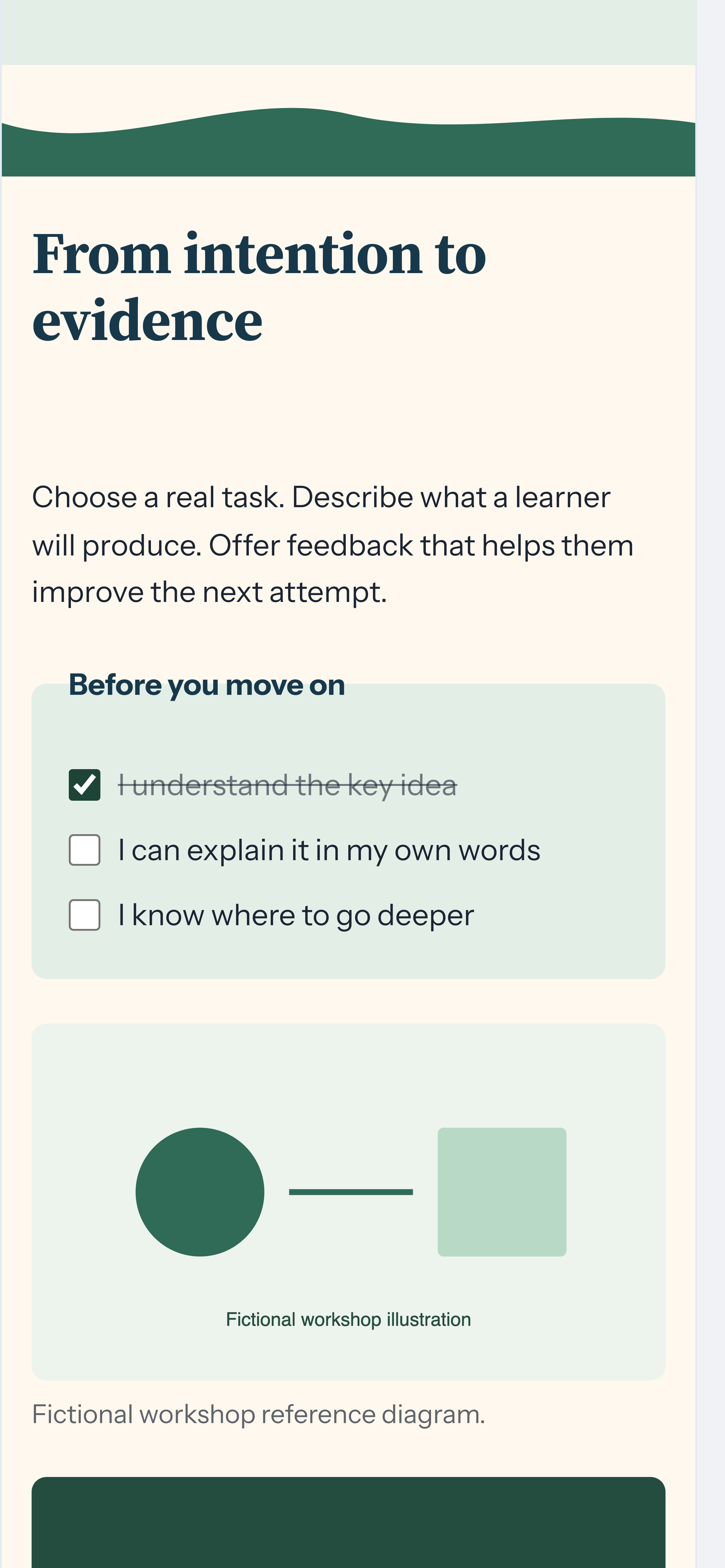
Section titled “Complete course checklists”Checklist blocks let learners tick and untick items directly in the course player. When you are signed in to the Studio, your ticks are saved for this course and follow you on other devices; the preview still updates immediately while sync happens in the background. On a published learn link or in the offline package player, ticks stay in that browser only. Ticks never block progress or satisfy a scored-quiz requirement. Using Restart in the preview clears the active course and learner’s checklist state on this device and in your account.
Configure video and audio blocks
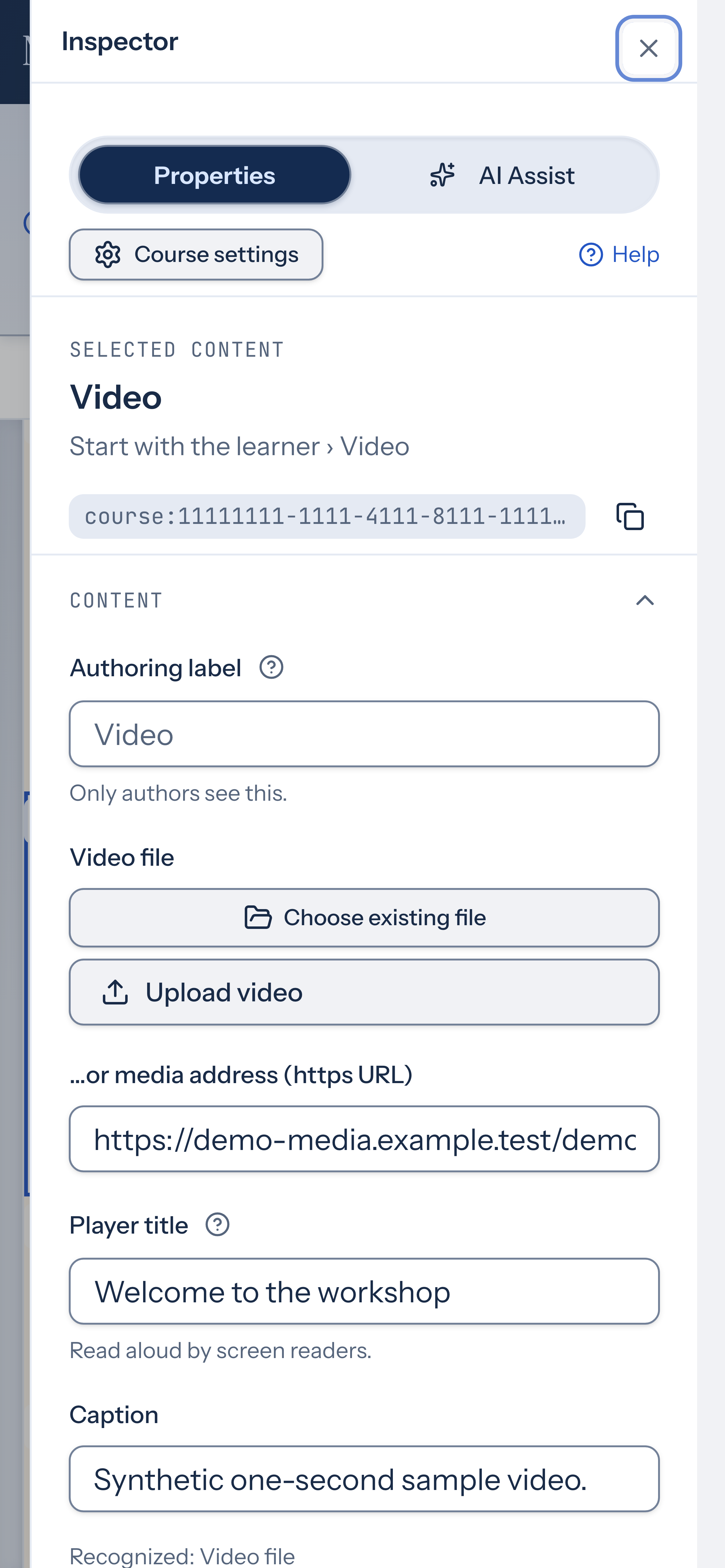
Section titled “Configure video and audio blocks”In the inspector, upload a media file or paste an https URL for an external source. Set a Player title so screen readers can announce the media, and add an optional Caption. For video, choose a Shape (aspect ratio), set a Start at time in seconds, and toggle Show player controls, Captions on by default, and Privacy-enhanced mode. Videos never autoplay; linked videos show a light preview and load the provider player only when a learner presses play.
Explore hotspots and private practice
Section titled “Explore hotspots and private practice”Image hotspots open explanations from markers or text labels. Floating cards open on hover or focus and can be kept open by selecting a point. On smaller images the explanation appears below. Use Show all descriptions to read the points together.
Reflections let you write and confirm private responses. Choice scales show feedback for the option you choose. Both offer Reset and keep responses only while the page is open. Responses are not saved or submitted, and activity completion does not satisfy a scored-quiz requirement.