Learning Studio / author
Reuse blocks and pages
Turn useful compositions into independent starting points.
Reuse a block or page when its structure will help with another part of your course. Each inserted copy is a starting point you can adapt independently.
Save and insert
Section titled “Save and insert”Save blocks for repeated elements and pages for layouts you want to use again. Inserted copies are independent: editing one does not change the saved template or other copies.
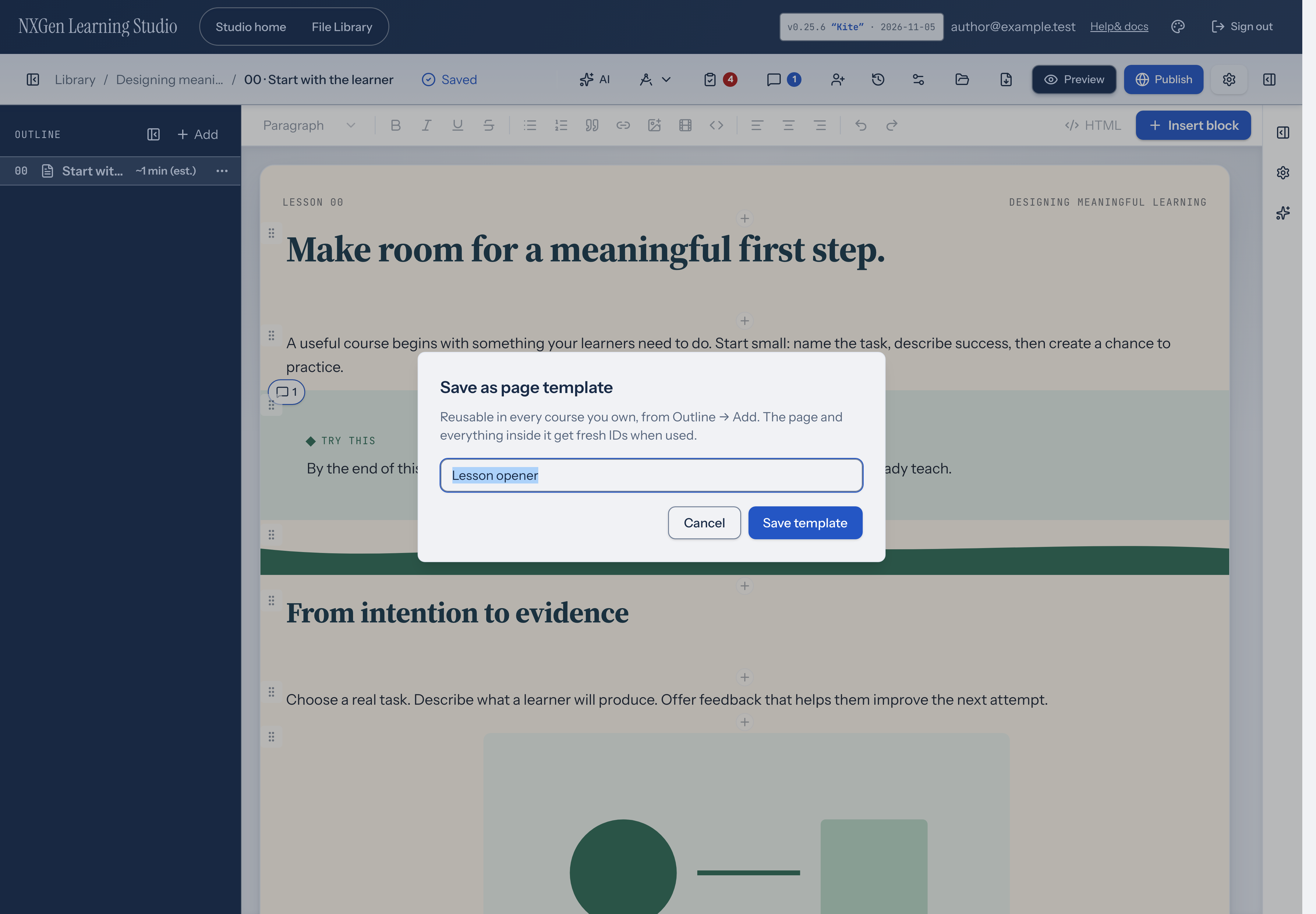
For a page, open its outline menu and choose Save as page template…. Name it and choose Save template. Find saved pages under the outline Add menu in Page templates. For a block, follow the steps below.
Built-in template pages
Section titled “Built-in template pages”Open the outline Add menu and look under Built-in. Choose an Aster preset or an Ascent template page:
- Aster Cover inserts a course introduction with a promise, practice list, and orientation.
- Aster Editorial inserts a lesson with a key idea, explanation, worked example, and practice prompts.
- Ascent template page inserts a composed layout with bands, tabs, accordions, and process cards. It keeps your current course theme.
- Ascent page + Ascent colors inserts the same composed layout and applies the Ascent palette, serif heading font, and large type scale to your course.
Each insert creates a fresh page with new IDs, so editing it never changes the built-in source. Aster pages inherit your course’s existing colors and fonts. Ascent pages are fully editable, so replace the placeholder content with your own.
See Build a page with Aster for steps and light/dark appearance options.
Before reusing
Section titled “Before reusing”Check objectives, feedback, resource access, mobile layout, and course-theme colors. A useful structure can save setup work; you still need to check that its content is accurate and supports your objectives.
Save a block as a reusable template
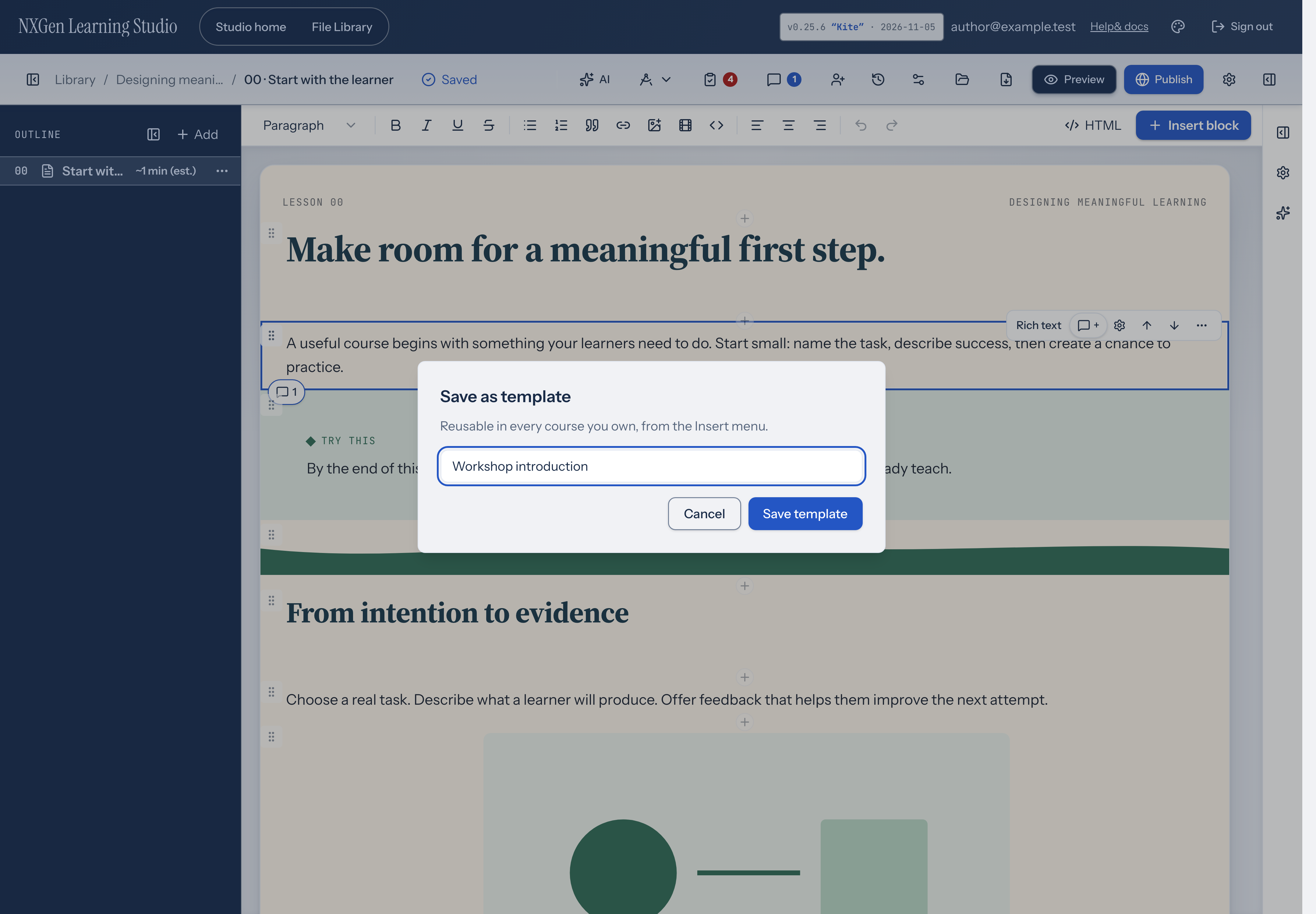
Section titled “Save a block as a reusable template”- Select the block, then open its More actions menu.
- Choose Save as template….
- Enter a useful Template name, then choose Save template.
- Open Insert block where you want to reuse it. Choose your named block under Saved templates.
Adapt the inserted block to its new context. The saved template remains available in other courses you own.
Delete a saved page template
Section titled “Delete a saved page template”Open the outline Add menu and find the saved page under Page templates. Choose the × button beside its name (announced as Delete page template followed by the template name). This removes the saved template from your list. Pages you already inserted remain independent copies and are not removed.