Learning Studio / features
Set an authoring label for a block
Give any block a private display name that only authors see, to stay oriented while editing.
Set an authoring label for a block
Section titled “Set an authoring label for a block”Give any block a private display name that only authors see, so you can stay oriented while editing. Learners never see authoring labels.
How to use it
Section titled “How to use it”- Select a block on the page.
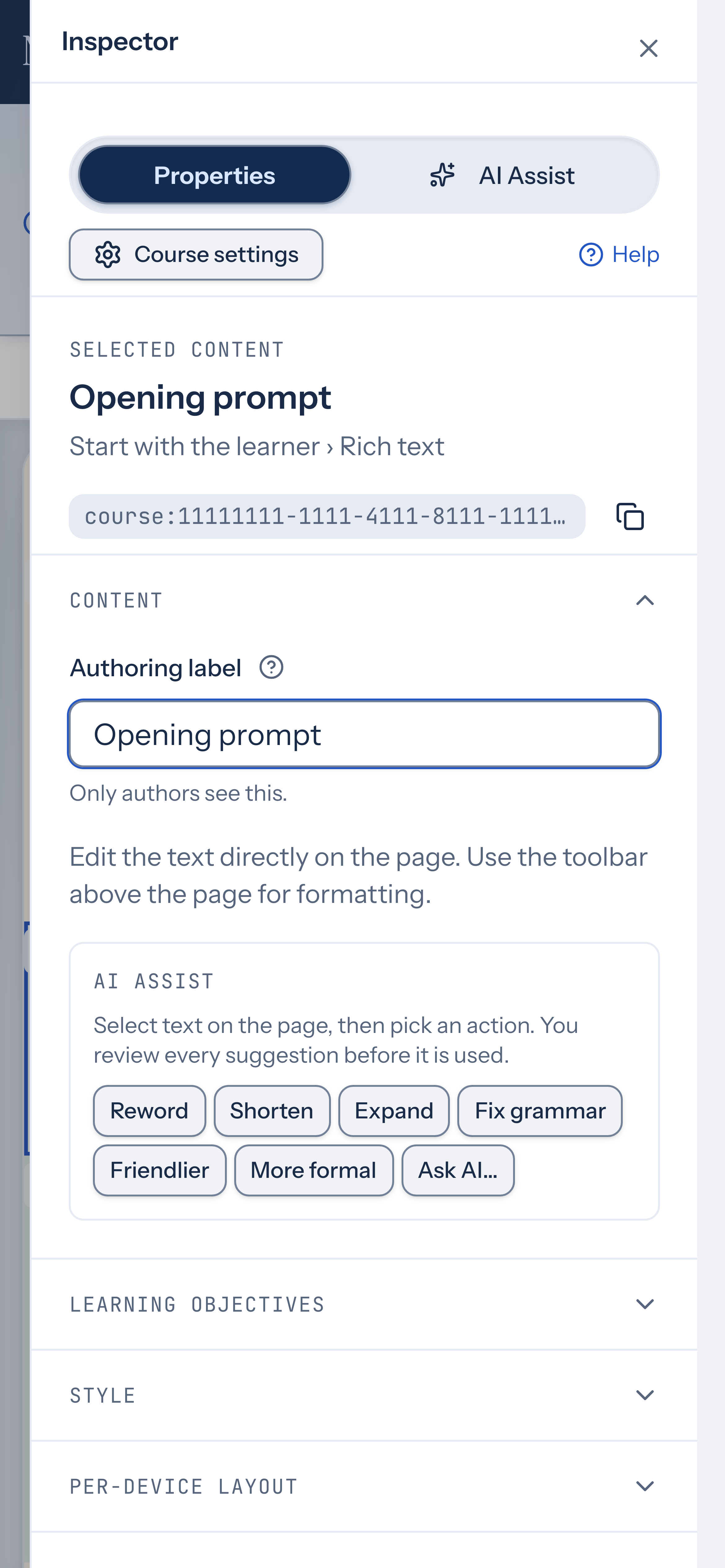
- In the inspector, open the Content group.
- Find the Authoring label field and type a name.
- Wait for the save indicator to confirm your change.
If you leave the field empty, the inspector falls back to the block’s default type name — for example, “Rich text” or “Image.”
Availability and limits
Section titled “Availability and limits”Authoring labels are available for every block type. They are author-only: the label never appears in the learner preview or published course. If a block is locked, the Authoring label field is disabled until you unlock the block.