Learning Studio / features
Set a callout label
Change the text label that appears on a callout block to give it a meaningful heading.
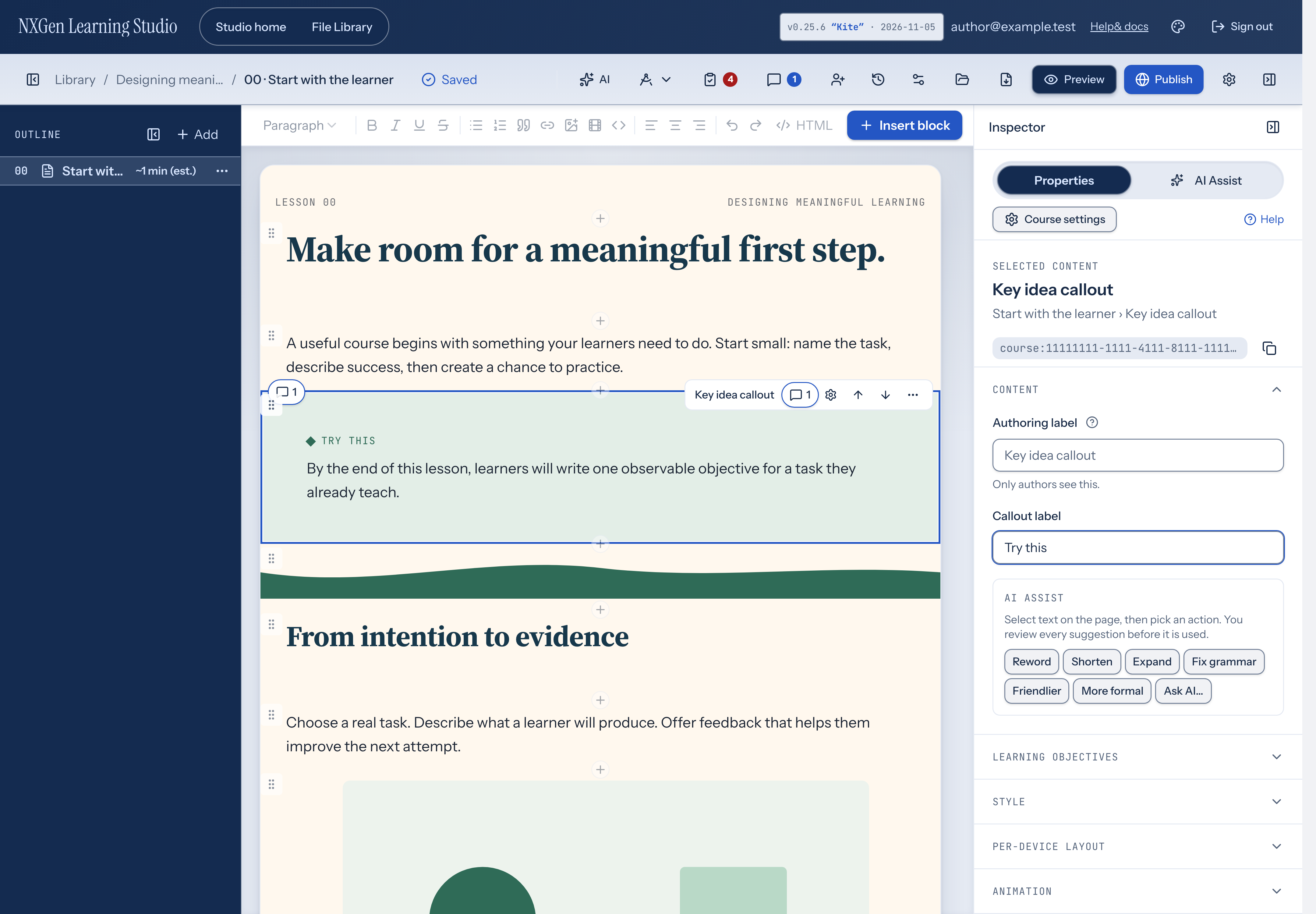
Set a label for a callout block
Section titled “Set a label for a callout block”A callout block highlights a single key idea for learners. The label is a short heading that appears at the top of the callout, giving learners context before they read the content.
- Select a callout block on the page.
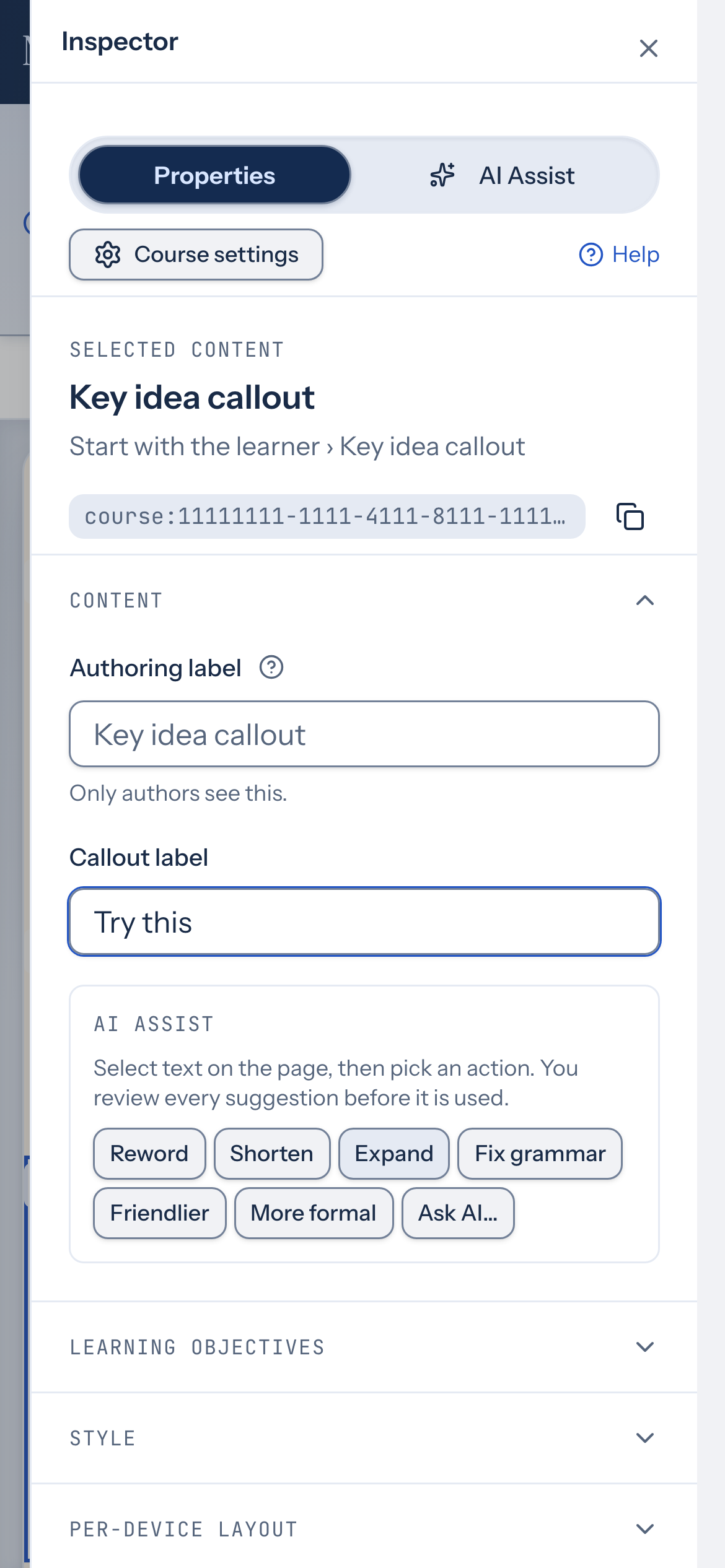
- In the inspector, open the Content group.
- Edit the Callout label field.
The label updates on the page as you type. A new callout starts with the label “Key idea” and the body text “Write the one thing learners should remember.”
How to use it
Section titled “How to use it”Use a callout to draw attention to the most important takeaway on a page. Edit the body text directly on the page, and set the label in the inspector to tell learners what kind of idea it is — for example, “Key idea,” “Remember,” or “Tip.”
Availability and limits
Section titled “Availability and limits”Callout blocks are available to all authors in the studio editor. If the block is locked, the label field is disabled — unlock it in the Behavior group to make changes.