Learning Studio / learn
Practice and check understanding
Know when a quiz provides feedback and when it controls progression.
Questions can give learners feedback or check whether they’re ready to continue. The quiz type and course navigation determine whether a result affects progression.
Practice and scored quizzes
Section titled “Practice and scored quizzes”Choose the quiz Type in the inspector:
- Knowledge check — practice, never blocks gives feedback without blocking progress. In Alignment, its questions count as practice for their objectives.
- Scored quiz — counts as assessment is graded against the pass score. In Alignment, its questions count as assessment. A scored quiz blocks later pages only when it sits on a quiz page and the course uses In order navigation; a scored quiz on an ordinary page never blocks.
Authors can set the pass threshold, attempts, question order, answer shuffling, and feedback using the supported quiz properties.
Author checks
Section titled “Author checks”In Preview, test a failed attempt, a retry when allowed, and a passing attempt. Reopen Preview to check remembered progress, and test Restart separately.
Compare a question with the objective it is meant to check. If the objective asks learners to make a decision, does the question ask them to make that decision, or only recall a definition?
Read the feedback as a learner. Does it explain the reasoning and help you decide what to try differently, or does it only reveal the answer?
Configure quiz blocks
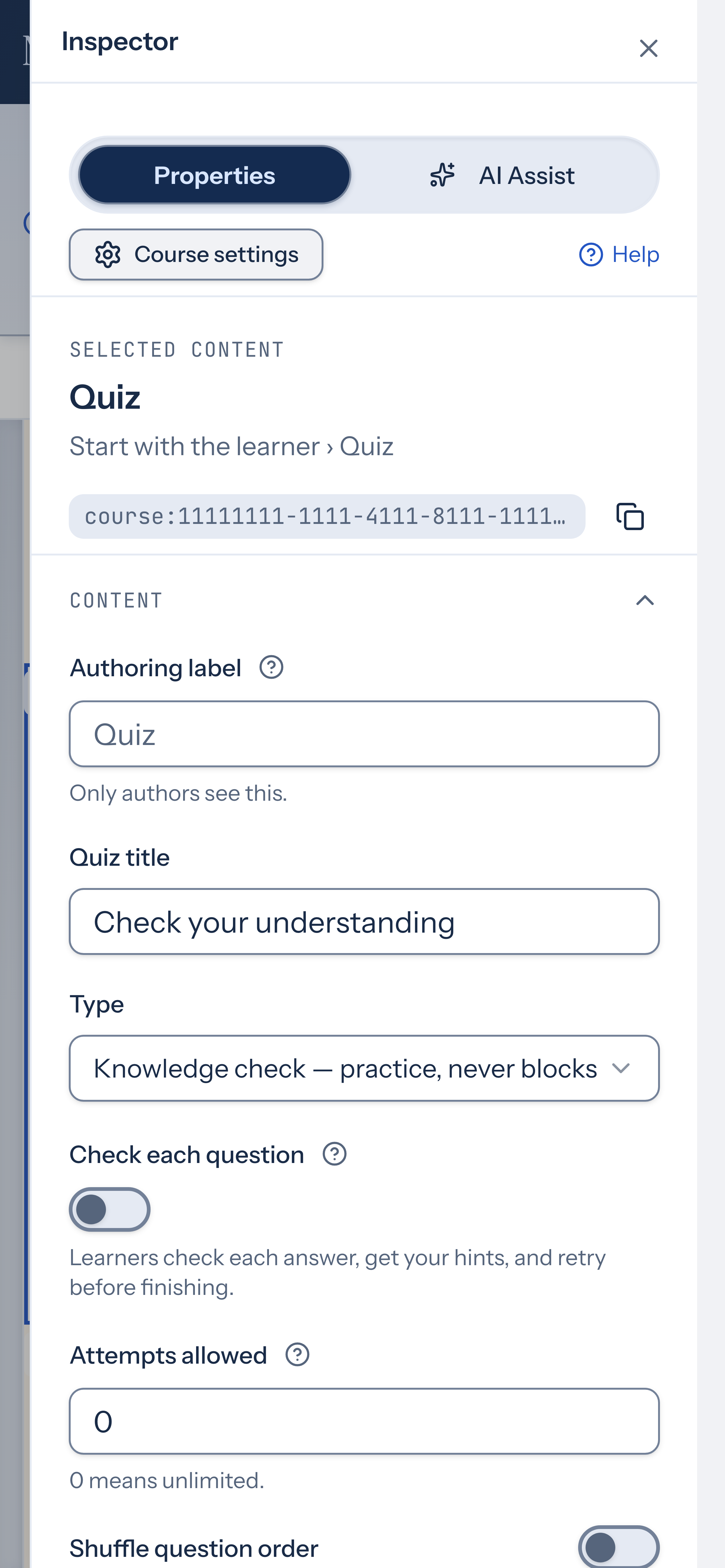
Section titled “Configure quiz blocks”Add a quiz block to a page to create assessment questions. Each quiz supports 1–20 questions across eight kinds: Single choice, Multiple answers (learners select every correct option), True or false, Short answer, Numeric, Matching, Ordering, and Fill in the blanks. Choose whether the quiz is scored or a knowledge check, set the pass score for scored quizzes as a whole percentage from 0 to 100 in steps of 1 (knowledge checks have no pass score), and optionally limit attempts from 0 (unlimited) up to 20.
Partial credit
Section titled “Partial credit”Turn on Partial credit to give multiple-answers questions credit for each right pick, minus each wrong pick. For example, if the correct options are A and C and a learner picks A, B and C, they earn half the question’s points. Selecting every option earns nothing. Matching questions earn credit for each item matched correctly (correct pairs ÷ items). Ordering questions earn credit for each item that is followed directly by its correct next item (each such pair earns 1 ÷ (number of items − 1)). Fill in the blanks questions earn credit for each blank answered correctly (correct blanks ÷ blanks). With Partial credit off (the default), a question earns its points only when the answer is exactly right. Single choice, true or false, and short answer questions are always right or wrong.
After submitting
Section titled “After submitting”After submitting sets what learners see once they submit:
- Show right or wrong (default): each question is marked correct, partly right or not quite, with your feedback.
- Show correct answers: also shows the right answer for each question a learner missed. Knowledge checks show it straight away. Scored quizzes show it only after the learner passes or uses their last attempt, so nobody can read the answers and retry.
- Hide answers (score only): learners see only their score, without per-question marks or feedback.
For each question, set the prompt (up to 500 characters), assign 1–10 points (values above 10 clamp to 10), and add feedback shown after submitting. Feedback supports rich text — bold, lists, and links — or a plain explanation. Single choice and multiple answers questions need 2–6 options; mark the correct one for single choice or all correct options for multiple answers. Switching between Single choice and Multiple answers keeps your options, feedback, and correct marks (multiple answers keeps every correct mark; switching to single choice keeps the first correct mark). Changing to any other question kind asks you to confirm because it replaces type-specific content. You can also add per-option feedback shown when a learner chooses that option. True/false questions let you pick the correct answer. Short answer questions accept 1–6 case-insensitive accepted answers in Accepted answers; separate alternatives with commas, including phrases with spaces (for example Situation, the situation). Numeric questions take a Correct answer and an optional Accept within ± margin: with 40 and 5, any answer from 35 to 45 is correct; with a margin of 0, only the exact number is. Learners can type commas and decimals, such as 1,250.5. Add an optional Unit (optional), such as kg or %, to show after the answer box; the unit isn’t graded. Matching questions list Items (what learners see) and Answers (choices in a drop-down). In the inspector, each item shows its correct Answer directly underneath it. Add extra answers as distractors; the same answer can be correct for more than one item. Learners pick an answer for every item before they can submit. With partial credit on, they earn a share of the points for each item they match correctly. Ordering questions list steps in the correct order in the inspector. Learners see those steps shuffled and put them in order with Move up and Move down. Partial credit awards a share of the points for each step that sits directly after its correct predecessor. Fill in the blanks questions use a Passage box: put each answer in square brackets, like The capital is [Denver]. Separate accepted alternatives with /, for example [Denver/denver city]. Type \[ for a literal bracket in the passage. Inside a blank, put a backslash before /, ] or \ to use it in an answer, for example [AC\/DC]. Each blank appears in a list below the passage; turn on Drop-down to add wrong answers so learners choose from a menu instead of typing. Learners fill blanks inline in the passage. With partial credit on, they earn a share of the points for each blank they get right. You can also shuffle question order or answer order (preview Restart and Try again both draw a new shuffle when shuffling is on), and use AI to suggest wrong answers for choice questions — review, edit, or discard any suggestions before applying them.
Check each question
Section titled “Check each question”For Knowledge check — practice, never blocks quizzes only, turn on Check each question so learners tap Check on each question before they Finish. Add up to three Hints (optional) per question; after a wrong check, the next hint appears one at a time (earlier hints stay visible above). Each question allows one try plus one try per hint — with two hints, learners get three checks before the question locks and shows Correct answer: with your feedback. A question with no hints still allows one retry: the first wrong check shows Not quite. Try again. and the learner can change their answer and check again; the question locks on the second wrong check. Finish stays disabled until every question is correct or locked, then submits the whole quiz once for your usual knowledge-check summary.
Take a quiz and read your score
Section titled “Take a quiz and read your score”Read each question prompt, select or type your answer, then submit. The Submit answers button stays disabled until every question has an answer. Once you submit, the quiz is graded on the server and your score appears immediately.
Scored quizzes show your score as a percentage and whether you passed. If you didn’t reach the pass score, the message tells you what percentage you need. Knowledge checks show how many you got right — they never block progress. With partial credit, a score can include part of a question’s points, such as 1.5 of 3.
What you see for each question depends on the quiz’s After submitting setting: correct, partly right or not quite with the author’s feedback, the correct answer when the author chose to show it, or only your score. If you still have attempts remaining, a Try again button clears your answers so you can retry. When attempts are limited and used up, the quiz tells you there are no attempts left. If you’ve already passed a scored quiz on a previous visit, it shows that you’ve passed and lets you try again to improve your score. Reloading the page doesn’t necessarily clear earlier progress.
What gets recorded when learners take a quiz
Section titled “What gets recorded when learners take a quiz”When you submit a quiz in the signed-in learner experience, the server grades the answers and saves the attempt with its score, pass/fail result, question interaction details, and the course version used for grading. This keeps the result tied to the answer key in effect for that attempt.
Local practice in a standalone package or the Backward Design showcase does not create the same signed-in attempt record. Stored interaction details also do not mean that SCORM or xAPI export is available; see Course packages for current delivery options.