Learning Studio / author
Find and organize your courses
Keep work discoverable without losing its course structure.
Use Studio home to organize your course library and find work shared with you for review.
Start from Studio home
Section titled “Start from Studio home”After signing in, Studio home brings together Create course, Draft with AI, File Library, and recently edited courses. Use Take the tour for a short walkthrough of the fastest ways to get started. Create course offers Plan with a blueprint (recommended), Blank course, and Ascent showcase · six pages. Choose All courses for a focused library view. The switch at the top of every Studio screen moves between Studio home and File Library; choose Studio home to return to the overview.
Studio home also features the Backward Design sample course. Choose Open showcase to read it as a learner; it always shows the latest version. Choose Make an editable copy to add your own copy to your courses. Your copy won’t change when the showcase is updated.
The File Library contains your reusable source documents and media. Opening it does not create or change a course.
Organize your library
Section titled “Organize your library”Open a course’s action menu to rename, duplicate, archive, move, or delete it.
- Move changes where the course appears in your library, not its content.
- Duplicate creates a separate course. Changes to the copy don’t update the original.
- Archive hides a course while keeping it. Choose this when you may want to return to the work later.
Delete a course only when you intend to remove it. The delete confirmation dialog states that this permanently removes the course, its pages, and its history, and that it can’t be undone. Archive it instead if you might need it later.
Built-in sample courses are locked: you can edit their pages, but you can’t archive or delete them.
The top navigation also includes File Library, an account-wide resource library. Course organization and file reuse are separate: moving a course does not copy shared file bytes. See files and fonts.
Folders
Section titled “Folders”Create and rename folders to match your work. Moving a course into a folder helps organize the library. Deleting a folder returns its courses to the top level; it doesn’t delete them.
Shared for review
Section titled “Shared for review”Courses another author shares with your account appear in Shared for review. You can read them and leave feedback, but review access doesn’t let you edit their content. See Review a course together.
If you can’t find a course, check that you’re signed in to the intended account. A course link alone doesn’t grant access.
Search and filter your course list
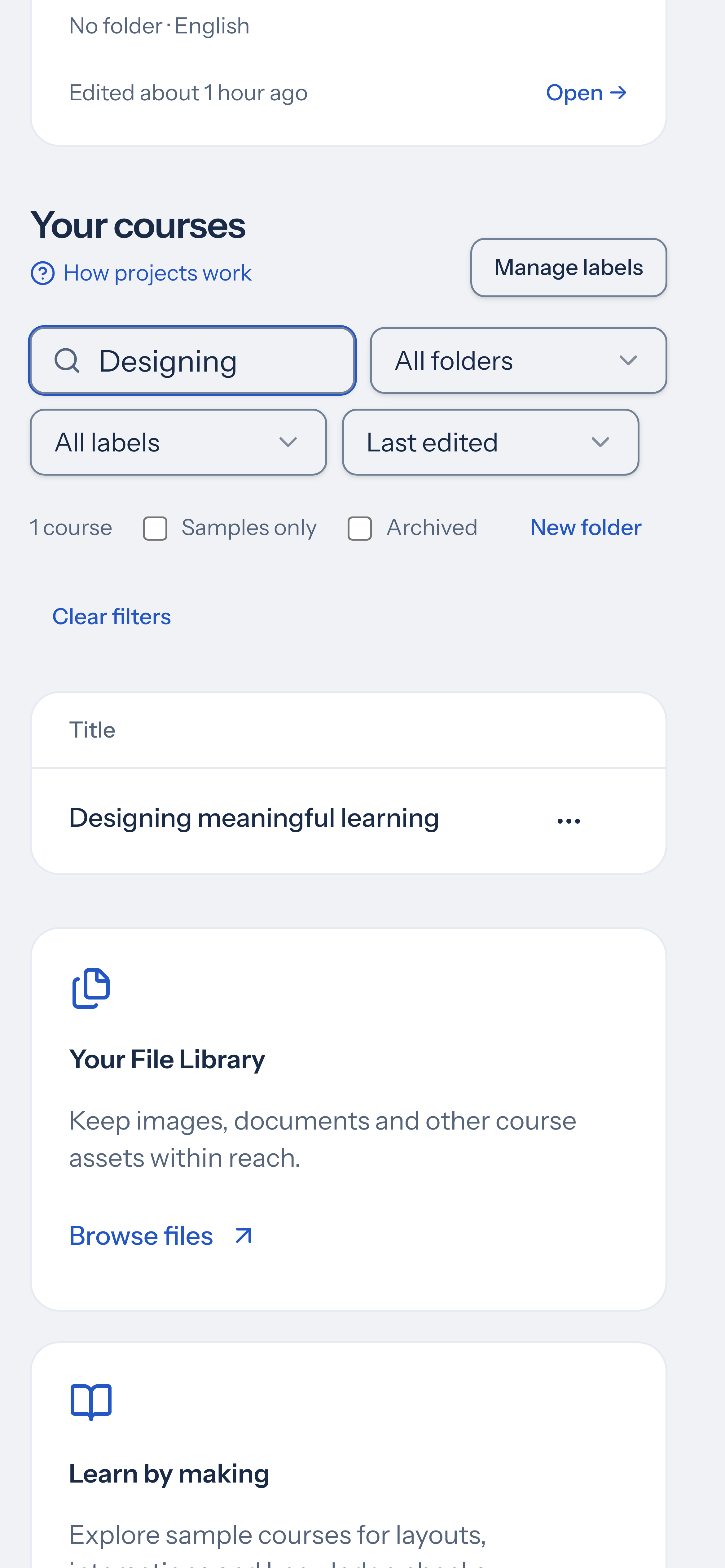
Section titled “Search and filter your course list”Use the search field to find a course by title. Use the folder list or Filter by folder to narrow the view. Combine a folder with Filter by label and title search. Use Sort courses to order the list by Last edited (newest first, the default), Title (A–Z), or Title (Z–A). Your sort choice is saved in this browser. Turn on Show archived to switch to archived courses; turn it off to return to active courses.
Organize across folders with labels
Section titled “Organize across folders with labels”Labels let one course belong to several useful categories, such as Spring 2027, Customer onboarding, or Leadership. A folder gives a course one location; labels let you find it in more than one way.
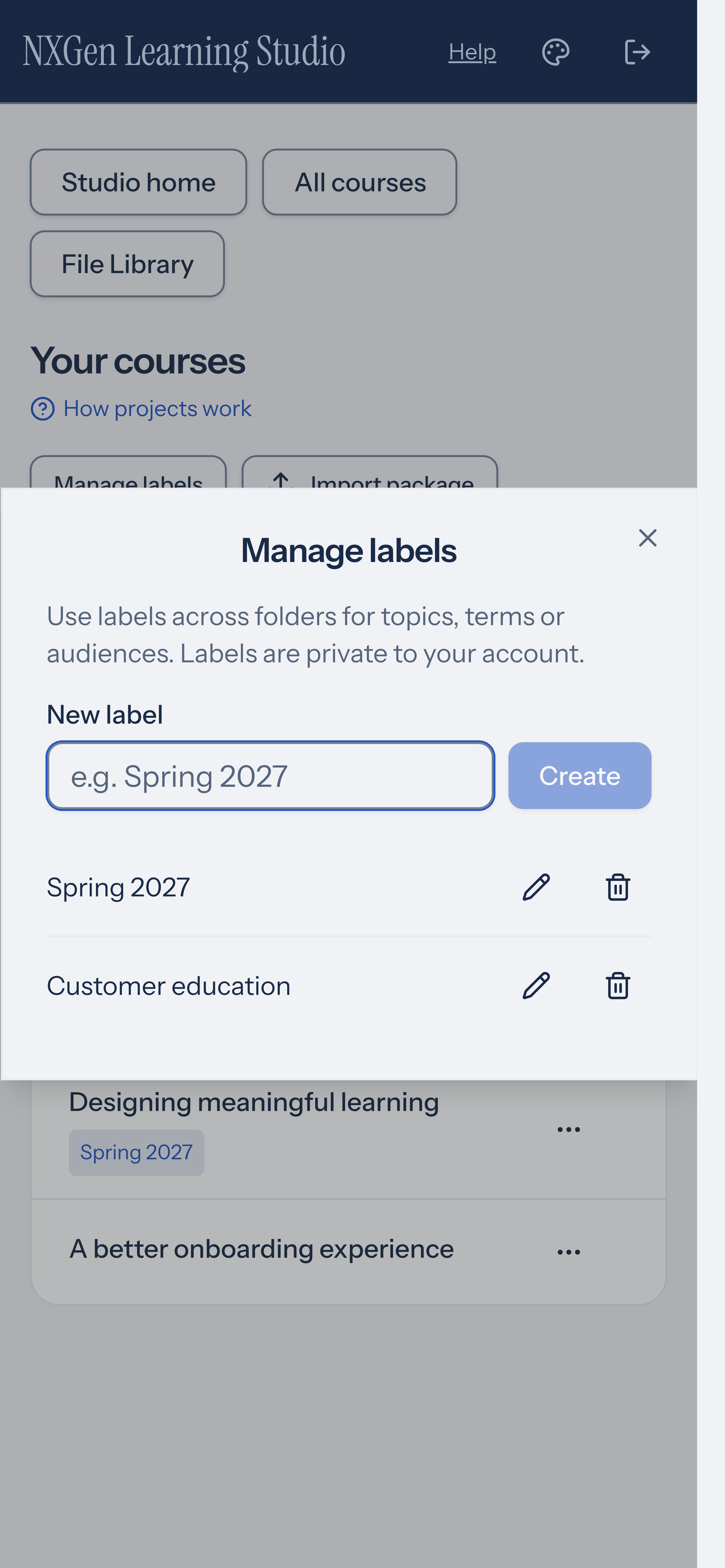
- Choose Manage labels, enter a name, and choose Create.
- Open the course’s action menu and choose Labels….
- Select the labels you want. Each selection saves immediately; close the dialog when finished.
- Use Filter by label to find the matching courses.
In Manage labels, use the rename or delete control beside a label. Renaming keeps its course assignments. Deleting a label removes those assignments without deleting courses. Names are limited to 60 characters and must be unique within your account, ignoring capitalization.
Labels persist with your account across devices. They are private to you: they are not shared taxonomy, permissions, or learner-facing course content. Archived courses retain their labels. Duplicates start without labels, so you can organize each copy independently. Labels are workspace metadata and are not part of portable course content.
Move a course between workspaces
Section titled “Move a course between workspaces”Use Export… in a course’s actions menu to open Export course, then export the HTML5 package (.zip). On Studio home, Import package previews that archive before creating a new course. Read course packages for the current size limits, retry guidance and standalone-player behavior.