Learning Studio / features
Delete a block
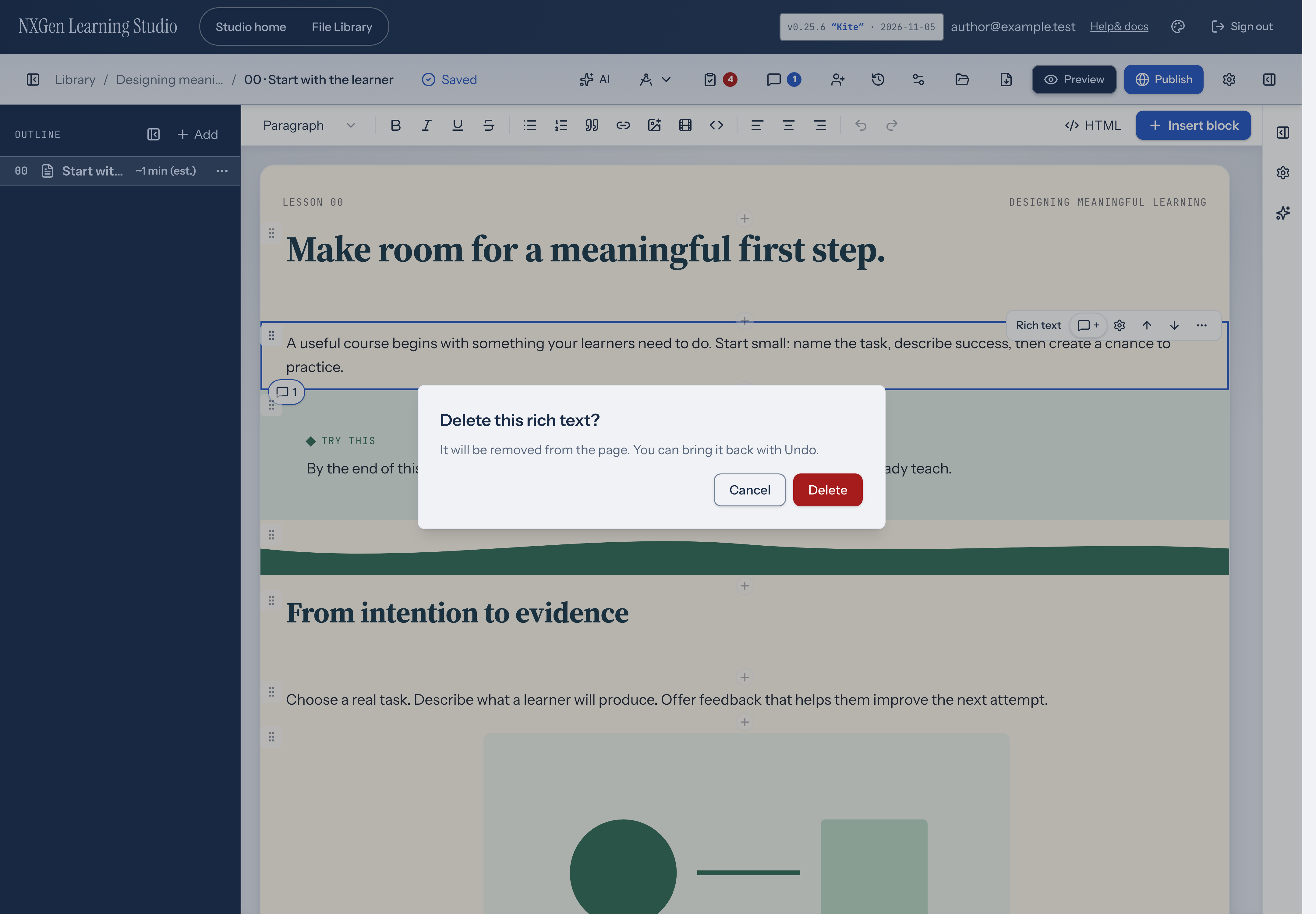
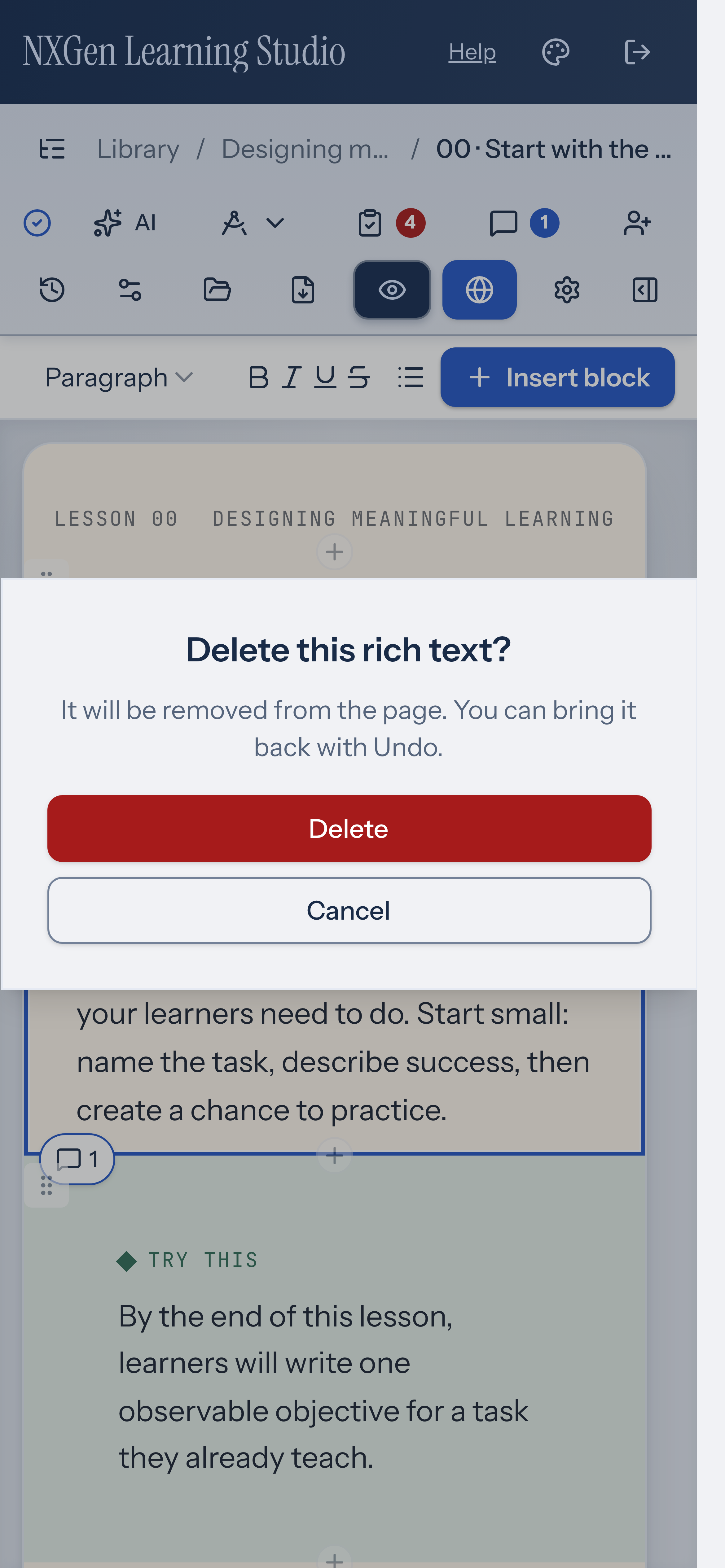
Remove a block from a page. Customized blocks ask for confirmation; untouched starter blocks delete immediately.
Delete a block from a page
Section titled “Delete a block from a page”Remove a block from a page when you no longer need it. Choose Delete… from the block toolbar’s more-actions menu (More actions for block name).
- Select the block you want to remove on the page canvas.
- Open the more-actions menu (the ⋯ button) in the block’s toolbar.
- Choose Delete…
If the block still matches its starter content — same text, settings, attachments, and style as a freshly inserted block of that type — Learning Studio removes it immediately without a dialog. The shortcut applies only to untouched defaults.
When you have changed authored content or configuration, attached a file or URL, or adjusted block style, or when you delete an Objectives block or a content group that contains blocks, a confirmation dialog appears. Select Delete to confirm or Cancel to keep the block.
You can always use Undo after a deletion, whether or not the dialog appeared.
Availability and limits
Section titled “Availability and limits”You can’t delete a block while it’s locked. Unlock the block first, then delete it.