Learning Studio / features
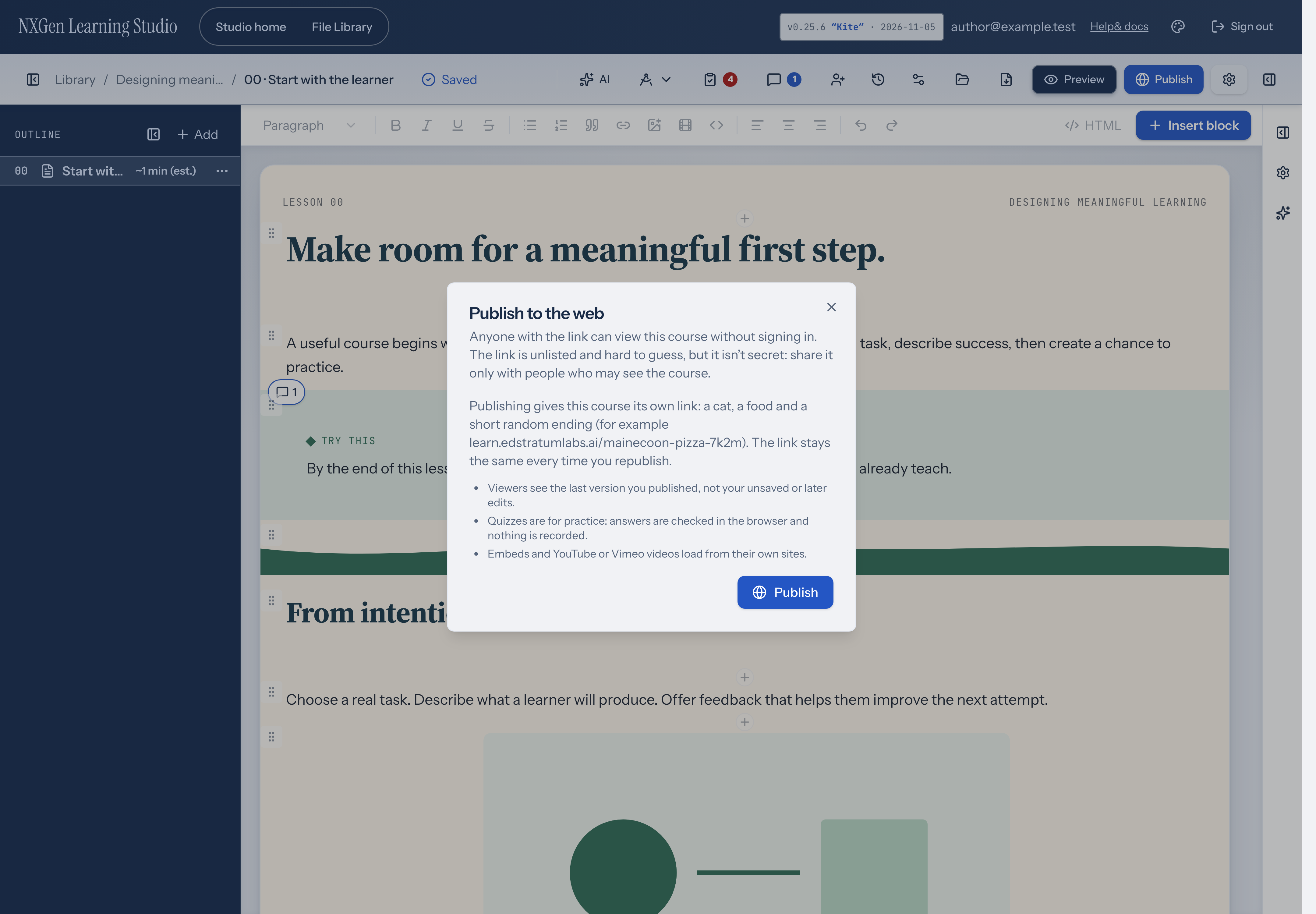
Publish a course to the web
Give a course its own public link, republish to update it, and unpublish to take it down.
What publishing does
Section titled “What publishing does”Publishing gives a course its own web link that anyone can open without signing in. Each link is a cat breed, a food and a short random ending, for example learn.edstratumlabs.ai/mainecoon-pizza-7k2m/. A course keeps the same link for good: every time you republish, the link shows your newest published version.
Published links are unlisted and hard to guess: search engines are asked not to list them, and the random ending makes them impractical to find by trying names. They aren’t secret, though. Anyone who has the link can open the course and its media, and can pass the link on. Don’t publish anything you need to keep private.
Publish a course
Section titled “Publish a course”- In the course editor, choose Publish in the top bar to open Publish to the web.
- Choose Publish. Learning Studio saves your pending changes first; if it can’t, it asks you to Save your pending changes before publishing.
- While it works, the dialog shows Publishing… and This can take up to a minute, with the elapsed time beside it (for example Elapsed 0:35). Publishing does not list file-by-file progress.
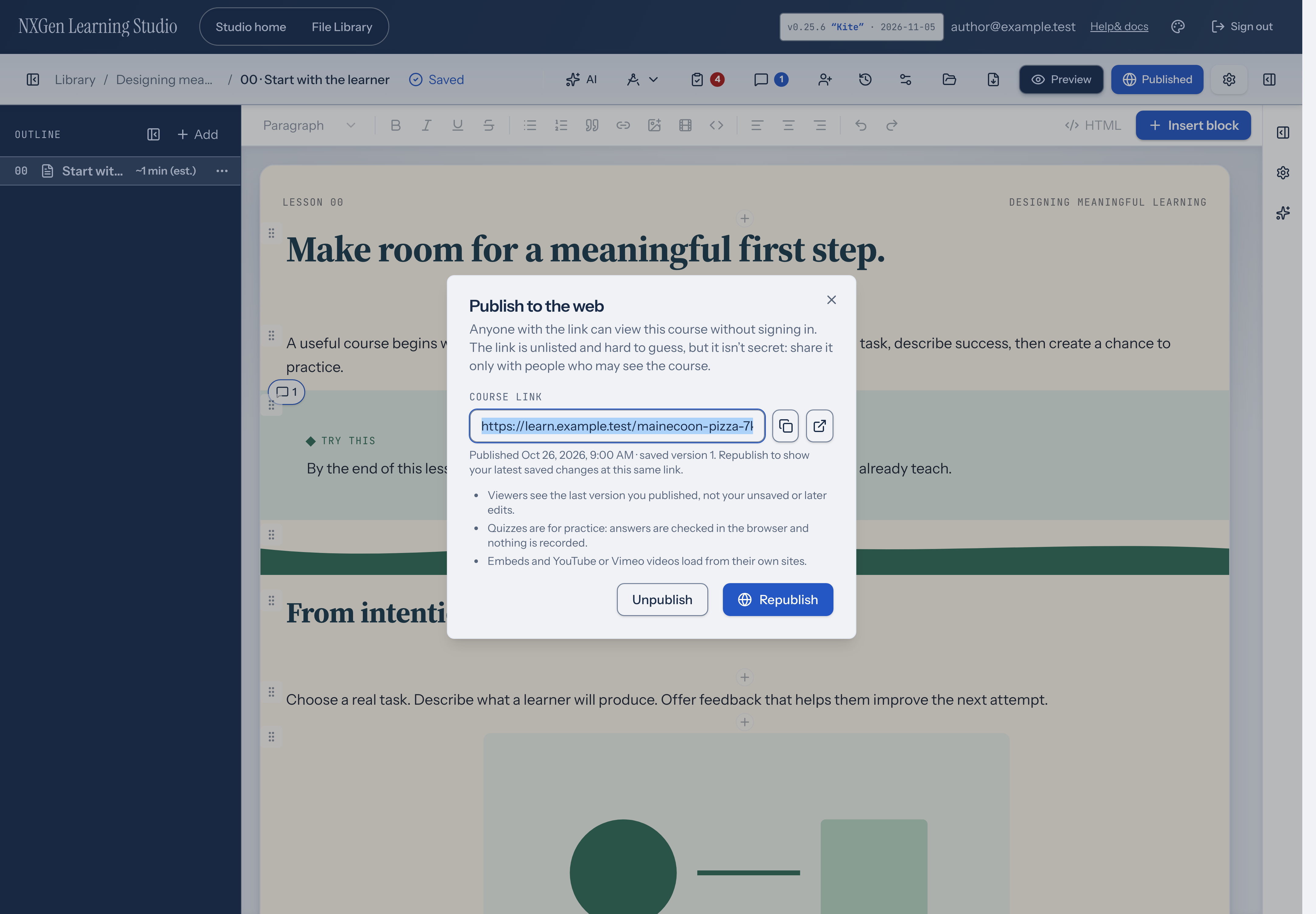
- When it finishes, the dialog shows the Course link. Use Copy link to share it, or open it in a new tab.
The top bar then shows Published instead of Draft · never published.
Update a published course
Section titled “Update a published course”Edit the course as usual. Viewers keep seeing the last version you published until you open Publish to the web and choose Republish. The link stays the same.
Unpublish
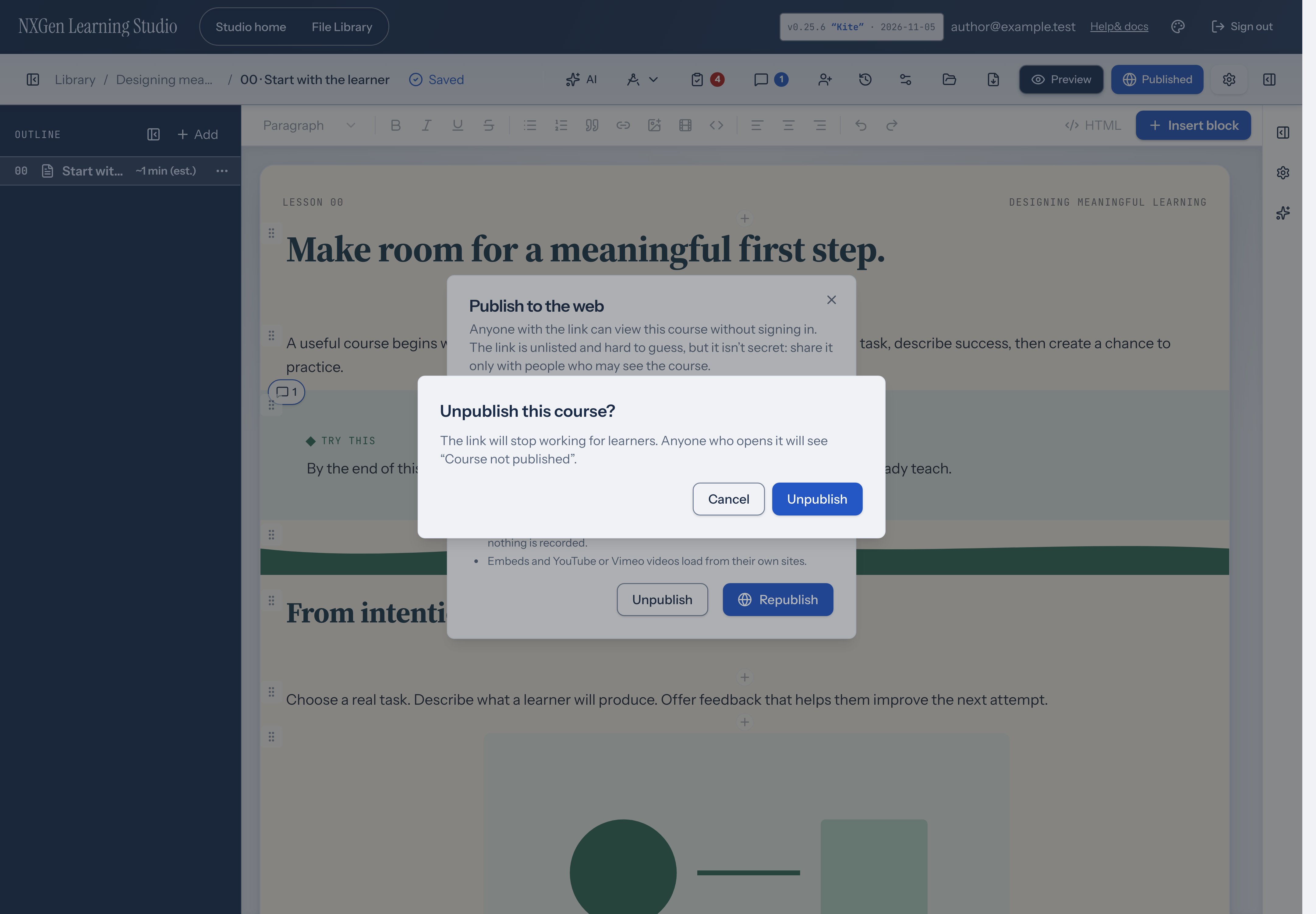
Section titled “Unpublish”Open Publish to the web and choose Unpublish. Learning Studio asks Unpublish this course? and explains that the link will stop working for learners. Choose Unpublish to take it down. Choose Cancel, or press Escape, to keep the course published. Focus returns to Unpublish. After you unpublish, the link shows “Course not published”, and the top bar shows Draft · unpublished. The course keeps its link: choose Publish again later and the same link works again. Deleting a course also takes its published copy down.
What viewers get
Section titled “What viewers get”- The pages, media, fonts and theme of the version you published, in the same player as Preview.
- A Skip to content link as the first control on the page. It stays hidden until it receives keyboard focus, then moves to the course.
- Quizzes are checked in the browser, and nothing is recorded or sent to you. A scored quiz shows Practice copy: this quiz is scored when taken in your course. Here your answers aren’t recorded. It still shows the pass score and attempt limit, for example Pass at 80% · 2 attempts when scored. When attempts are unlimited, it shows only the pass score, for example Pass at 80% when scored. A knowledge check still shows Knowledge check · practice, not scored.
- Uploaded files are included in the published copy. Embeds, YouTube or Vimeo videos, and other media added only by URL still load from their original sites. Those resources need to remain available for learners to use them.
Availability and limits
Section titled “Availability and limits”- Course owners can publish their own courses, including reviewer accounts.
- A published course and its files together must fit the 32 MiB package limit.
- Published links don’t track learners, enroll people or report scores. SCORM and xAPI exports are planned separately.
- Hidden pages and hidden blocks aren’t shown, as in Preview.
- If the server hasn’t been set up for publishing, the dialog shows Publishing isn’t set up on this server yet.