Learning Studio / features
Content groups
Organize blocks into named, collapsible groups on a page.
Content groups let you fold related blocks on a page. Learners open and close groups during a session; their choices reset when they use Restart in preview or the published player.
Collapsing a group
Section titled “Collapsing a group”When a learner collapses a group:
- Audio and video pause if they were playing.
- Embeds (links and custom HTML) unload so the player is not running in the background. If a learner opens the group again, the embed reloads. An embed’s own state (scroll position, in-frame progress, or logged-in session inside the frame) may reset when the group was collapsed.
- Quiz answers and checklist ticks inside the group are kept. Collapsing only hides content; it does not clear progress.
Configure a group
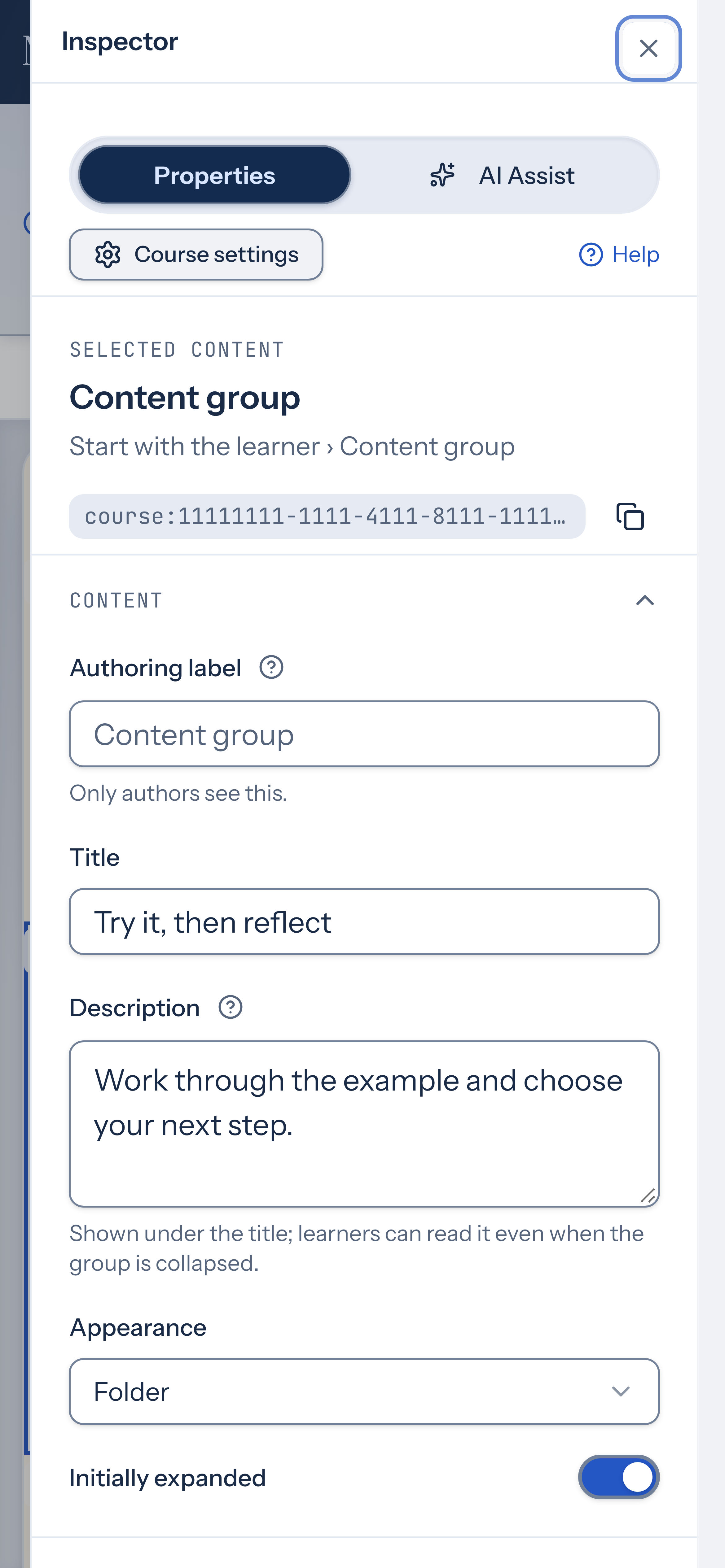
Section titled “Configure a group”Select the group and open Properties. In Content, set its Title and optional Description. Learners can read the description even when the group is collapsed. Choose Simple or Folder under Appearance, then check Initially expanded. Switching to Folder starts the group collapsed; switching to Simple starts it expanded. You can change that starting state with the switch.
A group must sit directly on an ordinary page or quiz page. It cannot sit inside a column or another group, or on a cover or chapter. Groups can contain columns.
Ungroup or unlock
Section titled “Ungroup or unlock”Choose Ungroup in the group’s More actions menu to put its blocks back on the page in their existing order. Show a hidden group to learners before ungrouping it, and unlock the group and all its contents first. Undo restores the group.
A hidden group remains available to authors, but a locked group prevents editing its contents until it is unlocked. Hiding and locking serve different purposes: hiding changes what learners see; locking protects authoring changes.
When to use an Accordion vs a Content group
Section titled “When to use an Accordion vs a Content group”Use an Accordion block when each item is a titled rich-text panel (and optionally one level of tabs inside an item). Accordions stay on the page for short, text-forward comparisons or step lists.
Use a Content group when you need ordinary blocks together—media, downloads, practice quizzes, columns, embeds, checklists, and the rest. Groups can sit on ordinary pages or quiz pages, fold independently, and keep learner progress for quizzes and checklists when collapsed.
Ordered navigation and quizzes inside a group
Section titled “Ordered navigation and quizzes inside a group”On quiz pages with ordered course navigation, a scored quiz still gates Next even when its group is collapsed. The gate names the quiz and opens the group so the learner can complete it.
Outline navigation
Section titled “Outline navigation”In the editor Outline, expand a page row to see its Content groups in canvas order. Group rows use a stacked-layers icon; they do not change page numbering.
Select a group in the Outline to open its page, expand the group on the canvas, scroll to the group header, and select that group block. Hidden groups stay listed with a Hidden label. Groups on a hidden page inherit that hidden appearance without changing stored visibility on the group.
Outline group rows are for navigation only. Reorder groups with the canvas move controls.
Review, comments, and deep links
Section titled “Review, comments, and deep links”Review issues, Comments (Go to element), and other block targets inside a visible group open the owning group before scrolling to the block.
In Preview and published playback, navigation to a visible block inside a group opens ancestor groups first. A target inside a hidden group is not revealed; the player stays at the top of the page instead.