Learning Studio / start
Find your way around
Learn the library, outline, canvas, inspector, and course actions.
Open a course from Studio home to enter the editor. Start by finding the page you want to work on, then select its content to make changes.
Take the welcome tour
Section titled “Take the welcome tour”After you sign in, a five-step welcome tour opens on Studio home. Use Next and Back to move through it. Check Don’t show this again if you don’t want it to open automatically on future visits; that choice is saved to your account. You can reopen the tour any time from Studio home with Take the tour. Choosing Plan with a blueprint or Blank course in the tour opens New course with those two starting points.
Studio home also gives you direct routes to Create course, Draft with AI, and File Library. Use folders and private labels to organize the course list. Find and organize your courses.
The workspace
Section titled “The workspace”The editor has three main areas:
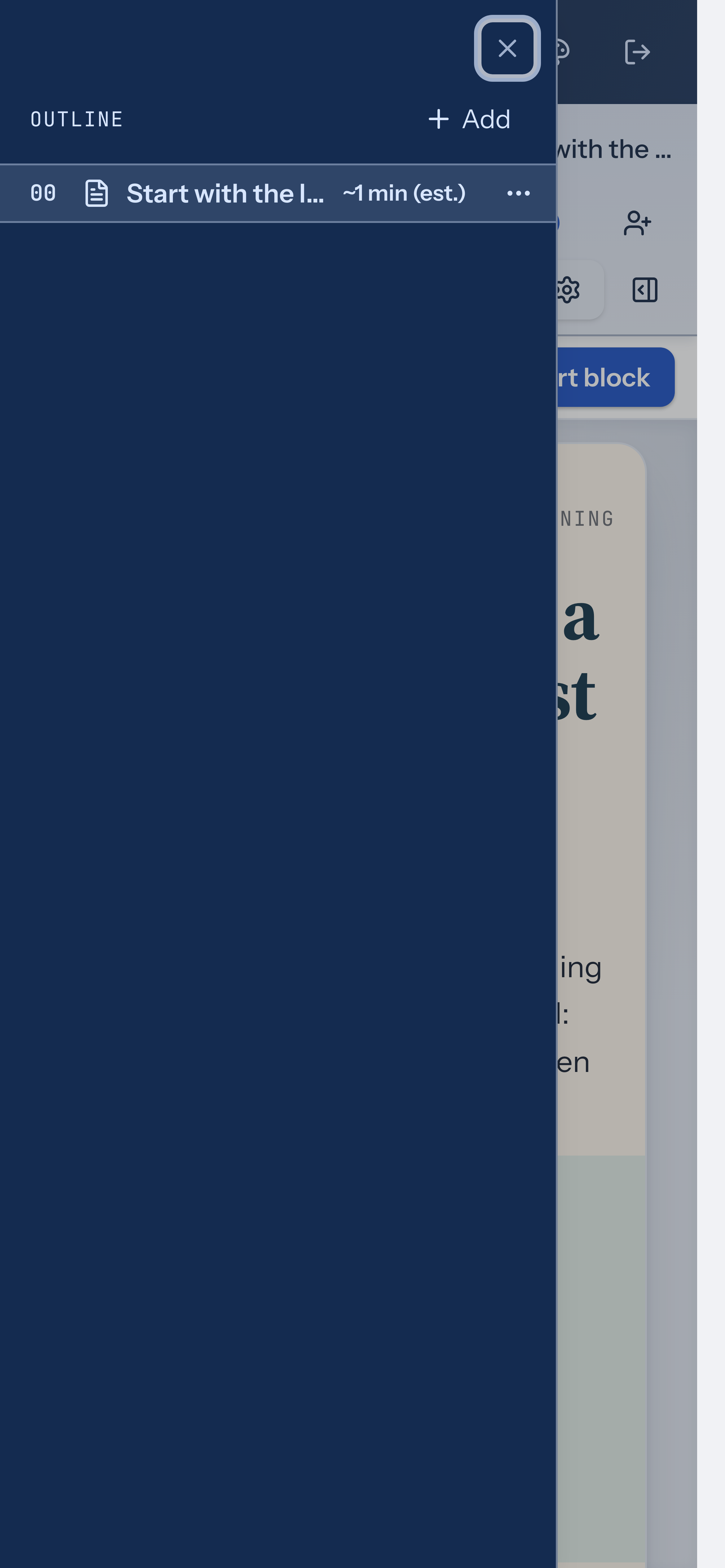
- Outline: On the left, organize pages and chapters and choose the page to edit.
- Canvas: In the center, read and edit the selected page.
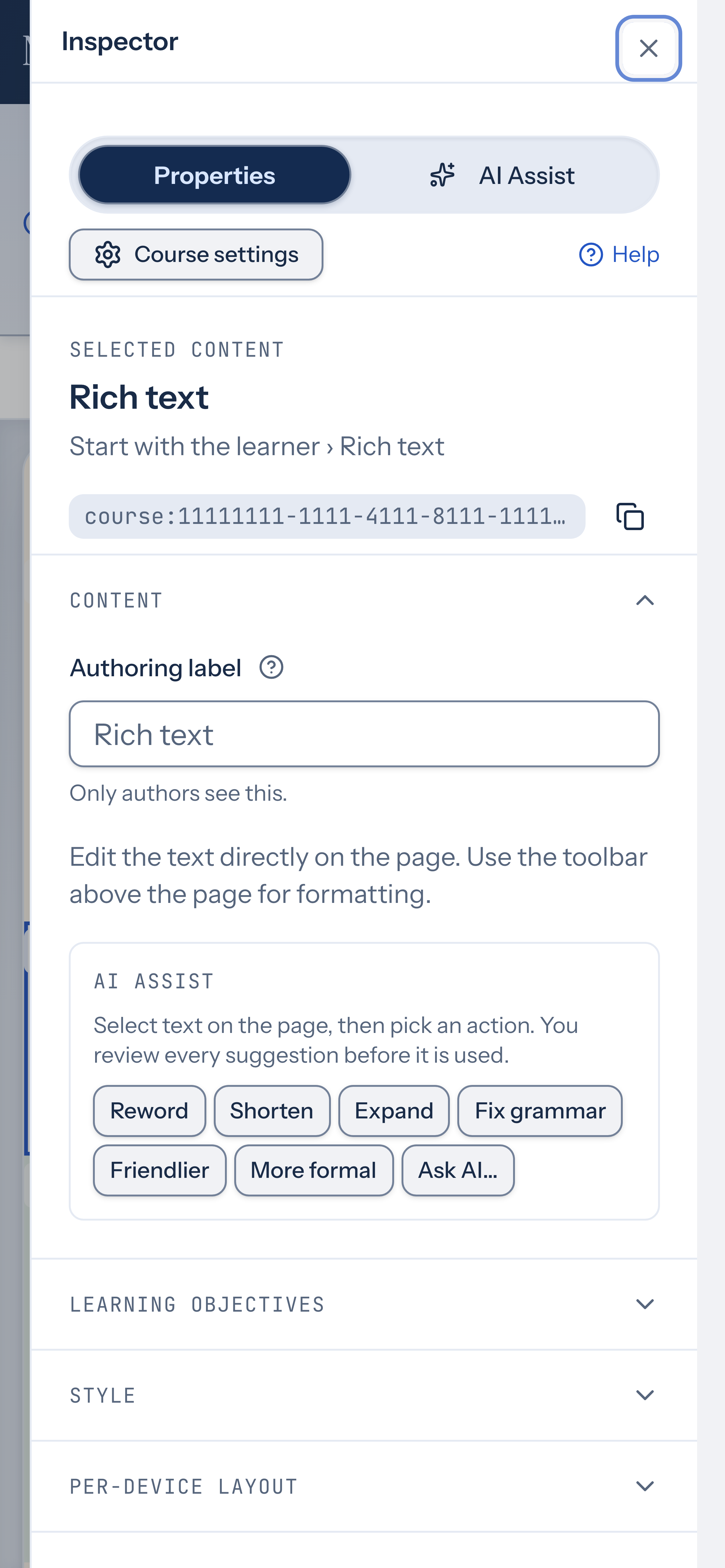
- Inspector: On the right, adjust the selected page or block. The inspector has Properties and AI Assist tabs; open Course settings in the inspector for course-wide properties and appearance.
Select a block on the canvas, then choose Edit properties to open its settings. To edit page settings, select a page in the outline and open the inspector. On narrow screens, use Show outline or Show inspector to reach those controls.
Course actions
Section titled “Course actions”The editor provides AI, Comments, Share, Versions, Preferences, Files, Export, Preview, and Publish controls. Open Learning Design for Blueprint, Goals & objectives, and Alignment, and Review for the course checklist. Course settings selects course-wide properties in the inspector (a drawer on narrow screens); the inspector’s AI Assist tab shares the toolbar AI workflow and includes a Layout mode for rearranging page blocks. Some labels collapse to icons on narrow screens; their accessible names remain available.
Use Preview to check the learner experience and Review to look for missing information as you build.
Two kinds of appearance
Section titled “Two kinds of appearance”Use the Appearance control to pick a studio palette — such as Tidal Ink, Cobalt & Linen, or Aubergine & Copper — and set Light, Dark, or System mode. These choices change the app workspace. Your course has its own theme, so switching app appearance doesn’t change the colors learners see. Learn about course themes.
Open and close the inspector panel
Section titled “Open and close the inspector panel”Use the toggle button in the toolbar to show or hide the inspector panel. Toggling the panel changes its visibility but never changes which tab is selected.
On desktop, your expanded or collapsed choice is saved as a studio preference and persists across sessions; it starts collapsed. On mobile, the inspector opens as a sliding sheet. Closing the mobile sheet does not change your desktop preference.
To open the inspector to a specific tab, select Properties or AI Assist from the collapsed rail. Choosing either control opens the panel with that tab selected. Once the panel is open, switching tabs updates the view without closing it.