Learning Studio / reference
Checkpoints and version history
Keep an intentional recovery point before making a large change.
Save a checkpoint before a large change so you have a recognizable course state to return to.
Save a checkpoint
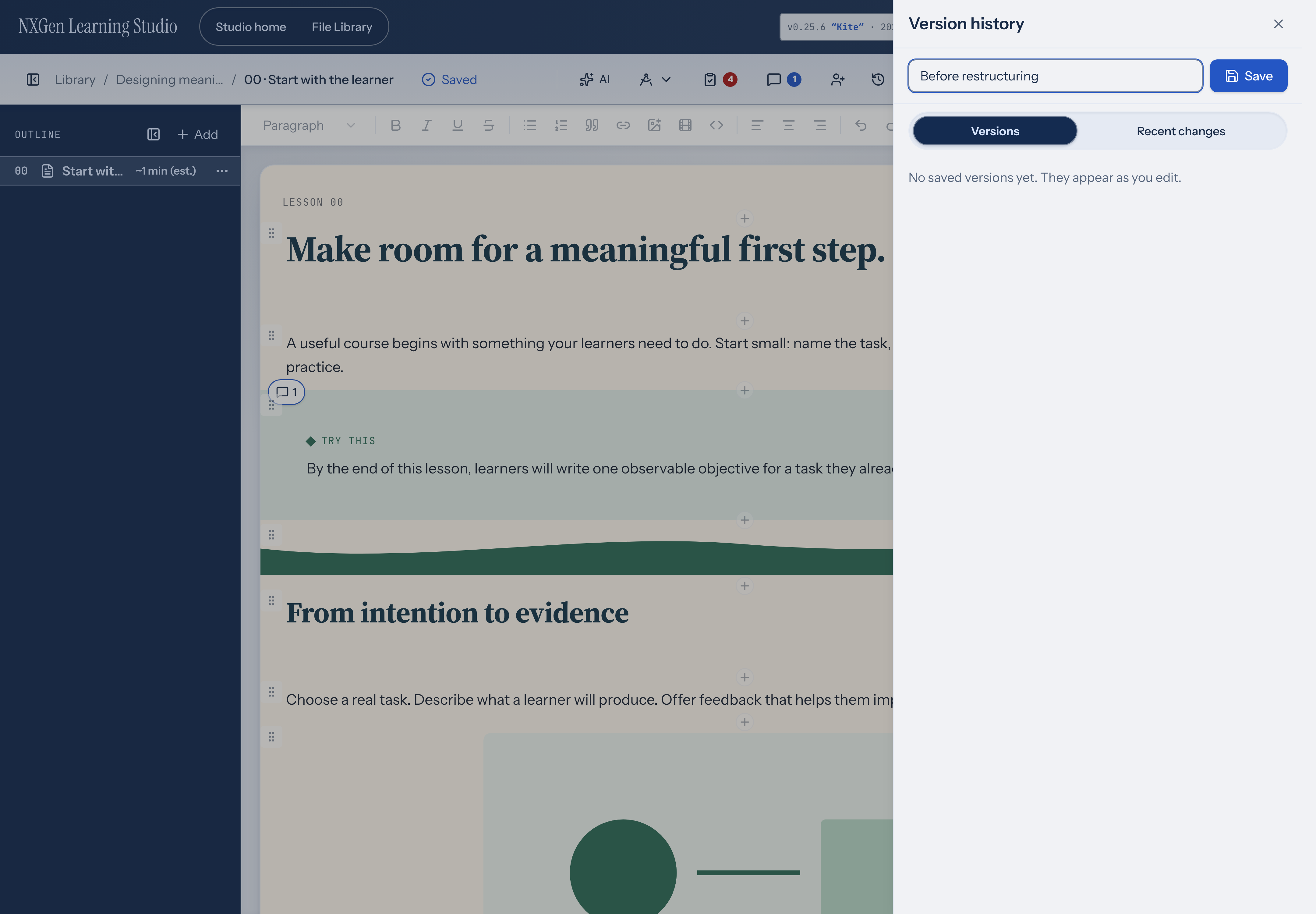
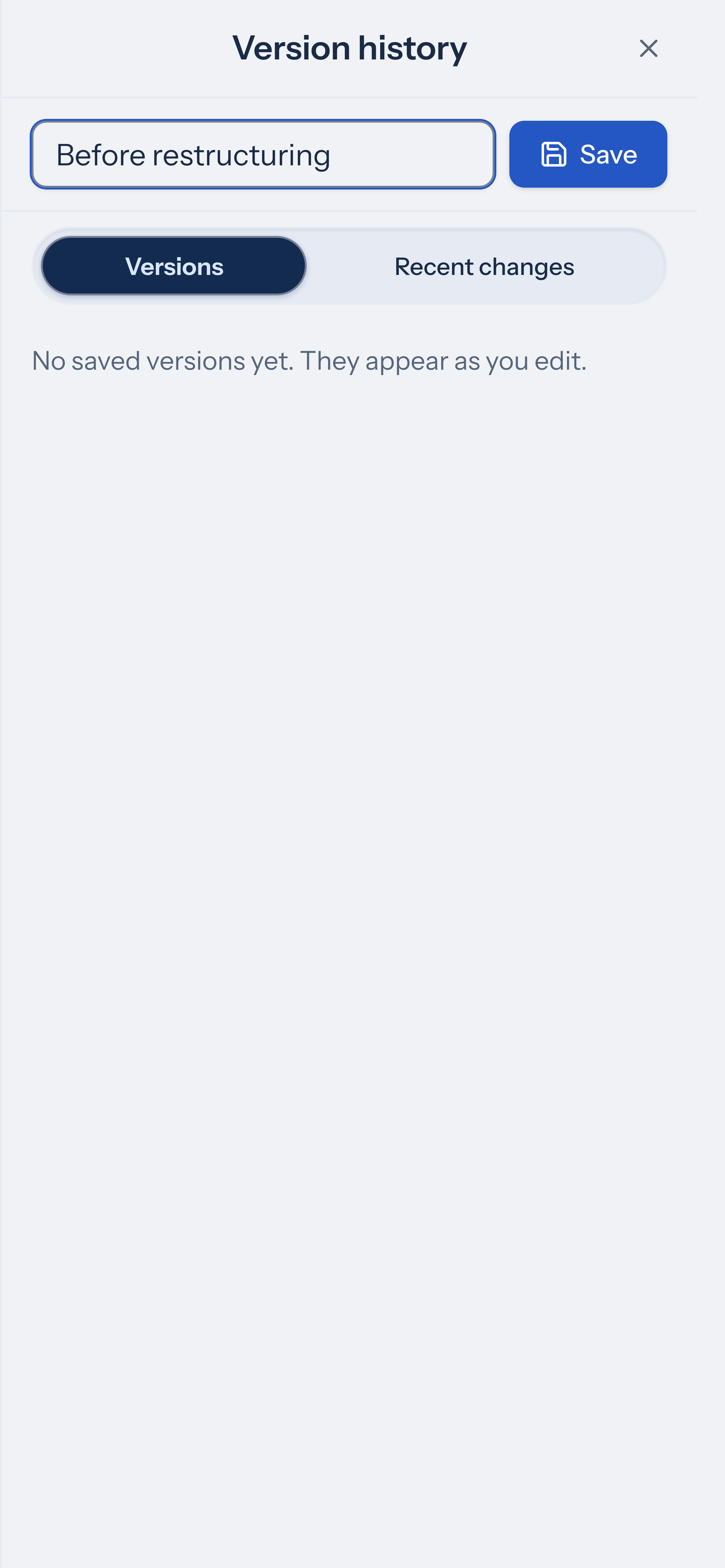
Section titled “Save a checkpoint”Open Version history using the history icon in the editor toolbar. Give the checkpoint a useful label (up to 120 characters) and select Save before restructuring the course or applying a large AI proposal.
Saving a version waits for any in-flight edits to settle first, so the checkpoint captures your latest content. If a conflict or save error is detected, you’ll see a message and the version won’t be created until that’s resolved.
History also includes supported autosaves and snapshots from before AI or agent changes. Automatic retention is limited, so don’t assume every edit remains available indefinitely.
Used AI Assist suggestions appear with a Before AI change label in course history. File versions are separate: open a resource’s History & courses in Files to inspect or restore its bytes. See files and fonts.
Restore
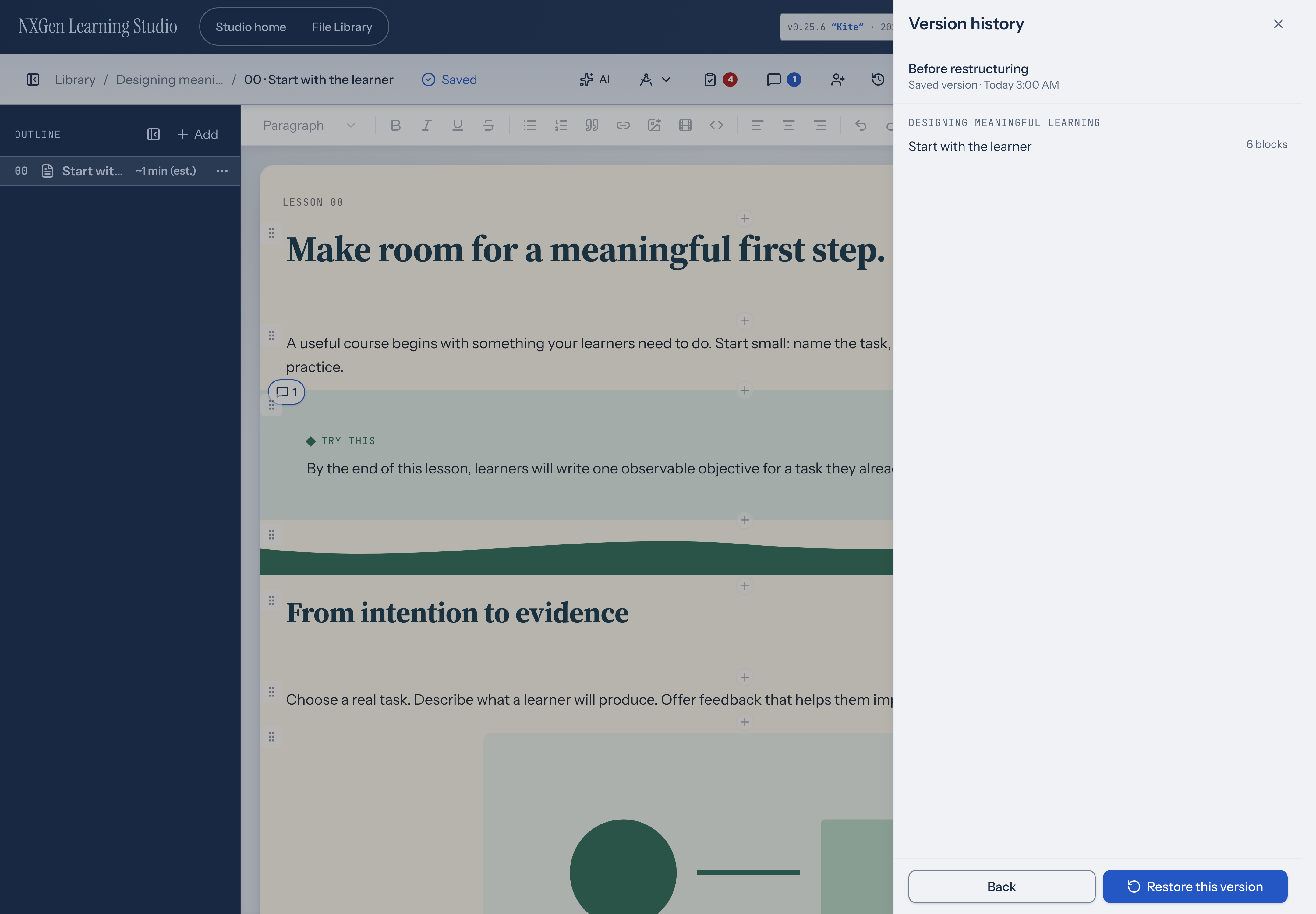
Section titled “Restore”Open a version and inspect it before choosing restore. Restoring replaces the current course content with that version as a new course change. You can undo a restore immediately with Ctrl+Z (Cmd+Z on Mac). It keeps the history of later changes rather than erasing them.
After restoring, check the outline, media references, objectives, and learner preview. A content snapshot doesn’t recover a media file that was deleted separately.
Version history and restore
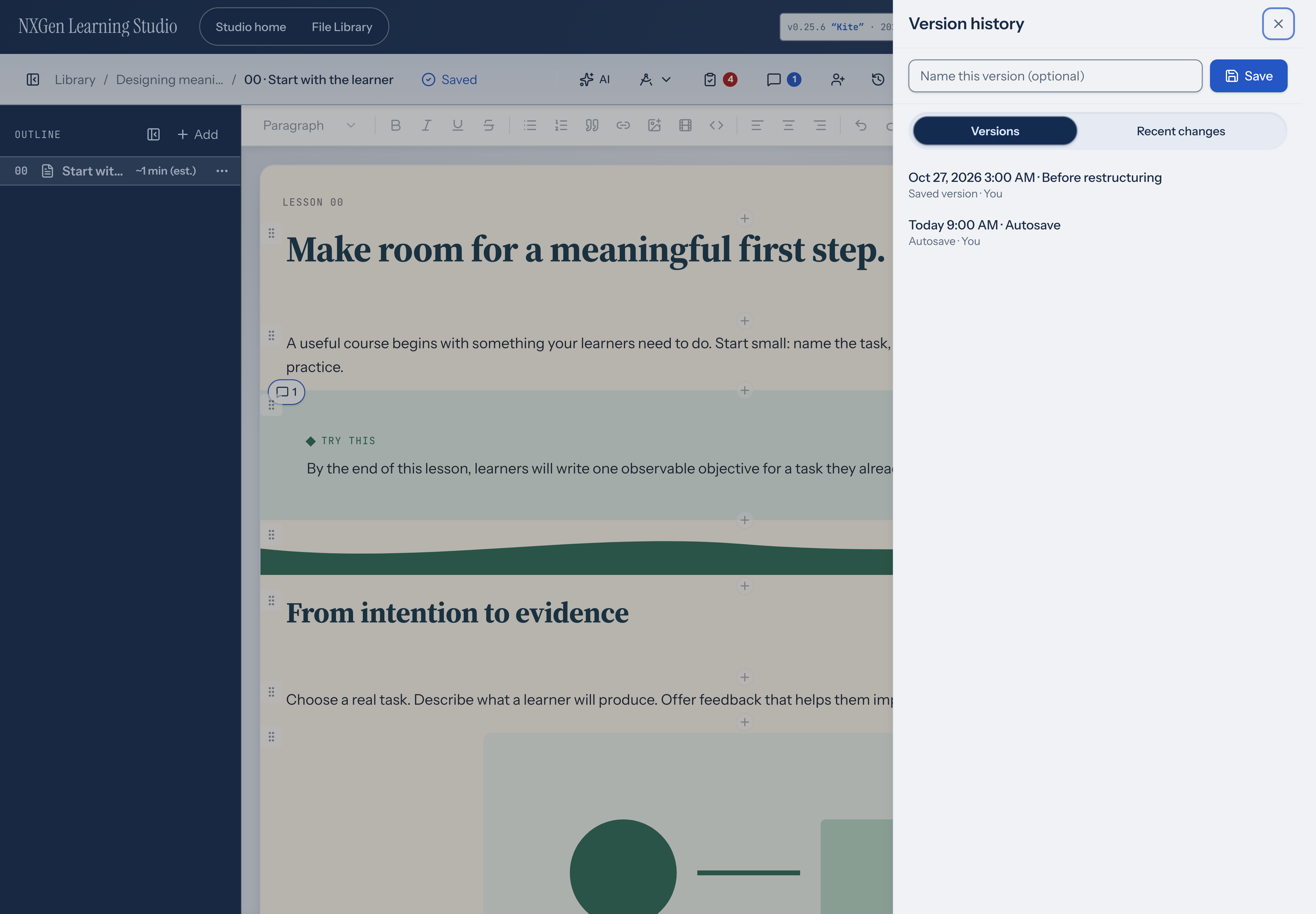
Section titled “Version history and restore”The Version history panel has two tabs: Versions lists your saved checkpoints and autosaves, and Recent changes shows recent edit history. Each row shows when the change happened and what changed (for example Today 5:42 PM · Renamed page). The second line shows the kind (Saved version, Autosave, or Before AI change) and who made the change. Select any saved version to preview its title, pages, and block counts. Choose Restore this version to apply it, or Back to return to the list without changes.
If there are more versions than fit on one page, select Show older to load the next batch.