Learning Studio / author
Arrange pages and chapters
Use the outline to shape a clear learning sequence.
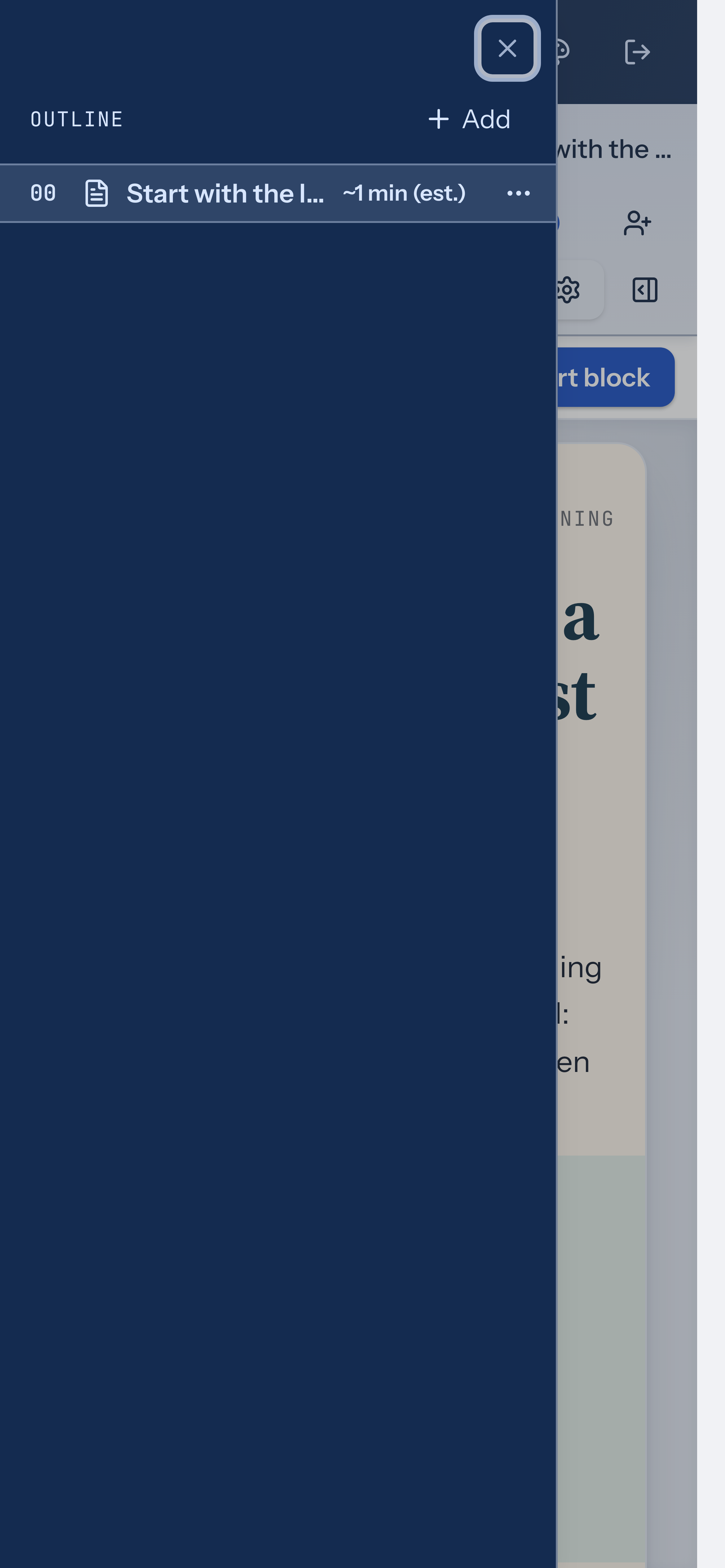
Use pages and chapters to give learners a sequence they can follow. Keep related explanations and activities together, then check how the sequence reads in Preview.
Add, organize, and manage course sections
Section titled “Add, organize, and manage course sections”Courses contain cover, page, chapter, and quiz sections. Chapters group child pages so you can keep related content together. Build the outline by adding sections, then drag or use the actions menu to arrange them into a clear learning sequence.
- In the outline, choose Add to insert a Page, Chapter, Cover, or Quiz section. The new section is selected automatically.
- To rename a section, open its actions menu and choose Rename, or double-click the title in the outline.
- To reorder, drag a section to a new position. Dragging a page onto a chapter nests it inside; dragging it out returns it to the top level.
- Use Move up or Move down in the actions menu for precise positioning. If a section sits below a chapter, you can also choose Move into chapter above.
- To reuse a section, choose Duplicate from its actions menu. The copy appears immediately after the original with fresh IDs.
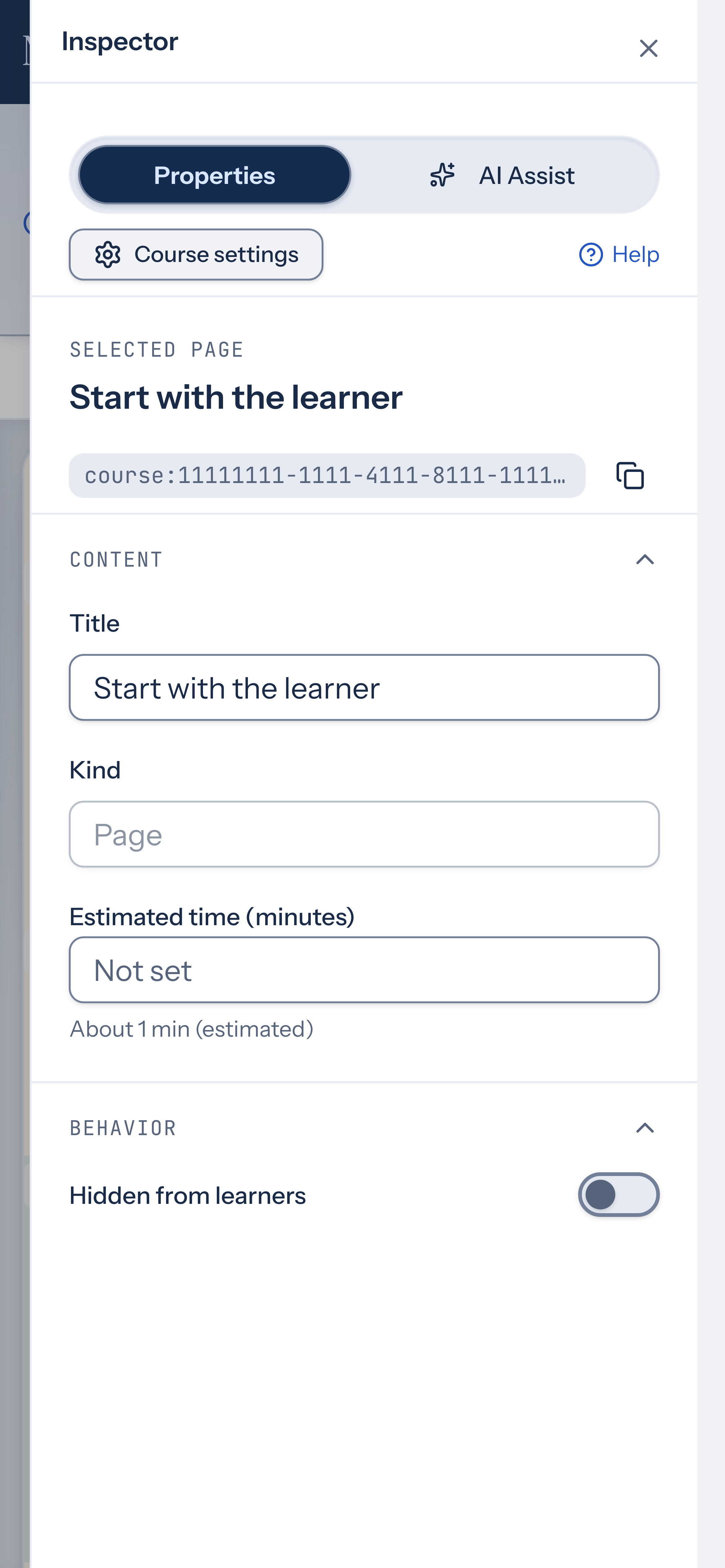
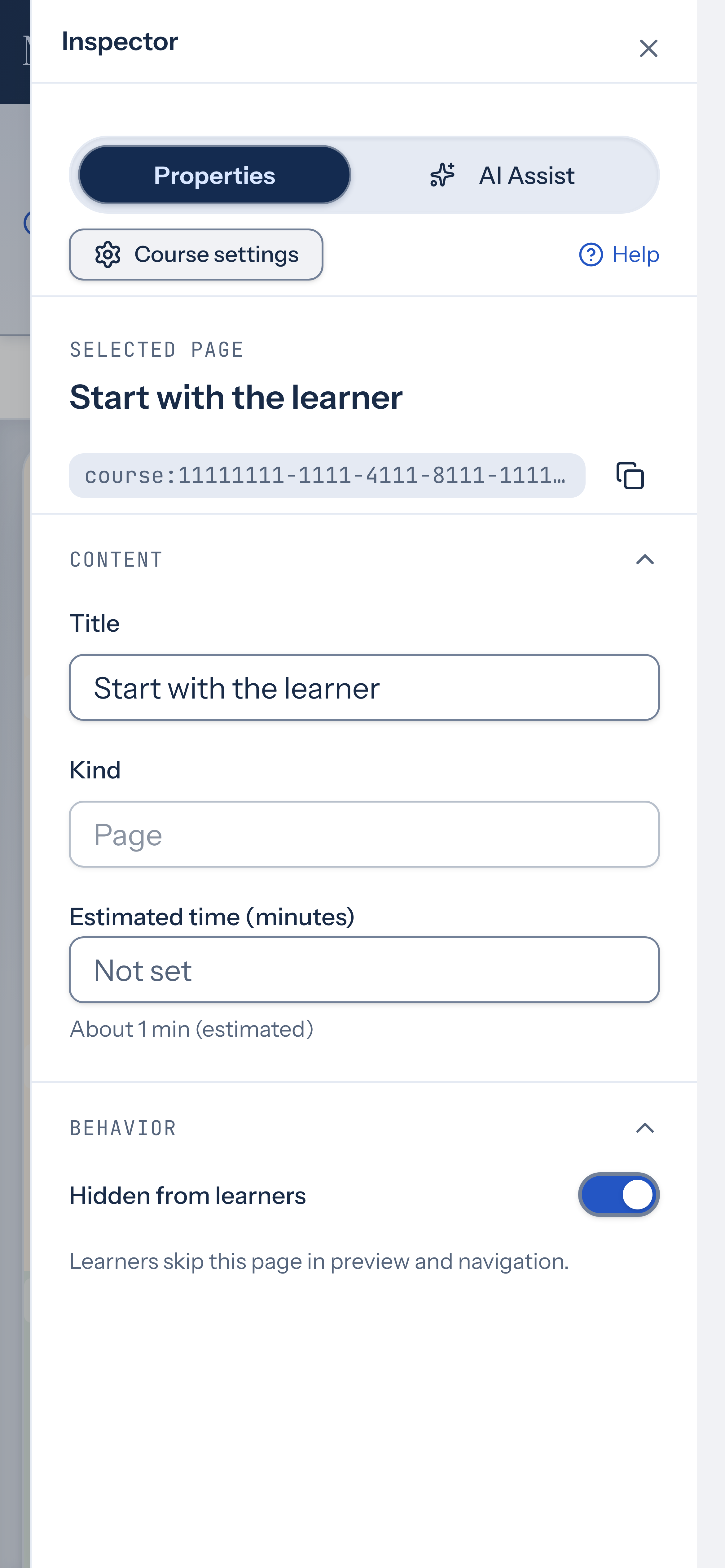
- To hide a section from learners, choose Hide from learners in its actions menu. Hidden sections are skipped in preview and navigation. Hiding a chapter or a page that has child pages hides those child pages too, in preview, review, published courses and packages.
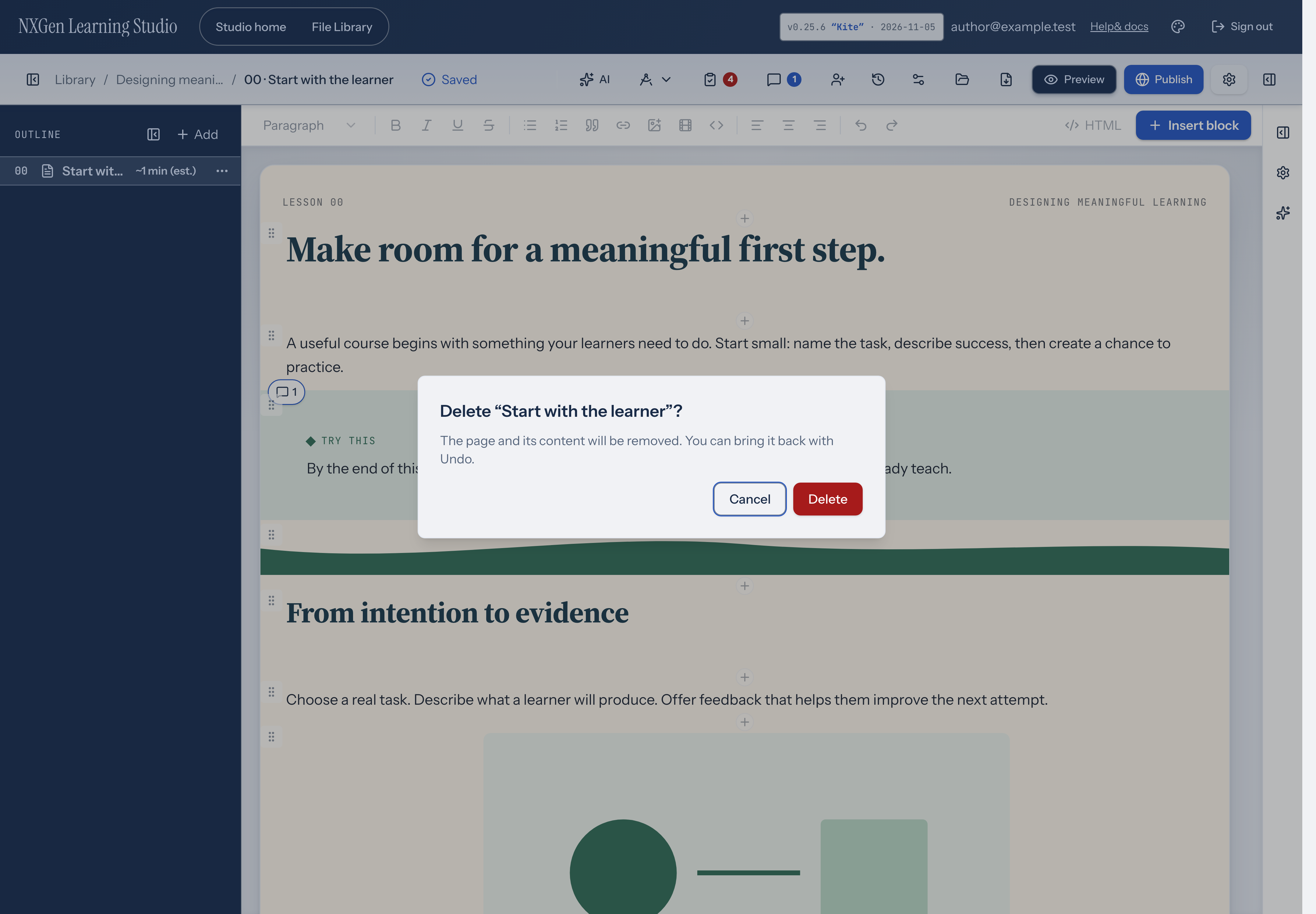
- To remove a section, choose Delete… from its actions menu and confirm. You can bring it back with Undo. A section containing locked blocks cannot be deleted until you unlock the blocks first.
Chapters can hold pages but not other chapters. After changing the order, check the learner preview, especially if your course uses ordered navigation and scored quizzes.
Reuse a page
Section titled “Reuse a page”Save a page as a template when you want to reuse its composition. Each insertion has fresh IDs, so the copies remain separate. See Reuse blocks and pages.
Save a checkpoint before restructuring
Section titled “Save a checkpoint before restructuring”Before major restructuring, save a named checkpoint in Versions. You can use it to restore an earlier course state through the normal editing workflow.