Learning Studio / features
Add a guided reflection
Create prompts or illustrated cards for private, ungraded reflection.
A Reflection block gives learners space to connect an idea to their own experience. Use a few focused prompts, such as identifying one distraction and choosing a small change to try.
Responses stay only while the page is open. They are not saved or submitted. This is a private practice activity, not an assignment inbox or a scored assessment. Tell learners to keep a separate copy if they need their response later.
Configure the activity
Section titled “Configure the activity”- Choose Insert block, then Reflection. Open the block’s Edit properties controls.
- Set a Title and write the prompts. Use Add prompt for additional prompts, up to 12.
- Choose Standard prompts or Illustrated cards under Presentation.
- For illustrated cards, add a Card title, an optional Worked example, and a Focus, Spark, or Compass illustration for each prompt.
- Set Minimum required answers and a Button label. The minimum controls the activity’s completion indicator; it does not gate course navigation.
Open Preview, select a prompt, write a response, and confirm it with the activity button.
Help learners reflect
Section titled “Help learners reflect”Keep each prompt answerable in a few sentences. A worked example can show the level of detail you want without suggesting there is only one acceptable answer. Use the move-up controls to put prompts in a useful sequence.
A confirmed response receives a check mark. Editing it means it must be confirmed again. Reset clears the activity’s responses. Leaving or reloading the page also clears them.
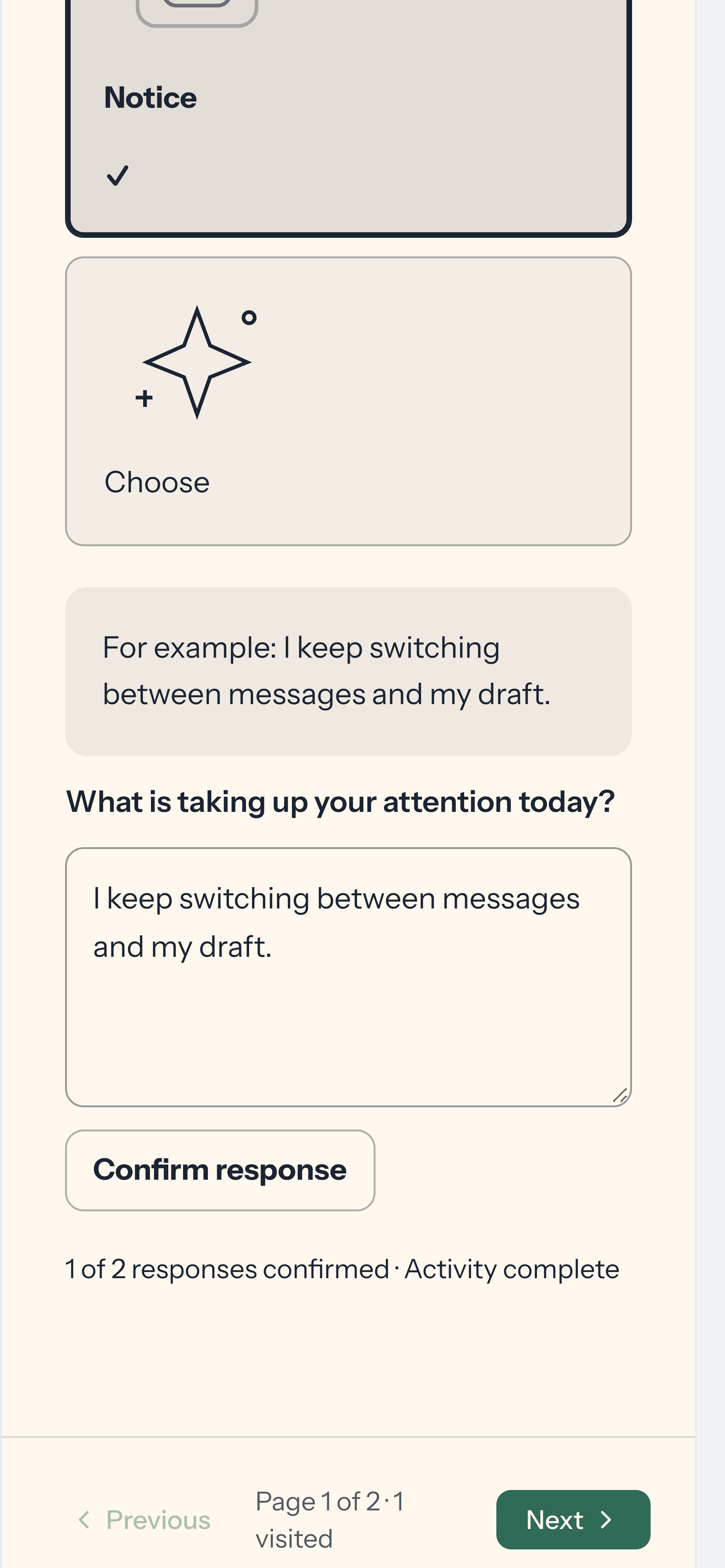
Check every prompt and the completion indicator in course Preview. The motion preview displays the design, but its activity controls are inactive.