Learning Studio / features
Classify objectives with framework levels
Set Bloom's Revised or Webb's Depth of Knowledge levels on objectives and questions, and use the ABCD wording checks.
Framework levels describe the kind of thinking an objective asks for. Setting them helps you notice when a course stays at recall, or when a question asks for less than the objective it checks.
For example, “List the steps of the refund process” asks learners to remember. “Choose the right refund for a customer’s situation” asks them to apply the process. A question that only asks for the list wouldn’t show that learners can make the choice.
Choose the frameworks for a course
Section titled “Choose the frameworks for a course”- Open Learning Design → Goals & objectives.
- Under Frameworks, select Bloom’s Revised Taxonomy, Webb’s Depth of Knowledge, or both.
New courses use Bloom’s Revised. At least one taxonomy stays on; to switch, turn on the other one first and then turn off the first. The ABCD wording checks always apply.
Choose About these frameworks to read a short summary of each framework, its sources, and when its descriptions were last checked.
Set an objective’s level
Section titled “Set an objective’s level”Select an objective in Goals & objectives. The Framework levels section shows an editor for each framework the course uses.
- Bloom’s: In the grid, choose one to three cognitive processes, from Remember to Create. You can also choose up to four knowledge types: Factual, Conceptual, Procedural, or Metacognitive. Pick a process before a knowledge type.
- DOK: Choose one level under Depth of knowledge, from DOK 1 · Recall to DOK 4 · Extended thinking.
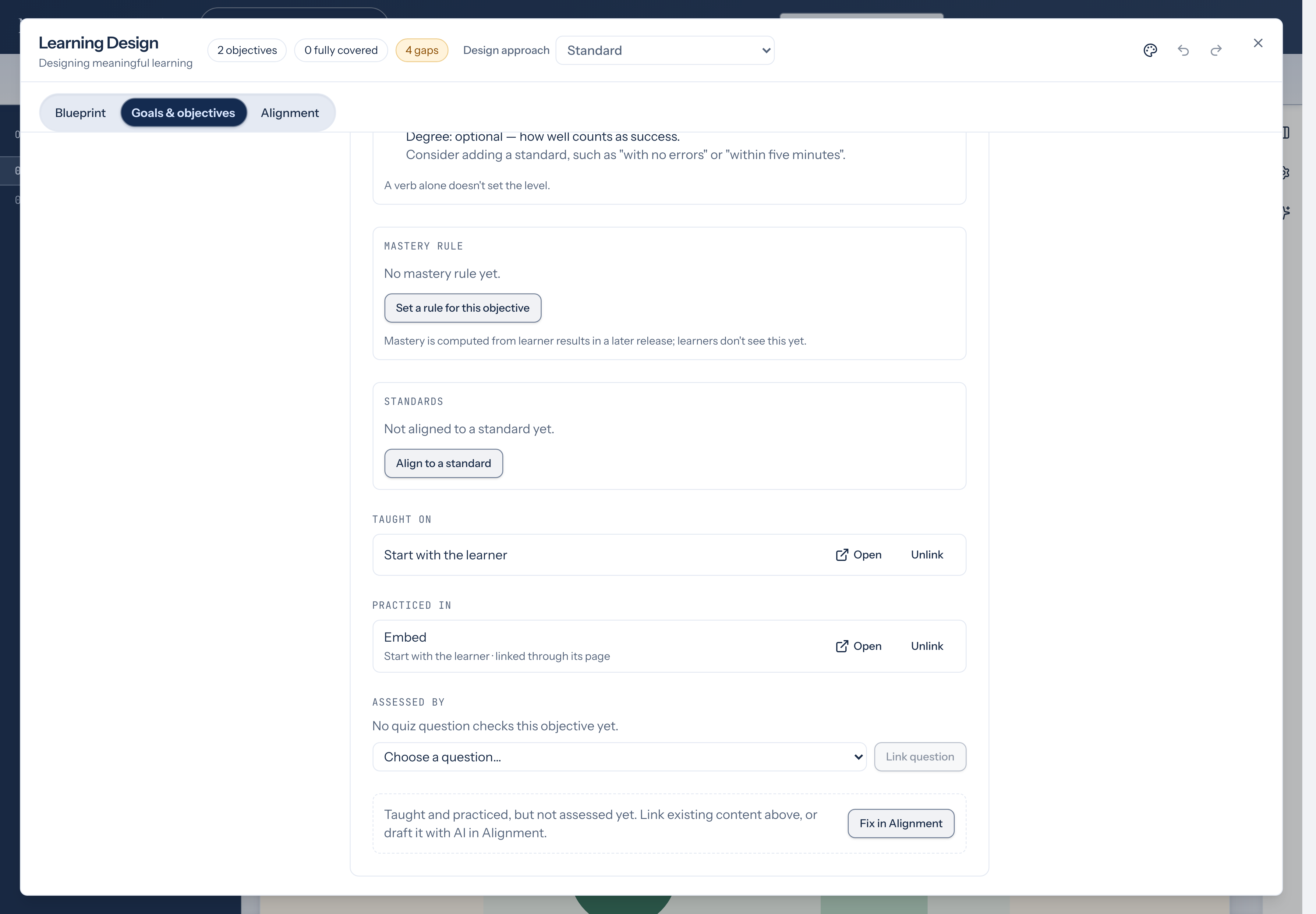
Each level you choose shows its description and suggested verbs. The verbs are starting points only: a verb alone doesn’t set the level. Choose Clear to remove a framework’s level from the objective.
Each level shows who set it: Set by you, or AI suggestion you confirmed.
Ask for a suggested level
Section titled “Ask for a suggested level”- Write the objective’s wording first.
- Choose Suggest level. Choose Cancel if you want to stop waiting.
- Read each suggestion and its reasoning, then choose Use to apply it or Discard to leave it out.
Nothing changes until you choose Use, and you can undo an applied level with Ctrl/Cmd+Z. A suggestion is a reading of the wording, not a judgment about your learners. Check that the level matches what learners will actually do in the course.
Read the ABCD wording checks
Section titled “Read the ABCD wording checks”Under the levels, the objective’s wording is checked against the ABCD pattern: audience, behavior, condition, and degree.
- Worth fixing flags wording that’s hard to teach or check, such as a verb you can’t observe (“understand”, “know”) or an objective that joins more than one outcome.
- Optional suggests adding a condition, such as what learners are given, or a degree, such as how well counts as success.
Each check includes a suggested fix. The checks look at wording only; they can’t tell whether the objective fits your course.
Set a question’s level
Section titled “Set a question’s level”In an objective’s Assessed by list, each scored question has a level picker for each framework the course uses. Choose a level, or Not set to clear it. Locked quizzes can’t be changed. Practice (knowledge check) questions are not rated for rigor.
When a question’s level is below the objective’s level, a warning appears under the question, for example: “A linked question is at Remember, below this objective’s Apply (Bloom’s).” When the question’s level is high enough but its type can’t show that depth, the warning names the type’s limit, for example: “This question type can show up to DOK 2 · Skills and concepts, below the objective’s DOK 3 · Strategic thinking.” If you decide the question still shows the objective’s level, accept it with a reason (below).
Check question rigor in the matrix
Section titled “Check question rigor in the matrix”In Learning Design → Alignment, the coverage matrix marks each scored quiz question cell linked to an objective with its rigor:
- Aligned (check mark)
- Below the objective’s level (down arrow, tinted cell)
- Question type can’t show this level (warning triangle, tinted cell)
- Level not set (question mark)
A legend row starting Question rigor: sits under the matrix toolbar. Hover a cell to read the reason; screen readers hear “rigor: …”. On phones, the Assessed by list in each objective card shows the same label beside each linked question.
Each link is compared for every framework the course uses when both the objective and the question have a level there. The weakest result wins.
Question-type ceilings apply even when the question has no level set: single choice, true/false, matching, and fill in the blanks reach at most Bloom’s Apply / DOK 2; multiple answers, numeric, ordering, and short answer reach at most Analyze / DOK 3. When a scored question has no level but its objective is classified, Review warns that rigor cannot be checked until you set a level on the question.
Accept a question’s rigor
Section titled “Accept a question’s rigor”In Goals & objectives, when a weak link shows a warning under a question in Assessed by, choose Accept with a reason. Type up to 200 characters in Why this question shows the objective’s level, then choose Accept. The link then counts as aligned. The question shows Rigor accepted: with your reason and a Remove button to clear the acceptance. Locked quizzes can’t be changed.
Check the distribution
Section titled “Check the distribution”Beside the objective list, each framework shows how many objectives sit at each level and how many are not classified yet. If at least three objectives are classified and two-thirds or more sit at the lowest levels, a note reads “Most classified objectives sit at the lowest levels.” That can be right for an introductory course; use it as a prompt to decide whether learners also need to work at a higher level.
Compare with the course level
Section titled “Compare with the course level”In Goals & objectives, Course level sets what the course is pitched at: Introductory, Intermediate, Advanced or Capstone. Once it is set and at least three objectives are classified, the distribution is checked against what that level usually expects, and this check replaces the lowest-levels note:
| Course level | Bloom’s Revised | Webb’s DOK |
|---|---|---|
| Introductory | at most 70% at Remember or Understand | at most 70% at DOK 1 |
| Intermediate | at most half at Remember or Understand | at most half at DOK 1 |
| Advanced | at least a third at Analyze or above | at least a third at DOK 3 or above |
| Capstone | at least one at Evaluate or Create | at least one at DOK 4 |
When the objectives don’t match, the distribution shows a note such as “Advanced expects at least a third at Analyze or above; 0 of 3 are.”, and Review lists a warning. These are Studio’s starting values, not rules from the frameworks’ authors, and like every framework check they never block anything. Choose Not set to go back to the lowest-levels note.
In Review
Section titled “In Review”Review in the editor toolbar includes Worth fixing wording checks, a low-level distribution, and one warning per objective with any weak assessed link. Each warning starts with “Objective N: a linked question can’t show its level.” Choosing one opens Goals & objectives at that objective. These warnings don’t block sharing. Each one, and each distribution note, shows Why this matters with a Learn more link to the section that explains it.