Learning Studio / ai
Review AI suggestions
Ask for a focused edit, inspect the result, then choose whether to use it.
Use AI for a focused change, then review the suggestion before applying it. You decide which changes belong in your course.
Built-in AI features in the studio are powered by EdStratum Labs LLM (with a separate backup label when the backup path is used). The product does not show vendor model names.
Choose a scope
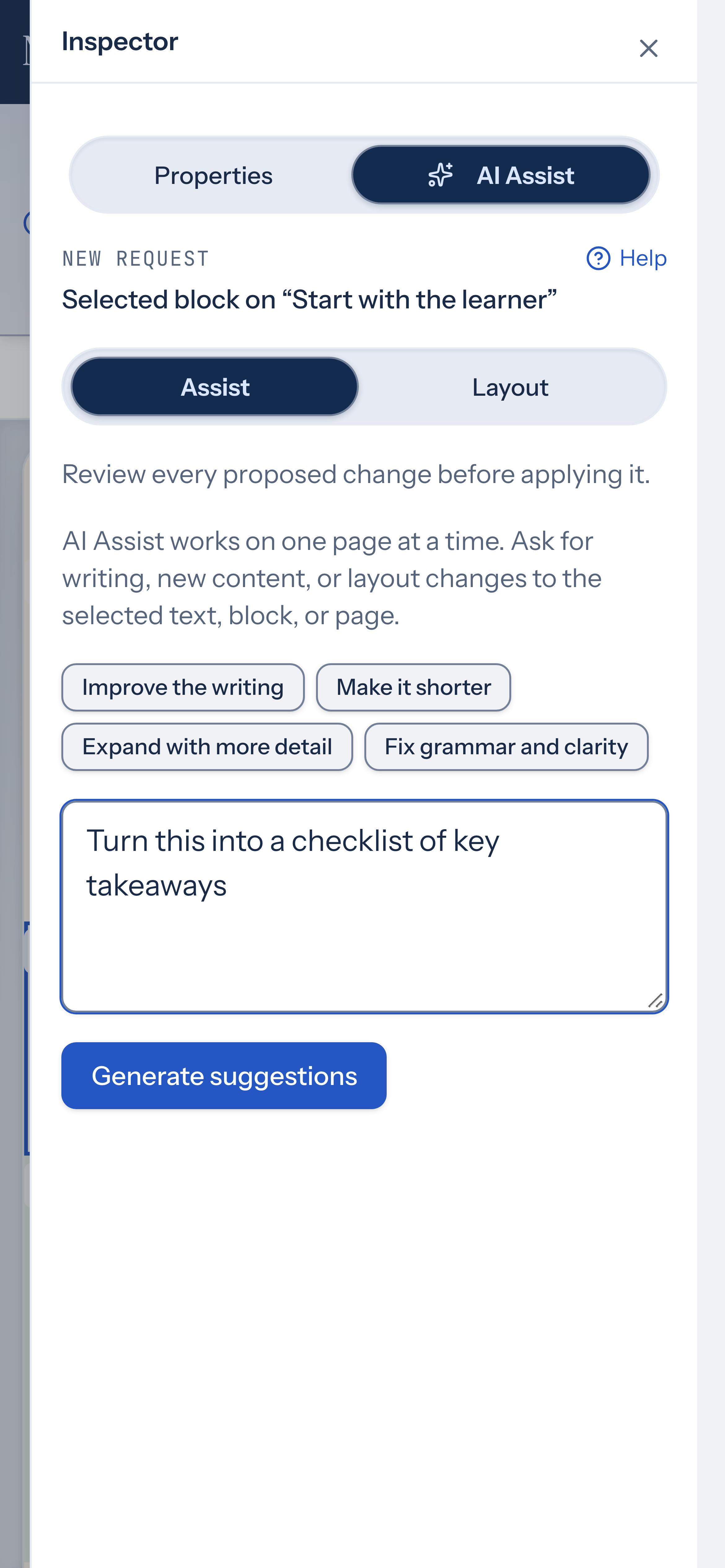
Section titled “Choose a scope”AI Assist works on one content page at a time. It can focus on selected text, a selected block, or the current page; it doesn’t edit the cover or other pages in the request.
- Select a block or page, then open the toolbar AI control or the inspector’s AI Assist tab. Both use the same workflow.
- Check the scope shown in the panel, then give a precise instruction, such as “Make this introduction shorter while retaining its learning objective.”
- Choose Generate suggestions to submit your instruction. Shortcut actions submit their request directly.
- Read the summary and proposed changes. Choose Apply to apply them or Discard to leave them out.
Suggestions aren’t saved to the course until you apply them. Check the result for accuracy and fit before continuing. Applied changes appear with an AI Assist label in Versions and undo as one grouped change.
Page actions include improving writing, reordering blocks, making headings consistent, adding a knowledge check, and fixing grammar and clarity. Selected-block actions also include shortening and expanding text.
Selected text
Section titled “Selected text”Select text on the canvas to open the AI Assist popup above it. You can select with the mouse, by double-clicking a word, or with the keyboard (for example, Shift with the arrow keys).
- Choose Reword, Shorten, or Expand, or choose More… for other actions and your own instruction in Ask AI to change it….
- Compare the Original with the suggestion. You can edit the suggestion before using it.
- Choose Use to replace the selected text, or Discard to leave it unchanged. An applied change undoes with Ctrl/Cmd+Z.
If the text changed while the assistant worked, Assist asks you to select it again and retry instead of applying the old suggestion.
The popup closes when you press Esc, choose the × (Close AI Assist), click outside it, collapse the selection, start typing, or choose Use or Discard. After you dismiss it, it stays closed for that selection; select the text again to reopen it. Esc and × return focus to the text.
With text selected, the AI panel also shows Selected text actions, including Ask AI… for your own instruction. Press Esc or choose Close selected-text actions to close them.
To stop the popup from appearing, choose Turn off AI Assist on selection on the popup. To turn it back on, open Preferences and turn on AI Assist pop-up on text selection. For text, callout, and quote blocks, the same actions are also available in the inspector.
When writing assessments, use the supported question controls to request wrong-answer suggestions. Review those options for plausibility and accuracy before using them.
When the course changes
Section titled “When the course changes”AI Assist saves pending edits before requesting a suggestion. If saving fails or the course has a conflict, it shows Save your pending changes first, then try again. Resolve the save problem before requesting another suggestion.
If you edit while a request is running, the suggestion may become out of date. Save your work and request another suggestion rather than applying an old proposal over newer work.
AI respects the selected scope and locks. Review a lock intentionally if it needs to change; AI doesn’t bypass it.
Loading feedback indicates that the request is running. A loading message is not confirmation that changes were applied. The screenshot below uses an authored, illustrative suggestion; no paid model was used to capture it.
Review more than the wording. Check whether the suggestion preserves the intended task, stays consistent with your sources, and gives learners enough context to act. If it misses the purpose, revise the instruction or leave the suggestion out.
Expand a formatted before/after preview for proposed edits
Section titled “Expand a formatted before/after preview for proposed edits”Each proposed change in the review list shows a text-based before/after for every field. When a field’s text is unchanged but its formatting or structure differs, the review message tells you to open the formatted comparison below.
Choose Show formatted comparison under a proposed edit to expand a read-only, rendered preview of the block before and after the change. This lets you inspect formatting and structural differences visually. Choose Hide formatted comparison to collapse it again. The Locate button on each proposed change scrolls the canvas to the affected block.
For added or removed blocks, the formatted preview shows a placeholder instead of rendered content. For moved blocks, the formatted comparison is not available — use the text-based reading-order field to review the change.
The example below shows the comparison collapsed. Choose Show formatted comparison to reveal the rendered previews.
Add new blocks to a page with AI Assist
Section titled “Add new blocks to a page with AI Assist”AI Assist can append new content blocks to the current page. When the model proposes additions, each new block appears as a numbered “Add” entry in the review list with its fields shown for inspection. Choose Apply to insert the blocks or Discard to leave the page unchanged. Additions are scoped to the page you have open and are limited to a maximum of ten new blocks per request.
Apply or discard proposed AI changes
Section titled “Apply or discard proposed AI changes”When the assistant finishes, the review section shows a summary of the proposed changes, your original instruction, and a numbered list of each proposed edit with its before/after fields. Nothing is applied to your course until you choose an action.
If the course changed while the assistant worked, the panel shows a warning that the suggestions cannot be applied. Your edits are safe; discard the stale suggestions and request a new review.
Choose Apply to save the proposed changes to your course. The changes are committed as a labeled entry in version history and undo together in one step. A confirmation message appears with the undo shortcut. If the course changed since the suggestion was made, the apply is blocked and your edits are kept.
Choose Discard to dismiss the suggestions without modifying your content. A message confirms that your content is unchanged.
The Locate button on each proposed change scrolls the canvas to the affected block so you can inspect it in context before deciding.
Use AI Assist on quiz blocks
Section titled “Use AI Assist on quiz blocks”Select a quiz block on a content page, open AI Assist, and describe the wording change you need. For example, ask it to use a customer-service scenario in a matching question. Review the proposed text before choosing Apply.
AI Assist can reword question prompts, explanations, matching items and answers, ordering items, passage text, incorrect blank options, and hints. It preserves the question structure, IDs, settings, and correct-answer links. Check that the new wording still asks the intended question and that the answer relationships still make sense.