Learning Studio / features
View and edit section properties
Select a page in the outline to edit its title or hide it from learners.
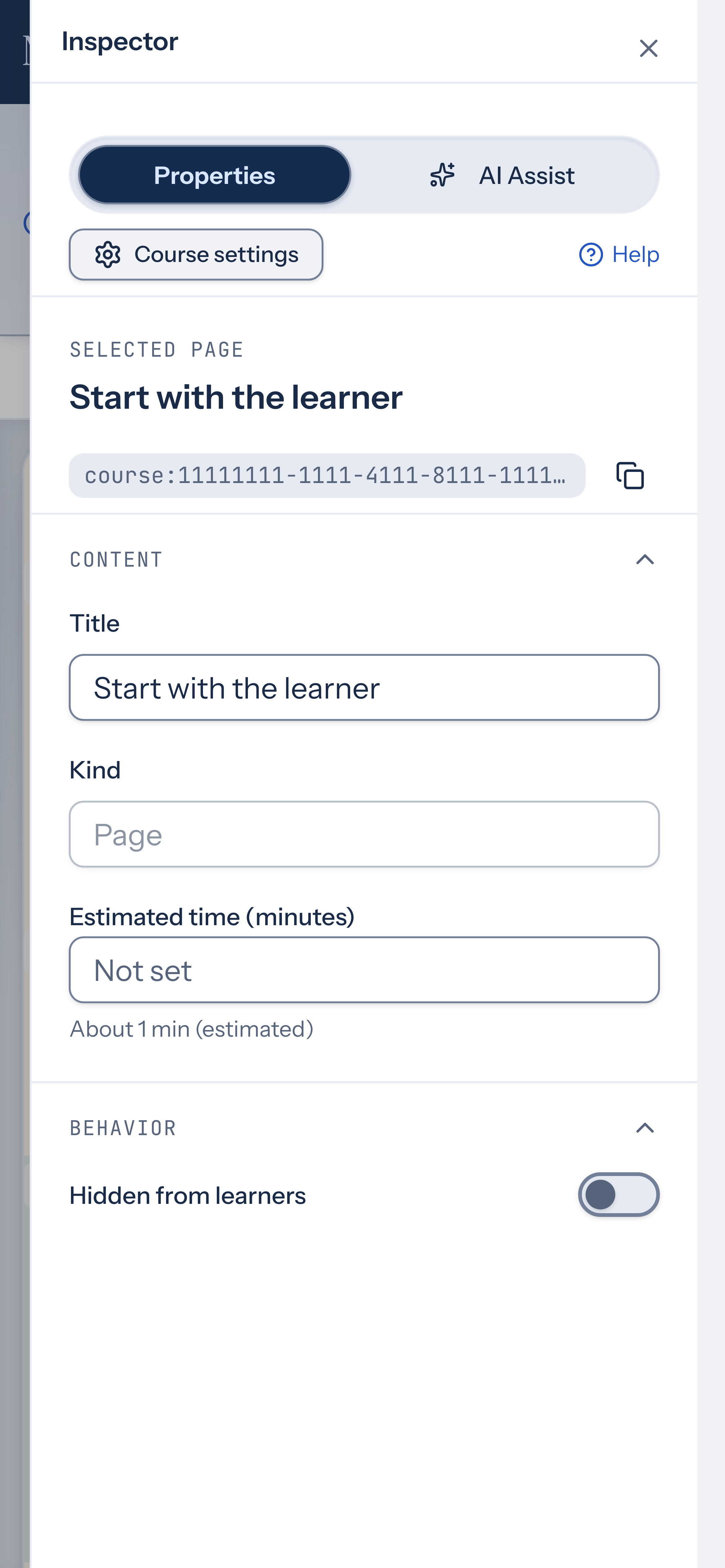
Edit section properties for a selected page
Section titled “Edit section properties for a selected page”When you select a page in the outline, the inspector shows its section properties. You can rename the page, hide it from learners, or set an estimated completion time. The page kind (Page, Cover, Chapter, or Quiz) is display-only.
How to use it
Section titled “How to use it”- In the outline, select the page you want to edit.
- In the inspector, edit the Title field to rename the page.
- To hide the page from learners, toggle Hidden from learners.
- For Page and Quiz sections, use Estimated time (minutes) to set or clear an author estimate of learner time on this page.
When a page is hidden, learners skip it in preview and navigation. Hiding a section hides its whole subtree, including child pages, in preview, review, published courses and packages. You can also hide a page from its outline row menu using Hide from learners.
If the selected page is a quiz page, add a quiz block to it. With in-order navigation, learners must pass every scored quiz on a quiz page before they can continue.
Availability and limits
Section titled “Availability and limits”Section properties are available for any selected page in the outline. The Kind field is read-only — you set the kind when creating the page, and it cannot be changed from the inspector. The Title field accepts up to 200 characters. Estimated time (minutes) accepts a whole number from 1 to 600.