Learning Studio / features
Embed self-contained HTML in a sandboxed frame
Use an embed block with custom HTML, CSS, and JS instead of a URL, with an optional fixed frame height.
Configure embed blocks
Section titled “Configure embed blocks”Use an embed block to show external content on a page — for example a YouTube video, a map, or a form. You can either paste an https:// URL or supply your own self-contained HTML, CSS, and JavaScript.
Add an embed block
Section titled “Add an embed block”- Select a page in the outline, then choose Insert block and add an Embed block.
- In the inspector, choose how you want the embed to work:
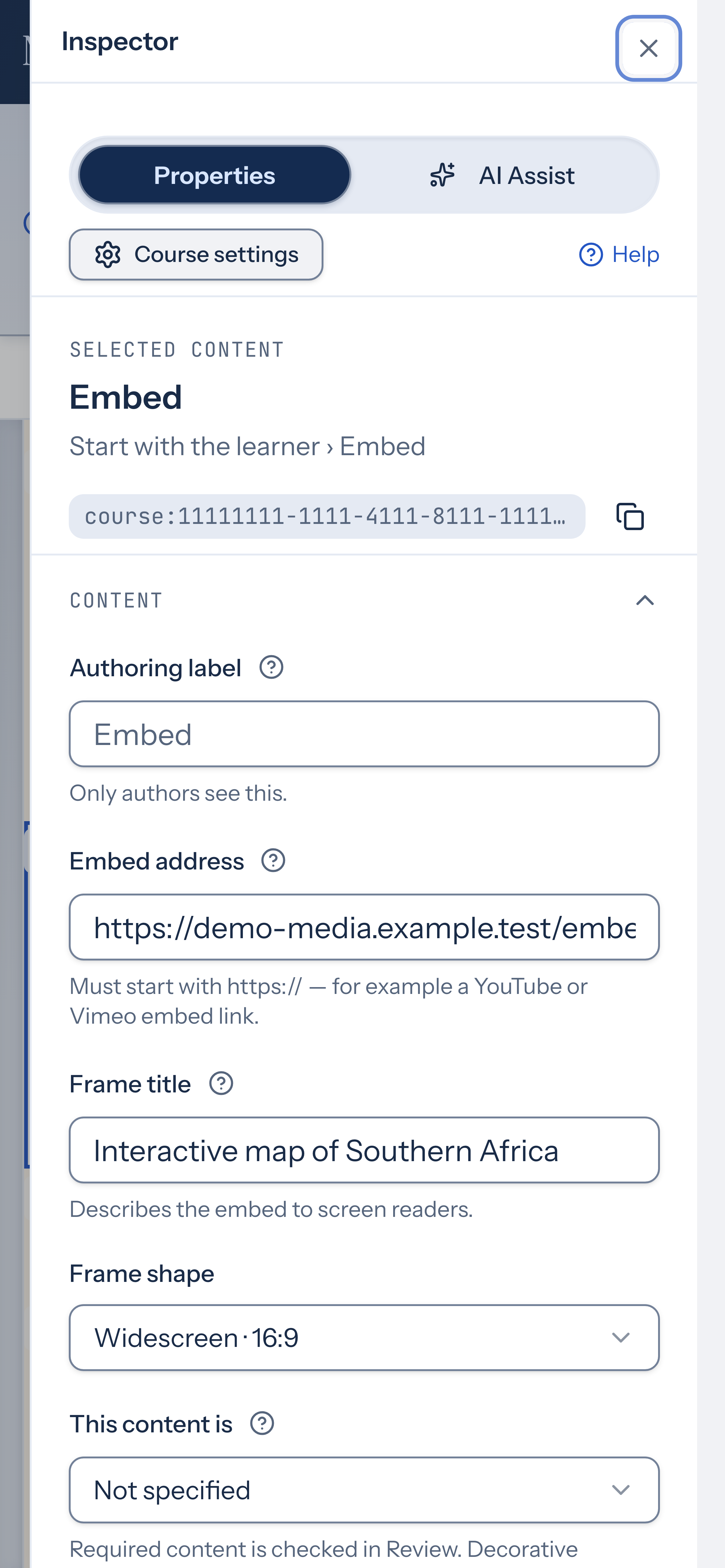
- Embed address — paste an
https://link to the content you want to show, such as a YouTube or Vimeo embed link. - Embed code — paste self-contained HTML, CSS, or JS. The code runs inside an isolated frame with no access to the rest of the app.
- Embed address — paste an
- Give the embed a Frame title so screen readers can describe it to learners.
- For a URL embed, choose a Frame shape (widescreen, classic, or square). For custom HTML, set a fixed Height (px) between 40 and 4000 if you want to override the default shape.
Open Preview to confirm the embed displays the way learners will see it.
Availability and limits
Section titled “Availability and limits”- URL embeds must start with
https://. Addresses that don’t won’t save. - Custom HTML embeds are capped at 120,000 characters.
- An embed block uses either an address or custom code, not both.
- When you set a fixed height, it replaces the aspect-ratio shape.
- Embeds never block learner progress. If you mark an embed as Required for learners, Review checks that it has an address or code.
Enable a managed HTML component
Section titled “Enable a managed HTML component”If you need more control over a custom HTML embed, choose Enable managed component in the block’s properties. This upgrades the block with an Apply source button so you can edit and save code separately, an option to fit the frame height to your content automatically, and an Interact mode on the canvas for testing scripts. Use a managed HTML component explains the controls and limits.
The managed component supports inline CSS and classic scripts only. External stylesheets, script modules, forms, and nested frames are not supported. Ordinary embeds remain available without conversion.