Learning Studio / ai
Plan before you build
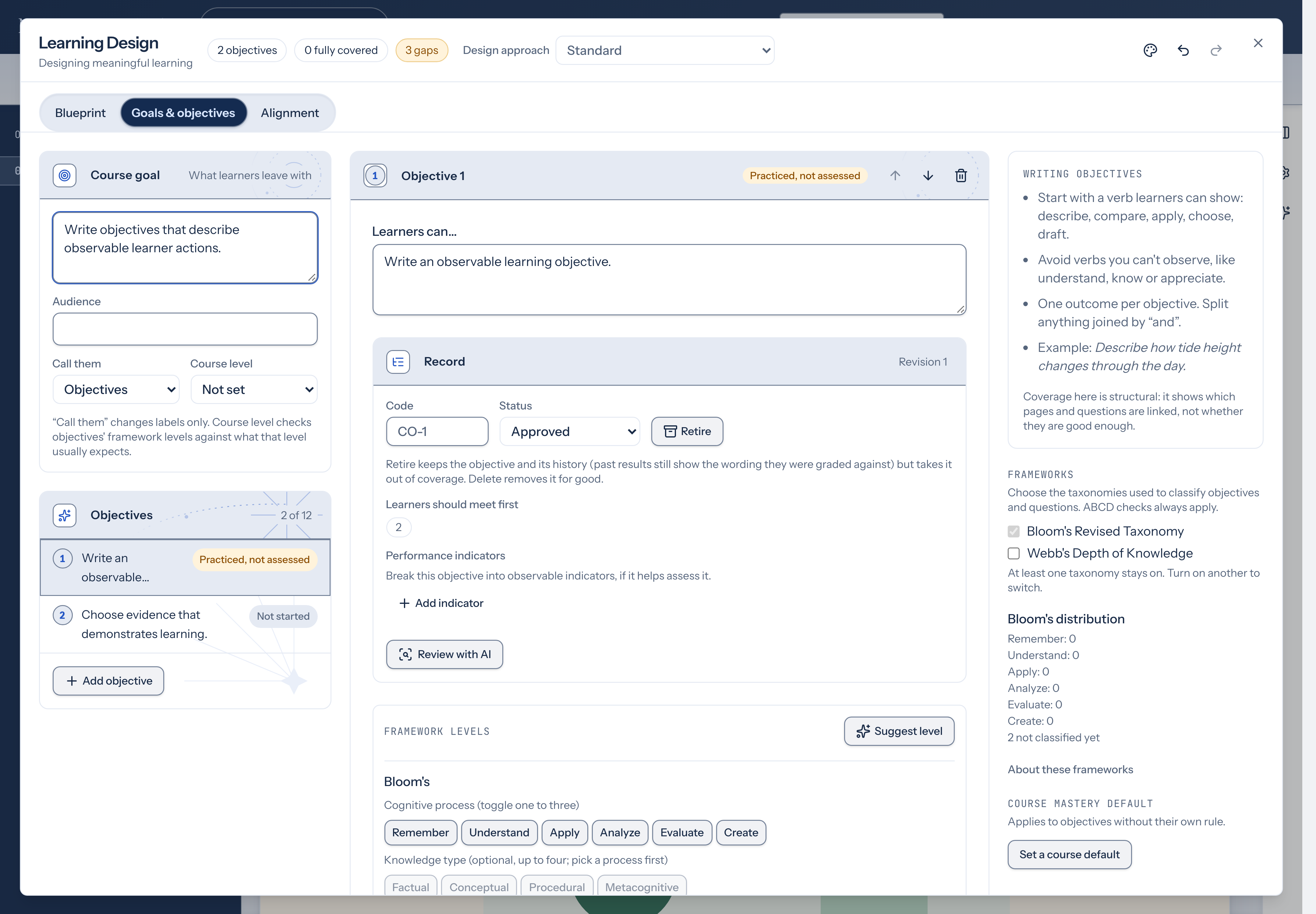
Review the audience, objectives, and page sequence before creating pages.
A blueprint helps you plan the audience, objectives, and page sequence before building the course. Start with what learners need to do and what would demonstrate it. Then review whether the proposed pages prepare them for that task.
For example, “handle a customer complaint” needs more detail than a list of topics. Identify the decisions learners should make, the situations they will encounter, and the practice that will help them prepare. Bring that context into your brief.
The course goal for planning lives in the blueprint brief and on the Goals & objectives tab, not in the course Description field on the cover page. Editing Course goal in Goals starts a blueprint when none exists yet; the description stays as it is.
Start a new course from a blueprint
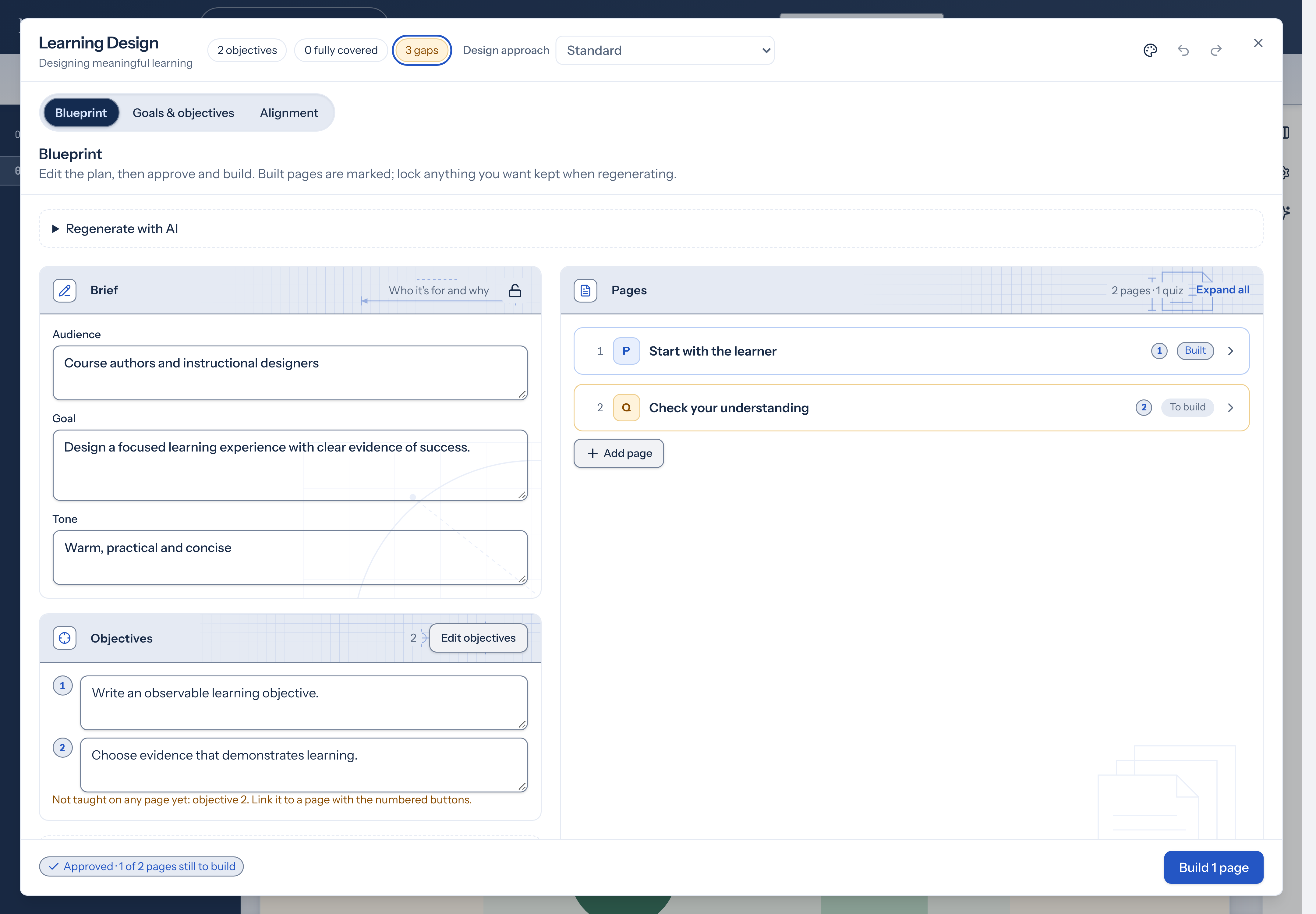
Section titled “Start a new course from a blueprint”On Studio home, choose Create course, select Plan with a blueprint, then Create and open. The course opens in Learning Design on the Blueprint tab so you can plan goals, objectives and pages before you build.
Work with a blueprint
Section titled “Work with a blueprint”The blueprint is a tab in the Learning Design workspace.
- Open Learning Design → Blueprint.
- Under What is this course about?, describe the audience, goal, and topics. You can paste notes or an outline.
- Choose a Length: Short (4–5 pages), Medium (6–8 pages), or Long (9–12 pages).
- Choose Plan course to ask for a suggested plan, or Start manually (no AI) to build the plan yourself.
- Review the suggested plan, then choose Use plan or Discard.
- Refine the brief, objectives, and pages. Lock anything you want to keep when you regenerate.
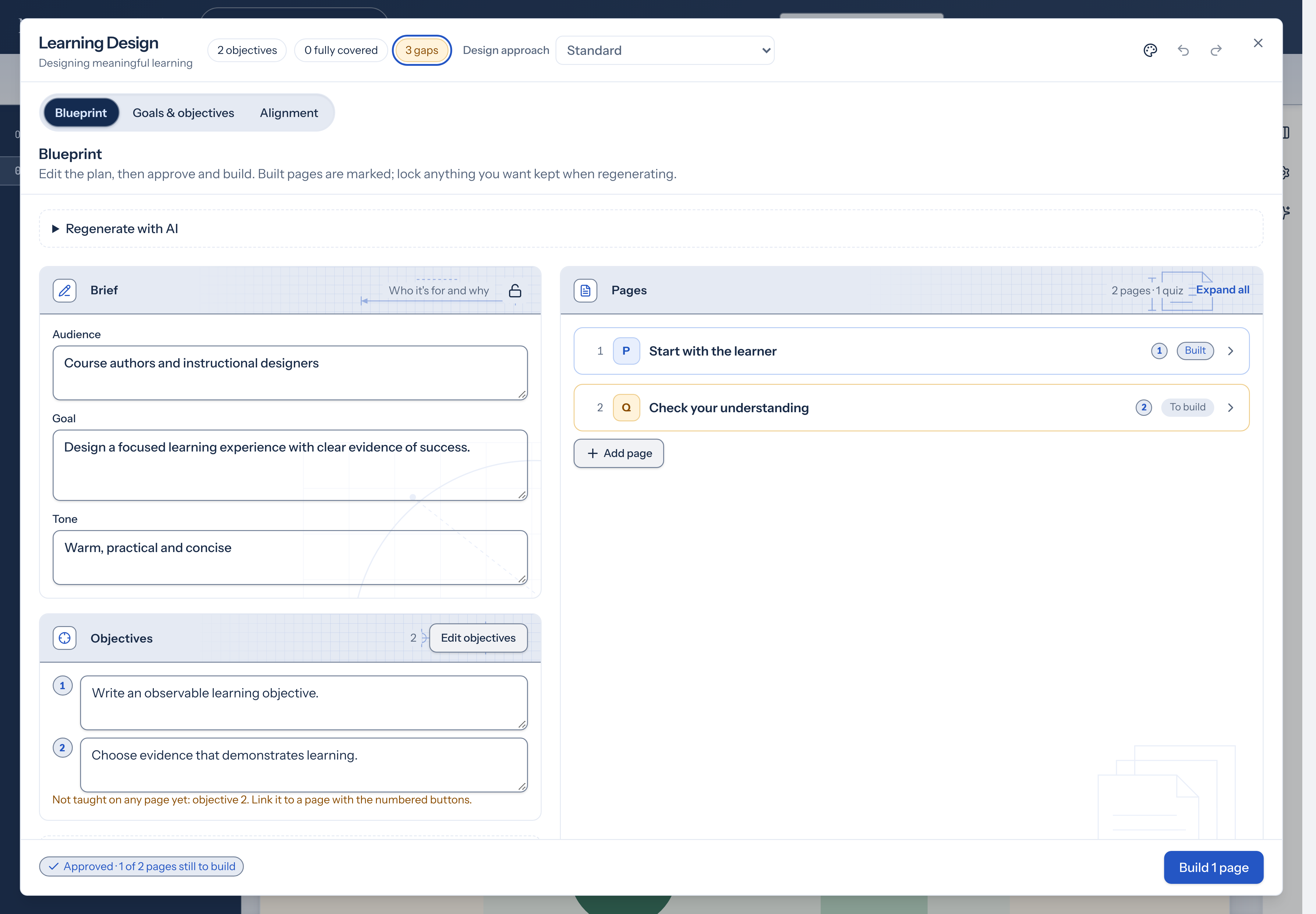
- Choose Approve and build to approve the plan and build its unbuilt pages, or Approve only to approve it now and build later.
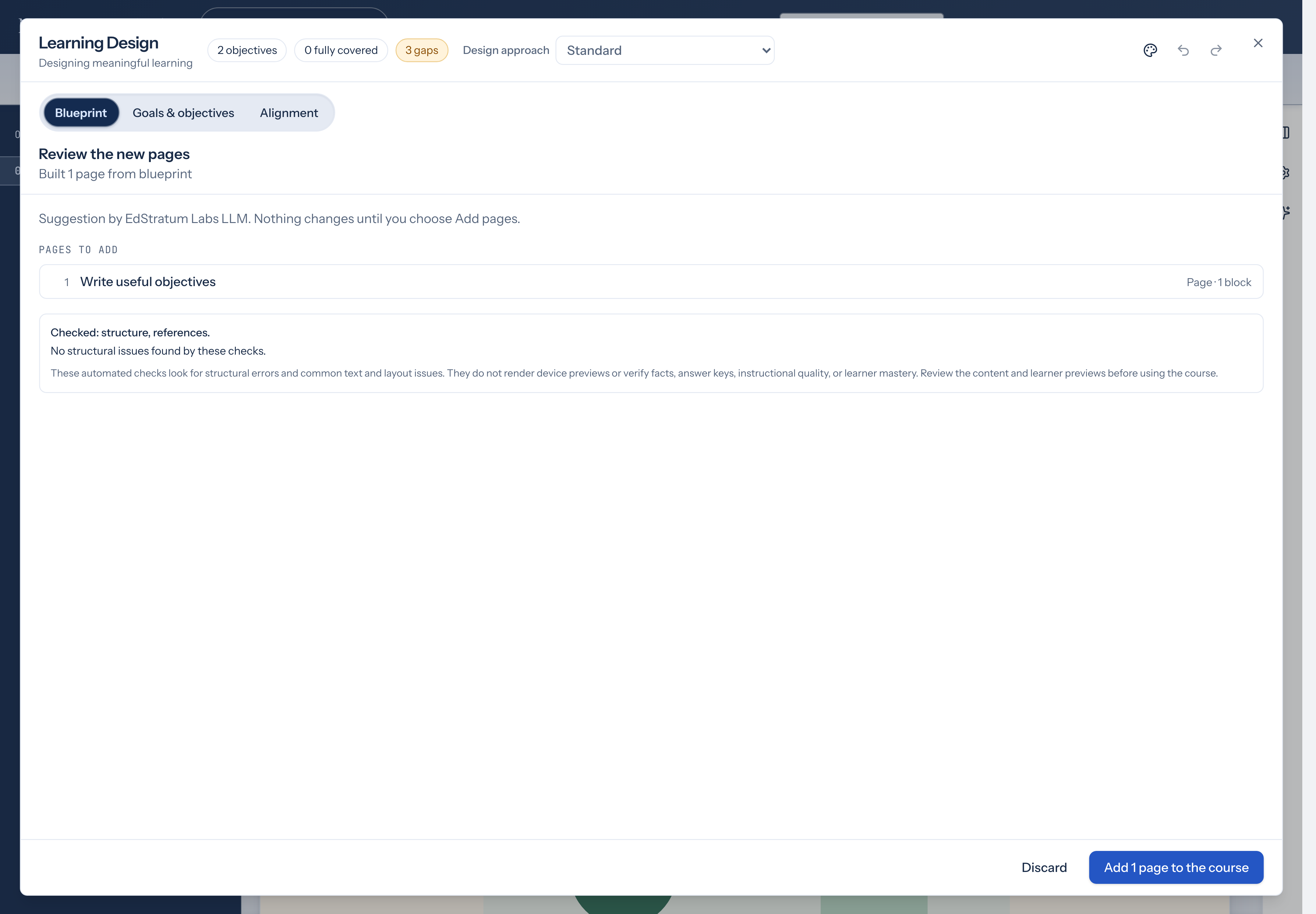
- Review the new pages and the check report, then choose Add pages to the course or Discard.
The footer shows whether the plan is a Draft plan or Approved, and how many pages are still to build.
A blueprint supports up to 16 pages in total, including cover and quiz pages. Page titles are limited to 120 characters and key points to 300 characters each, with up to 8 key points per page. The brief fields (audience, goal, tone) and page purpose each allow up to 600 characters.
Check the result
Section titled “Check the result”Building checks the generated draft and allows one repair round. Read any issues that remain, then review whether the content fits your learners and objectives. A successful build doesn’t establish instructional quality.
Planning and building need your pending changes saved first. If you’ve edited the course since requesting a suggestion, request a fresh one; an older suggestion may no longer fit your work. Use Alignment to check connections between objectives, pages, and questions.
Review a generated course blueprint
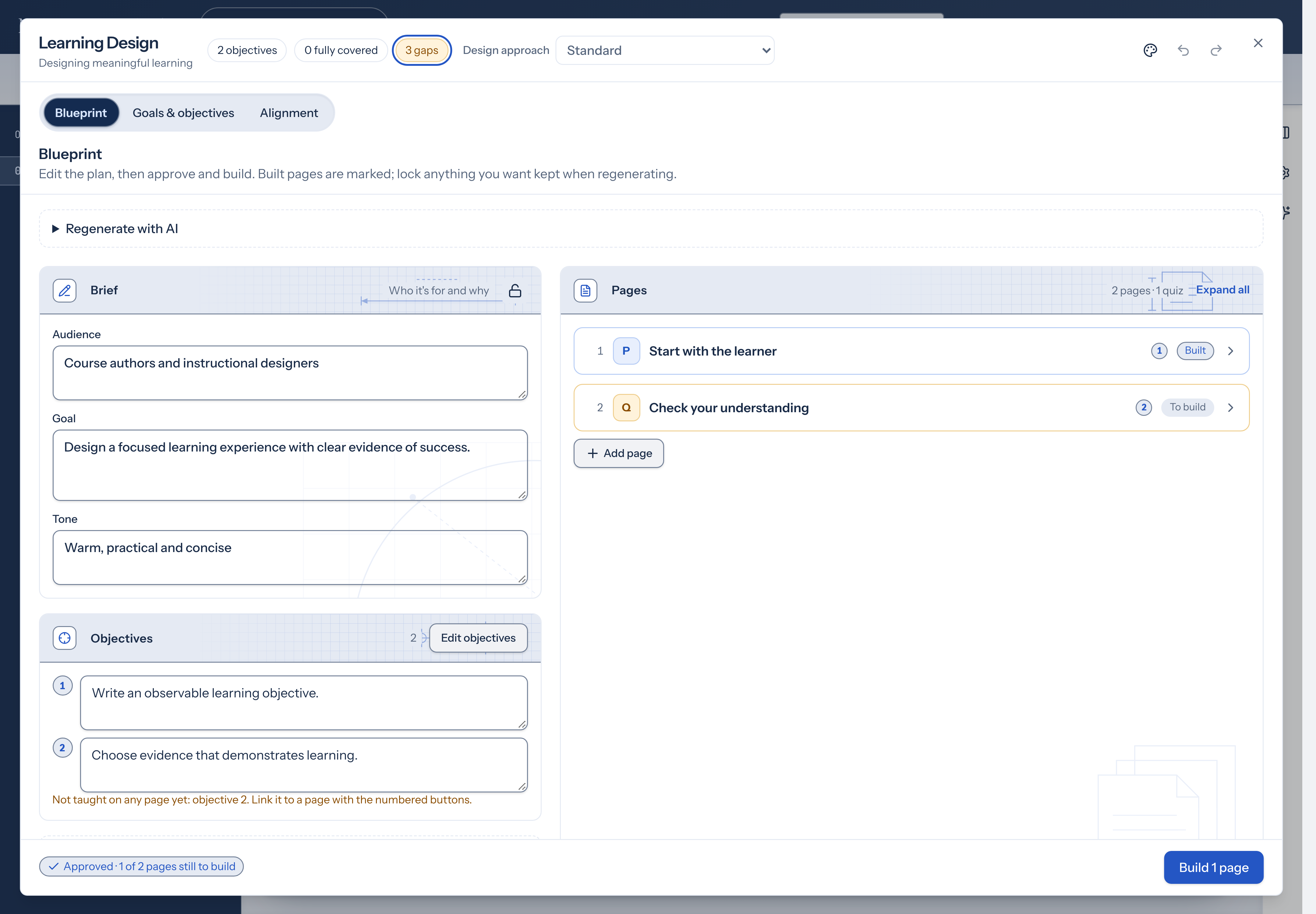
Section titled “Review a generated course blueprint”When you plan or regenerate, the tab shows Review the plan with a summary and the Planned pages. The suggestion changes nothing in the course until you choose Use plan. Discard leaves the existing plan unchanged.
The cover welcomes learners with a short scenario hook, not a list of objectives, and the studio removes a redundant welcome or introduction page without key points when one appears right after the cover in a suggested plan.
Before you choose Use plan on a regeneration, read the Blueprint changes summary when it appears. It can list Added objectives, Removed objectives, renamed objectives, Removed blueprint pages, and built pages or questions whose objective links would be affected. While approved objectives are still fixed, the regeneration keeps every objective and its wording.
- Read the summary to see what the suggestion covers.
- Check the page list for titles and kinds (cover, page, or quiz).
- Choose Use plan to apply it, or Discard to reject it. If the course changed since the suggestion was made, your edits are kept and you’re asked to try again. An applied plan is one grouped edit; undo with Ctrl/Cmd+Z.
Edit and lock blueprint brief fields
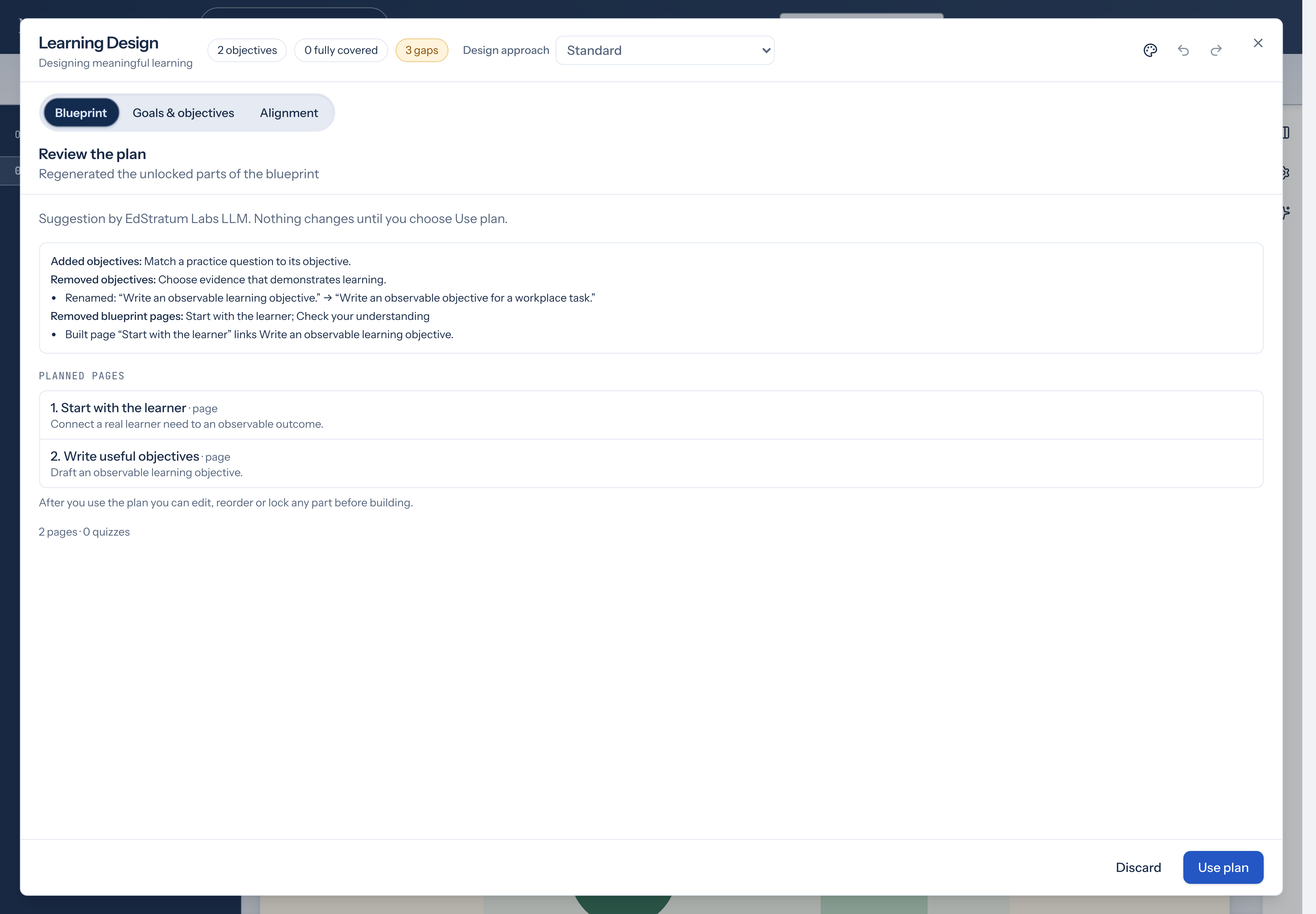
Section titled “Edit and lock blueprint brief fields”After a blueprint exists, you can refine the Audience, Goal, and Tone in the Brief section. The single brief lock keeps all three fields together when you regenerate; there are no individual field locks.
- In Brief, edit the audience, goal, or tone.
- Use the lock button beside Brief to keep the brief during regeneration.
Building keeps the course’s current appearance.
To regenerate, open Regenerate with AI, optionally add new notes or a changed brief, and choose Regenerate unlocked parts. Locked parts are kept. Choosing Use plan saves that regeneration as a Draft plan, even when the plan was Approved, so approve it again before you build. Objectives that were fixed stay fixed.
Set planning requirements
Section titled “Set planning requirements”Open Planning requirements to check the constraints saved with the plan:
- Page count → Total pages includes cover, content, and quiz pages. Content pages counts only pages whose kind is Page. Set Count, or choose None to clear the count requirement.
- Quiz intent → Require final quiz requires the last page to have kind Quiz. Naming an ordinary page “Final quiz” does not meet this requirement. Quiz-free allows no quiz pages; Unrestricted leaves that choice open.
Your brief can set these requirements. For example, “five pages total including cover and final quiz” means five pages altogether; “five lessons” means five content pages. Use explicit wording, then check the saved controls. The total limit is still 16: a request for 15 content pages plus a cover and quiz cannot fit. Adjust the plan or its requirements before approving or building; NXGen reports a mismatch instead of treating the page title as proof.
Length guides planning when the brief does not specify a count. Regeneration keeps an existing quiz-free requirement unless you explicitly change the quiz intent. You can also adjust or clear requirements directly in the plan.
The Objectives section lists the course objectives. You can edit an objective’s wording there; it is saved when you leave the field. Choose Edit objectives to open the same list on the Goals & objectives tab.
After you approve the plan, with Approve only or Approve and build, those objectives stay fixed when you regenerate. Unlock objectives is shown while that is true. It keeps the plan Approved and lets the next regeneration change the objectives. Editing an objective’s wording on this tab, then leaving the field, does the same. Undo restores the previous wording and the fixed objectives together. Editing that wording on Goals & objectives does not release it.
Manage blueprint pages
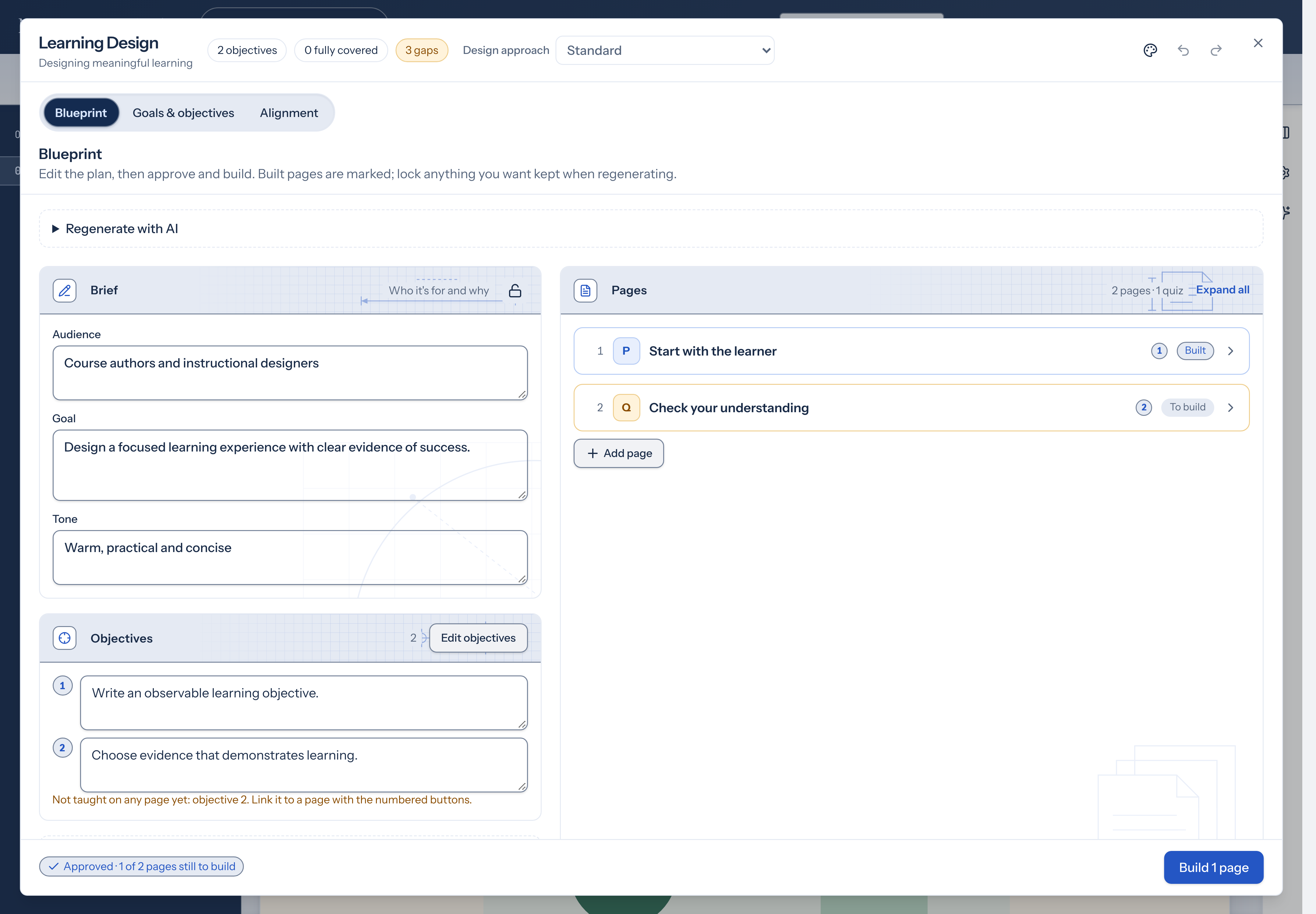
Section titled “Manage blueprint pages”You can add, delete, and reorder pages, and edit each page’s kind, title, purpose, key points, and linked objectives. Lock individual pages to preserve them during regeneration. Built pages are marked Built.
- In Pages, choose a page’s kind: Cover, Page, or Quiz.
- Edit the page title (up to 120 characters).
- Write a purpose and add key points, one per line.
- Toggle the objective buttons to link the page to course objectives.
- Use the move up and move down buttons to reorder pages, or the remove button to take a page out of the plan.
- Choose Add page to add a page (disabled when the plan already has 16 pages).
- Use a page’s lock button to keep it during regeneration.
Connect planned pages to evidence
Section titled “Connect planned pages to evidence”With backward design on, Prepares for links a planned page to evidence it helps learners prepare for. Task page for identifies a page that will contain the evidence task itself. These links serve different purposes: teaching a skill does not mean that page contains the assessment or performance task.
If evidence already has a Built as link, change that mapping in the Evidence or Practice & evidence tab. After building, inspect the linked page and confirm the actual task is there.
Approve your blueprint and build pages
Section titled “Approve your blueprint and build pages”- Choose Approve and build (or Build if the plan is already approved). The button shows how many pages it will build.
- While the pages are written and checked, you can close the workspace; the result waits for you, and a notice offers Review when it’s ready.
- Under Review the new pages, read Pages to add and the Checks report. The report lists what was checked, how many problems were found and fixed, and any that remain. If the build replaces the empty starter page, the tab says so.
- Choose Add pages to the course to apply the build, or Discard to reject it. The editor tries to save a version checkpoint first, and the applied build is one grouped edit you can undo with Ctrl/Cmd+Z. The canvas then opens the first new page.
How built quizzes follow the outline
Section titled “How built quizzes follow the outline”The pages in Review the new pages already follow the outline.
A Quiz page stays a scored quiz (Scored quiz — counts as assessment). The build asks for the question types named in that page’s purpose and key points. The AI can write Single choice (also “multiple choice”), Multiple answers (also “select all that apply” or “multiple response”), True or false, Short answer, Numeric, Matching (four to six pairs), Ordering, and Fill in the blanks. The build keeps at most 10 questions on a quiz. If the AI leaves one out, the studio asks it once to fix the draft. Anything still missing is listed in the Checks report and in Course review. Read the questions before you rely on them.
When the outline mentions partial credit, the built quiz turns Partial credit on in the quiz inspector (off means all or nothing on multi-answer, matching, ordering, and fill-in-the-blanks questions).
A quiz on a Page is a knowledge check. Type is Knowledge check — practice, never blocks, Check each question is on, and each question has one hint under Hints (optional). The hint uses that question’s Feedback after answering when it has any, shortened at a word boundary to 300 characters. Otherwise the hint is “Look back at the lesson and try once more.”
On a Quiz page or a knowledge check, Attempts allowed uses a number in that page’s purpose, key points, or drafted titles and question wording, from 1 to 20, such as “2 attempts” or “two attempts.” Zero, a number outside that range, or no mention leaves attempts unlimited. The field shows 0, which means unlimited.
A question that already has its own objective links keeps them. Otherwise it is linked to the objectives on its page. When the wording includes the full text of exactly one of those objectives, and that text is at least 8 characters, only that objective is linked. If not, every objective on the page is linked. A page with no objectives leaves the question unlinked.
A Cover keeps the quiz settings the draft wrote. Questions on it are still linked to that page’s objectives when the page has any.
Link planned evidence to objectives
Section titled “Link planned evidence to objectives”With backward design on, the learning plan may report evidence items that have no linked objectives. Choose Open evidence to link objectives, then select the objectives each item measures. This connects the evidence plan to the course results; it does not build an assessment page.